Slack Digests
Introduction
Slack Digests make it simple to keep your team informed about key survey insights directly in the Slack channels where your team is already collaborating. You can schedule digests to be delivered automatically on a daily, weekly, or monthly basis, giving your team a consistent view of core survey metrics and trends without having to open the Refiner dashboard. Each digest includes key performance indicators from your selected surveys, helping your team stay aligned and up to date with the latest feedback trends.
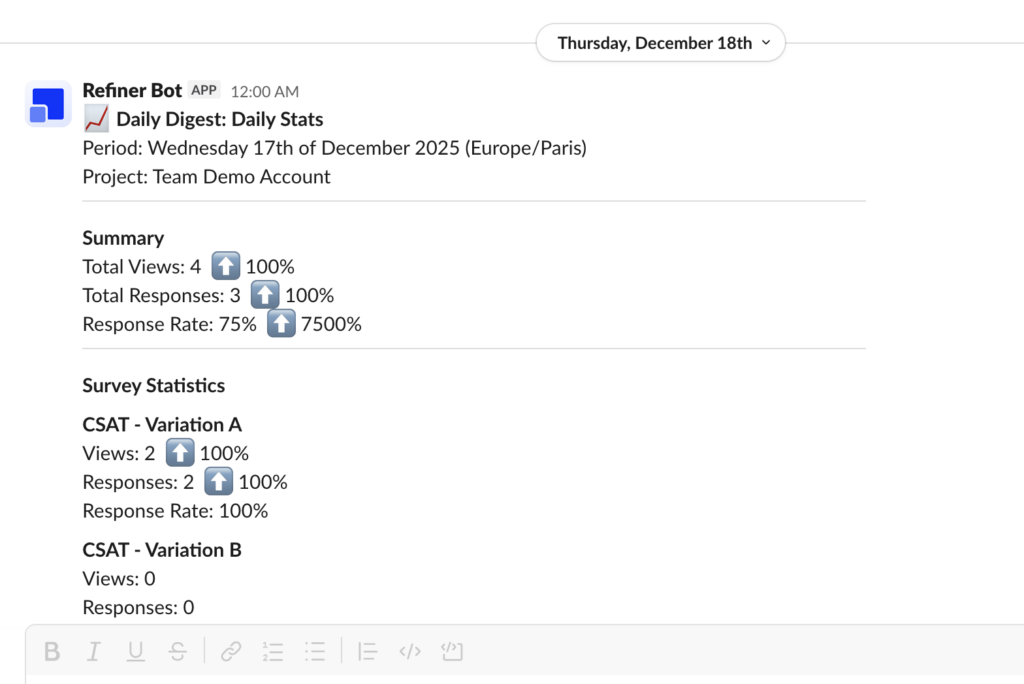
Create a New Slack Digest
To set up a Slack digest, navigate to the “Alerts & Digests > Scheduled Digests” section of your Refiner dashboard. Click on “Create digest”, choose “Slack Message”, and then click “Create digest” to begin.
On the next page, you’ll see a form where you configure your new Slack digest. Since you can set up multiple digests, we recommend giving each one a clear, descriptive name like “Weekly Survey Summary – Product Team” so it’s easy to identify its purpose.
Set Frequency and Timezone
Slack digests can be scheduled to send daily, weekly, or monthly at midnight in your chosen timezone:
- Daily digests include data from the current day, spanning midnight to midnight.
- Weekly digests cover the past seven days; you can choose the specific day of the week to receive the digest.
- Monthly digests are delivered on the last day of the month and include data from the entire calendar month.
Choose Surveys
By default, core metrics from all surveys in your workspace are included in the digest. You can also select specific surveys to include if you want Slack digests for particular teams, products, or use cases.
Connect Slack account
Connect your Slack account by clicking on “Connect Slack Account”. You’ll be redirected to Slack where you need to grant permission to our application.
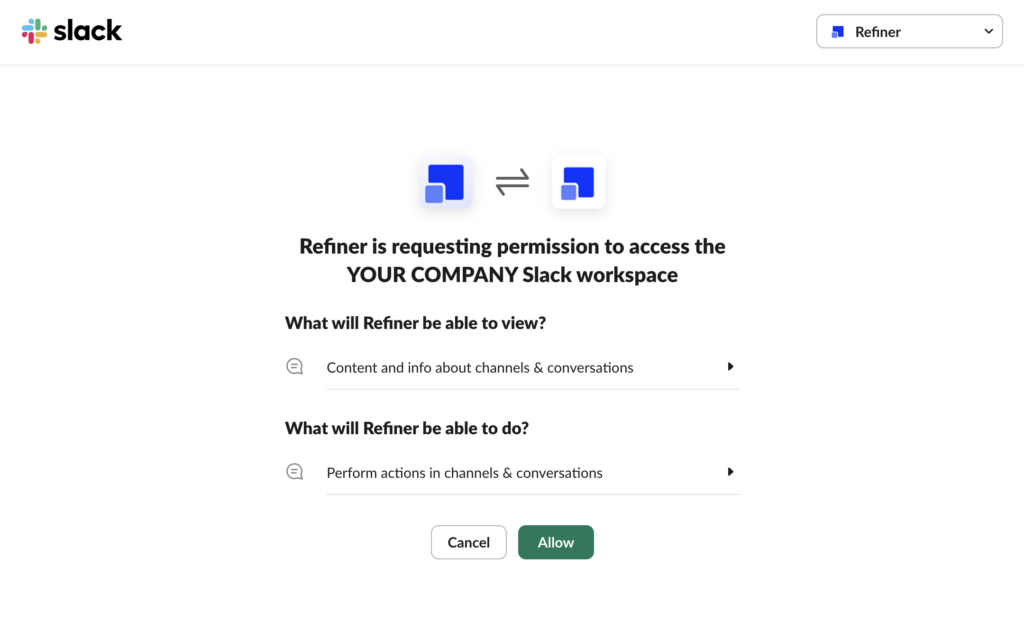
Select Slack Channel
Choose the Slack channel where you want the digest to be posted. Ensure that the Refiner Slack app has access to the selected channel so the message can be delivered successfully.
Send a Test and Save
Before saving your digest, click “Send test” to confirm the message appears as expected in your Slack channel. Once you’re satisfied, save your Slack digest configuration and we will begin posting scheduled survey summaries to the selected channel.