
Distribution Trend Chart
Introduction
Section titled “Introduction”The Distribution Trend Chart shows how the distribution of survey responses changes over time.
Instead of reducing the data to a single metric, it displays each answer or response group as a colored area across a timeline. This makes it easy to see how the composition of your responses evolves and identify which results are driving a change.
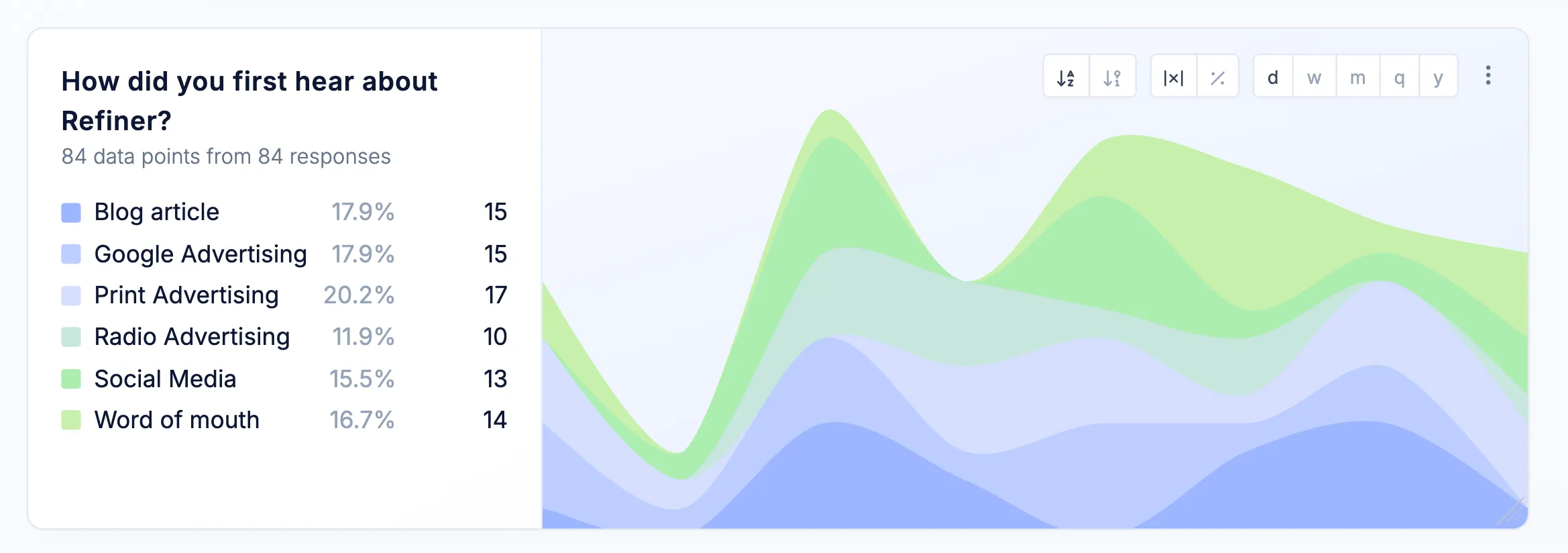
Chart layout
Section titled “Chart layout”The Distribution Trend Chart is divided into two sections.
Distribution legend
Section titled “Distribution legend”The left side of the chart displays a color-coded legend containing all results included in the chart.
For each result, the legend shows:
- The answer or response group
- Its percentage of all occurrences
- Its total number of occurrences
The colors used in the legend correspond to the colored areas in the timeline.
Timeline chart
Section titled “Timeline chart”The right side displays an area chart showing how the distribution changes over time.
Each colored area represents an answer or response group. The size of the area reflects either its total number of occurrences or its percentage share during each time period, depending on the selected timeline display option.
Hover over any point in the timeline to display a tooltip with the exact values for that time period. The tooltip provides a detailed breakdown of the counts represented in the chart.
Choose data source
Section titled “Choose data source”Like other dashboard charts, a Distribution Trend Chart is not limited to a single survey or question.
In the chart settings, you can select one or more questions from one or more surveys. Responses from all selected questions are combined when calculating the overall distribution and displaying trends over time.
The chart supports response data from virtually all question types, except Open Text questions.
This allows you to create charts that:
- Show response trends across several surveys
- Focus on a specific survey or customer touchpoint
- Combine equivalent questions used in different campaigns
- Compare surveys or audiences using multiple charts
For the clearest results, combine questions that use comparable answer options or scales.
Chart options
Section titled “Chart options”Enter a name for the chart. The name appears as the chart headline and should help users understand at a glance what the chart displays.
Use a specific, descriptive name, especially when your dashboard contains multiple charts with different data sources, audiences, or filters.
Description
Section titled “Description”Add an optional description to provide additional context about the chart. The description appears as a tooltip when users hover over the information icon next to the chart name.
You can use it to communicate important information to your team, such as:
- Where the data comes from
- Which audience or filters are applied
- The purpose of the chart
- How the results should be interpreted
Default order
Section titled “Default order”Choose how results are ordered in the legend:
- Alphabetical – Results are sorted alphabetically by their label.
- Count – Results are sorted by their total number of occurrences.
Top results only
Section titled “Top results only”Enable Top results only to limit the chart to the most frequently occurring results.
This is particularly useful for questions with many possible answers, where displaying every result would make the chart difficult to read. Less frequent results are excluded from both the legend and the timeline.
Timeline display
Section titled “Timeline display”Choose how values are represented in the timeline:
- Total count – Shows the number of occurrences for each result during every time period.
- Percentage – Shows each result as a percentage of all responses submitted during that period.
Use total counts to understand response volume. Use percentages to compare the distribution across periods with different numbers of responses.
Timeline grouping
Section titled “Timeline grouping”Choose the time interval used to group responses:
- Day
- Week
- Month
- Quarter
- Year
A shorter interval provides more detail, while a longer interval creates a smoother view of long-term trends.
Overwrite data filters
Section titled “Overwrite data filters”By default, the chart uses the filters applied to the dashboard.
You can overwrite these filters for an individual chart to analyze a more specific subset of responses. This allows you to apply different filters to multiple Distribution Trend Charts on the same dashboard and compare surveys, audiences, or tagged responses side by side. Learn more about chart filters.
Adjust size and position
Section titled “Adjust size and position”The Distribution Trend Chart can be freely resized and repositioned on your dashboard.
Increasing the chart width gives the timeline more horizontal space and makes changes between individual periods easier to inspect. Increasing its height makes charts containing many results easier to read.
Best practices
Section titled “Best practices”- Use the Percentage timeline display when comparing periods with significantly different response volumes. This prevents periods with more responses from appearing disproportionately important.
- Use Total count when response volume itself is relevant, such as when tracking the adoption of a feature or the number of users selecting a particular answer.
- Choose a timeline grouping that matches the amount of available data. Daily grouping works best for high response volumes, while monthly or quarterly grouping is usually more appropriate for smaller datasets.
- Enable Top results only when a question contains many answer options. Limiting the chart to the most common results makes broader trends easier to identify.
- When comparing different audiences or surveys, create multiple charts and apply chart-level filters to each one. Keep the data source, timeline display, and grouping consistent to make the comparison meaningful.