Set up SAML SSO
Refiner supports authentication through SAML Single Sign-On. SAML SSO allows your organization to manage user access to Refiner through your Identity Provider, such as Okta, Microsoft Entra ID, Google Workspace, OneLogin, or another SAML-compatible provider.
Setting up SAML SSO for Refiner is currently a manual process. It requires coordination between your Refiner account team and your organization’s Identity Provider administrator.
SAML SSO is included in Refiner Enterprise plans. For customers on Essentials and Growth plans, SAML SSO can be enabled for a one-time setup fee.
Once SAML SSO is enabled, your organization can control which users have access to Refiner directly from your Identity Provider. Authentication is handled by your Identity Provider, while Refiner receives the user information required to create and manage user accounts.
Step 1: Contact us
Contact the Refiner team and let us know that you would like to enable SAML SSO for your account.
We will prepare your Refiner account for SAML authentication and send you the Service Provider details required to configure Refiner in your Identity Provider.
This information includes:
- ACS URL
- Login URL
- Logout URL
- Metadata URL
- SLS URL
- Entity ID
Step 2: Add Refiner to Identity Provider
In your Identity Provider, add Refiner as a new SAML application.
Use the Service Provider information provided by the Refiner team to configure the application. If Refiner is not available as a preconfigured application in your Identity Provider, you can add it as a custom SAML application.
The exact setup process depends on your Identity Provider. In most cases, you will need to enter the ACS URL, Entity ID, and other SAML endpoints provided by Refiner.
Step 3: Send us your metadata
After creating the SAML application in your Identity Provider, your provider will generate a metadata XML file or a metadata URL.
Please send this metadata XML file or URL to the Refiner team. We need this information to complete the SAML SSO setup on our side.
The metadata usually includes:
- Email domain
- IdP Entity ID
- Login URL
- Logout URL
- Signing certificate
Once we receive this information, we will finalize the configuration for your account.
Step 4: Configure user attributes
Please make sure your Identity Provider sends the following user attributes to Refiner when authenticating users:
| Attribute | Required | Description |
|---|---|---|
| Yes | The user’s email address | |
| name | No | The user’s full name |
| first_name | No | The user’s first name |
| last_name | No | The user’s last name |
| role | No | The user’s role in Refiner |
The role attribute is optional. If no role is provided, new users will be assigned the Manager role by default. You can find a detailed description of user roles at Refiner here.
The following role values are supported:
- admin
- manager
- contributor
- analyst
Step 5: Check settings
Signing of Responses and Assertions
Refiner requires both SAML responses and assertions to be signed. Please make sure signing is enabled for both in your Identity Provider.
NameId Format
Refiner expects the NameID format to be set to:
urn:oasis:names:tc:SAML:2.0:nameid-format:persistent
This means Refiner expects a stable, persistent user identifier.
If your Identity Provider cannot use the persistent NameID format, Refiner can also support the email address NameID format:
urn:oasis:names:tc:SAML:1.1:nameid-format:emailAddress
Please let us know if you need to use the email address NameID format instead.
Step 6: Test authentication
Once the setup is complete, log out of your Refiner account and go to the Refiner login screen.
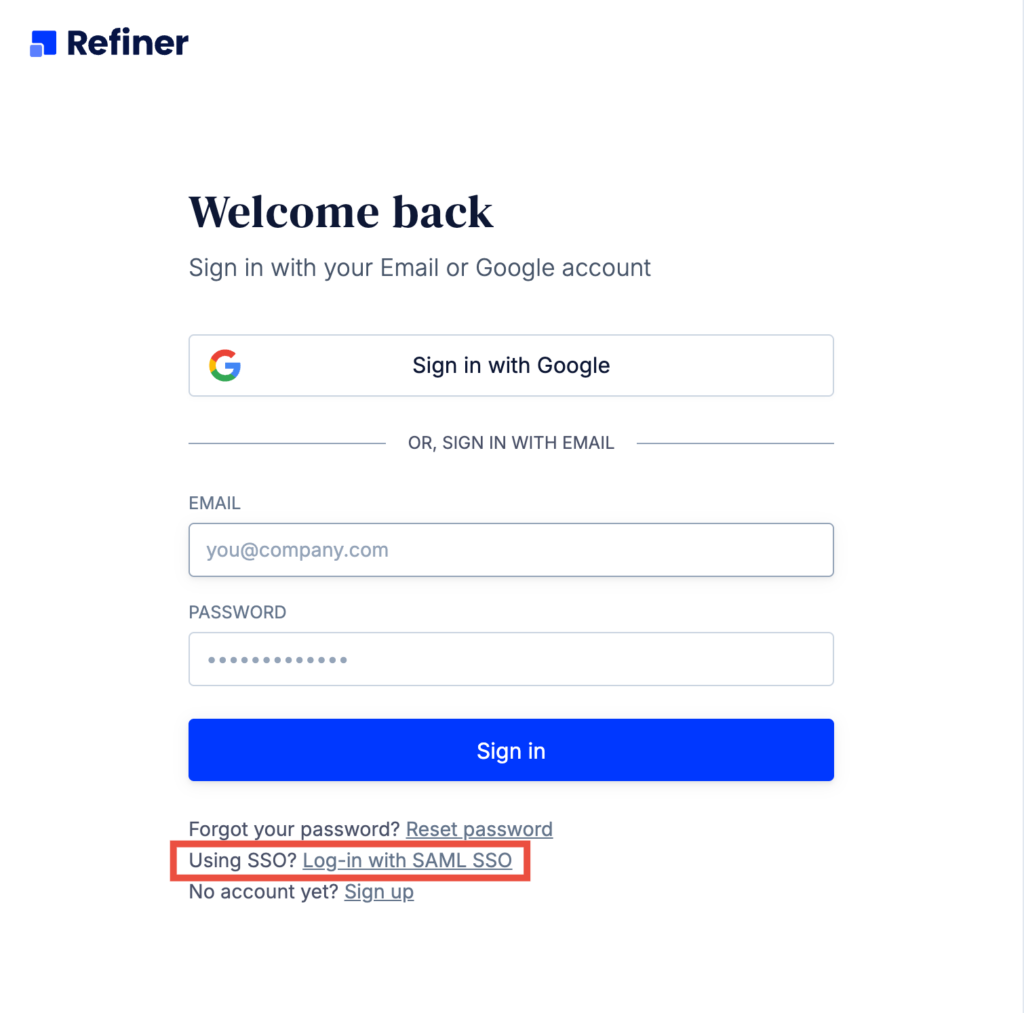
Choose Sign in with SSO and enter your email address. You should be redirected to your Identity Provider, where you can authenticate with your organization credentials.
After successful authentication, you will be redirected back to Refiner and should be logged in automatically.
We recommend testing the setup with one or two users before rolling it out to your entire organization.
Step 7: Enforce SSO
After you have confirmed that authentication via SSO is working correctly, let the Refiner team know.
We will then enforce SSO as the required authentication method for your account. From that moment on, users will no longer be able to log in to Refiner with email and password. All authentication will happen through your Identity Provider.