Survey Actions
Archive surveys
You can archive a survey to hide it from your Refiner dashboard without permanently deleting it.
To archive a survey, open the survey editor and click the three-dot action menu in the top bar. Then select Archive survey. The option is also available in the three-dot menu in the survey list.
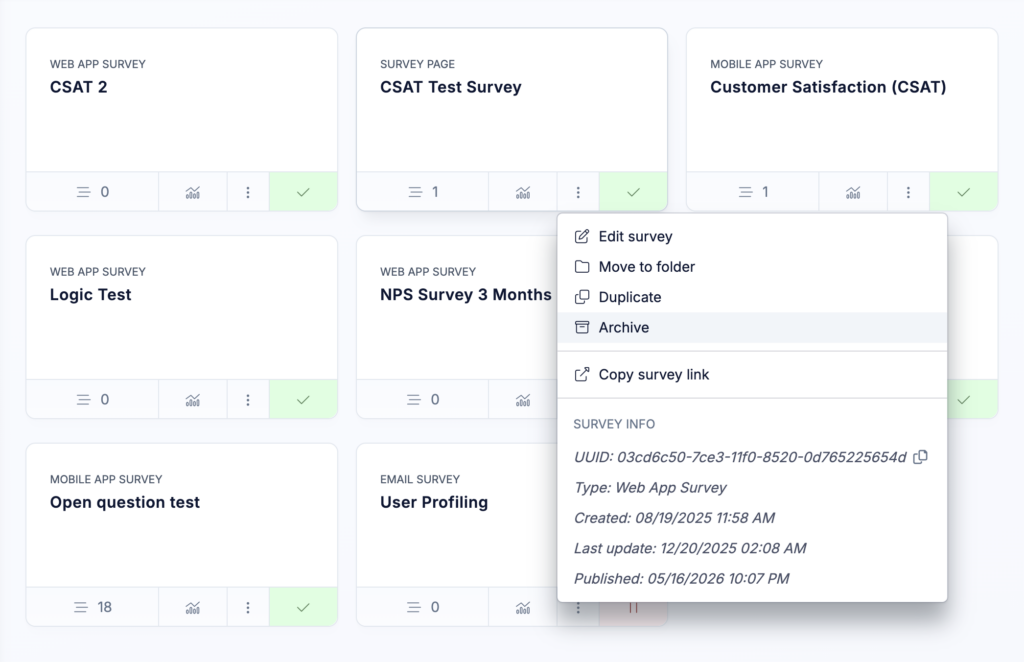
When a survey is archived, it is hidden from your main survey list. Its response data and survey views are also excluded from all statistics, response lists, dashboards, and exports.
You can find archived surveys by opening the Surveys list and enabling the Archived filter in the top section.
Archived surveys can be reactivated at any time. Reactivating a survey restores the survey and makes its responses and views available again in your stats, lists, dashboards, and exports.
Duplicate surveys
You can duplicate an existing survey to quickly create a copy with the same configuration.
To duplicate a survey, open the survey editor and click the three-dot action menu in the top bar. Then select Duplicate survey.
Duplicating a survey creates a copy with the same questions, design, delivery method, targeting settings, and other survey configuration. Response history is not copied, so the duplicated survey starts with no responses or survey views.
When duplicating a survey, you can choose whether to create the copy in the same environment or in a different environment.
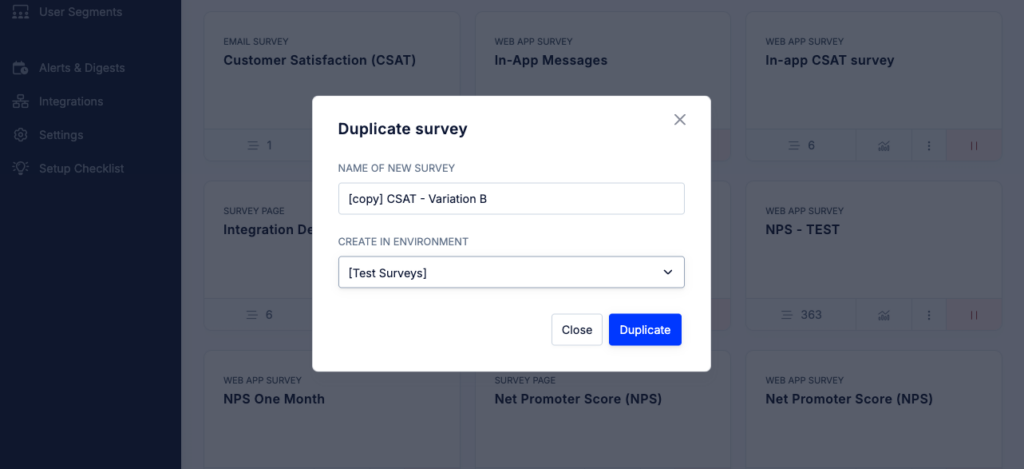
This is especially useful if you create and test surveys in a dedicated test environment and then want to copy the final version to your production environment.
Please note that environment-bound segments used in targeting options need to be reassigned when copying a survey to another environment. This is because segments are specific to each environment and cannot be transferred automatically.
Create sample responses
Before launching a survey, you can create test responses to explore how your results will look inside Refiner.
To generate test data, open the survey editor and click the three-dot action menu in the top bar. Then select Create test responses.
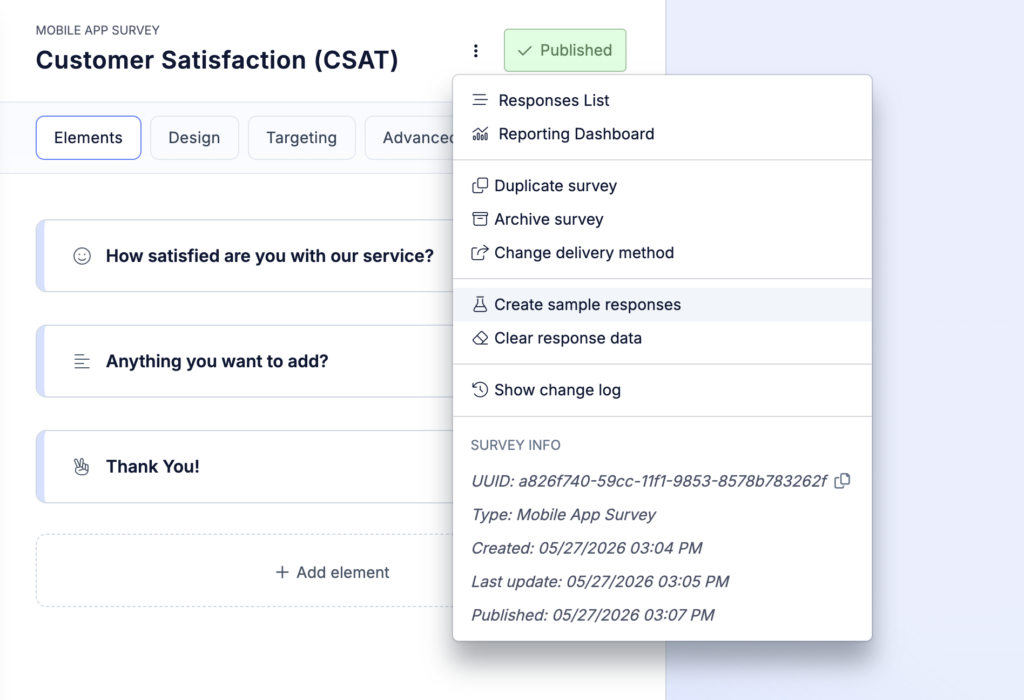
Refiner generates realistic-looking random responses based on the questions in your survey. The responses are spread across the last 30 days, with roughly 5 responses per day.
Test responses are useful when you want to:
- Preview dashboards and reports with sample data
- Test integrations before collecting real responses
- Understand how survey results will appear in Refiner
- Explore the platform before launching your first live survey
You can remove this data later by either using the Clear response data option.
This removes all survey responses and survey views for the selected survey. It is useful when you have been testing a survey and want to reset it before launching it to real users.
Alternatively, you can also purge test data from all your surveys in the environment settings under Environment Settings > Data Settings > Purge Test Data.
Change delivery method
You can change the delivery method of a survey from the top section of the survey editor by clicking Change delivery method.
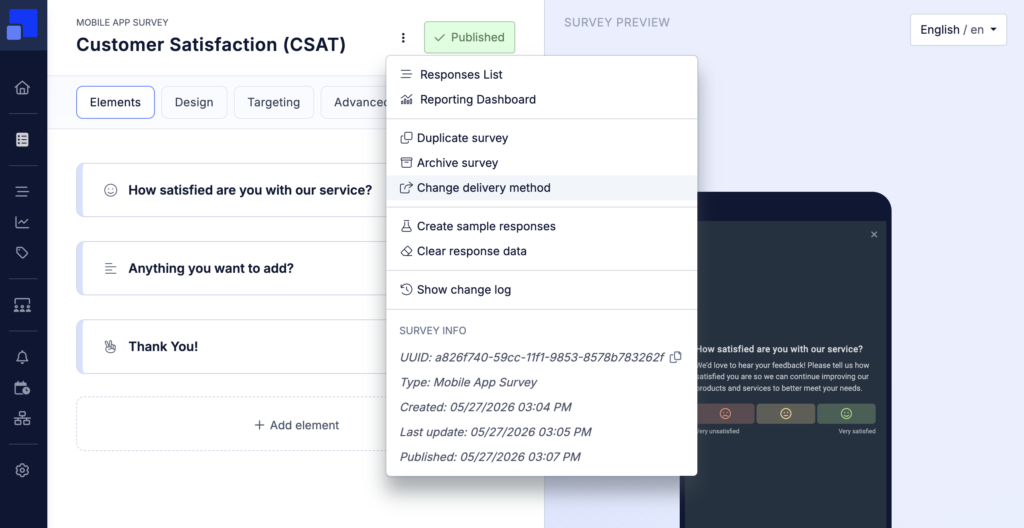
When changing the delivery method, your survey questions, question identifiers, and general survey settings remain intact. However, the available targeting and distribution options may change depending on the selected channel.
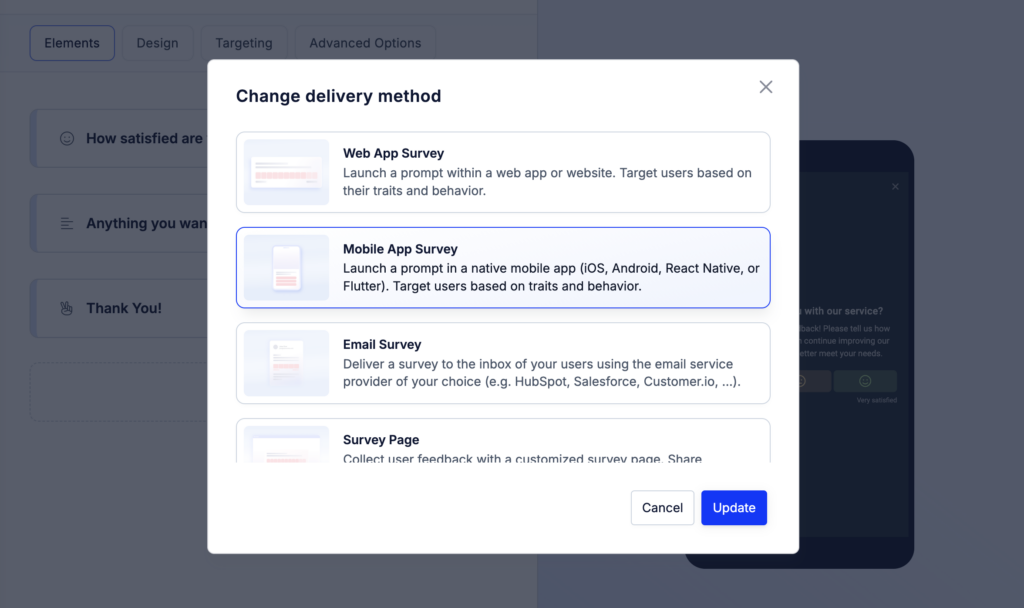
For example, a Web App survey and an Email Survey can use the same questions, but they are delivered and configured differently.
Changing the survey type is especially useful when you duplicate an existing survey and want to reuse it for another channel.
Show changelog
You can view a survey’s changelog to see what was changed, when it was changed, and which team member made the change.
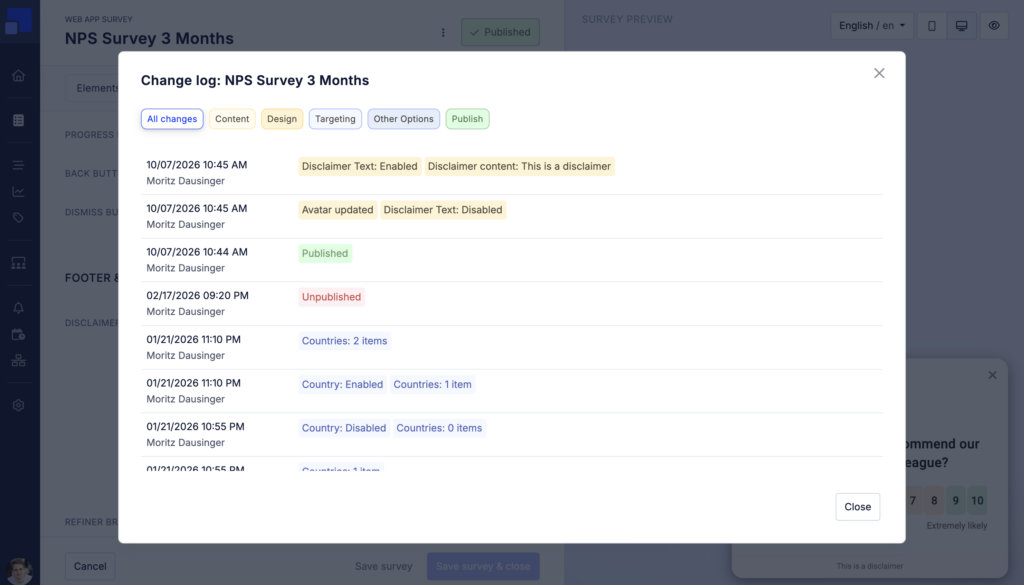
To view the changelog, open the survey editor and click the three-dot action menu in the top bar. Then select Show changelog.
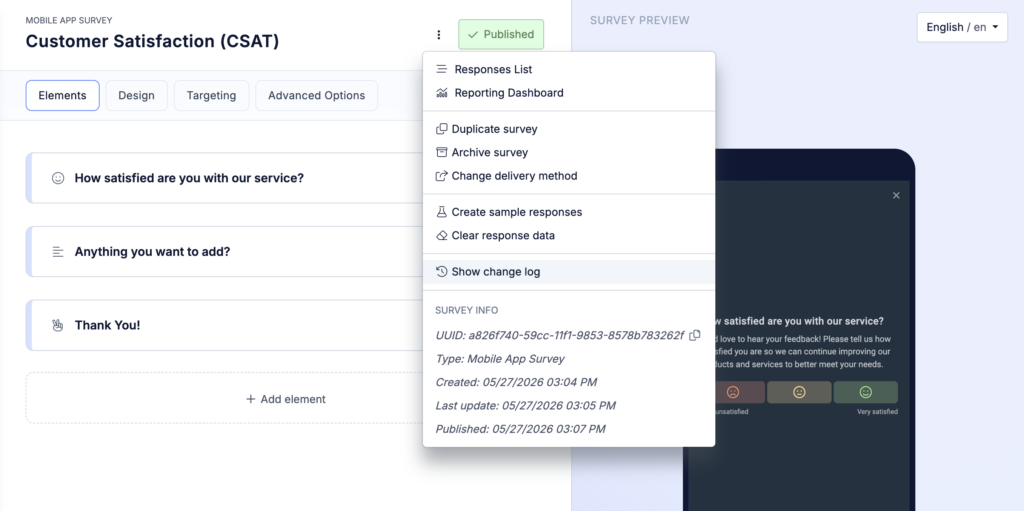
The changelog includes changes to survey content, design, targeting, and other options, as well as publishing and unpublishing events. You can view all changes or filter by category.
This history helps you review changes for audit purposes and understand how survey updates may have influenced response rates.