
Follow-Up Mode
Introduction
Section titled “Introduction”Follow-Up Mode increases response and completion rates for Web App and Mobile App surveys. When it is enabled, Refiner shows the survey again until the user reaches the goal you set.
Follow-Up Mode is built to collect one response from each user. Recurring Surveys collect several responses from the same user over a longer period, for example every 90 days.
Follow-up settings
Section titled “Follow-up settings”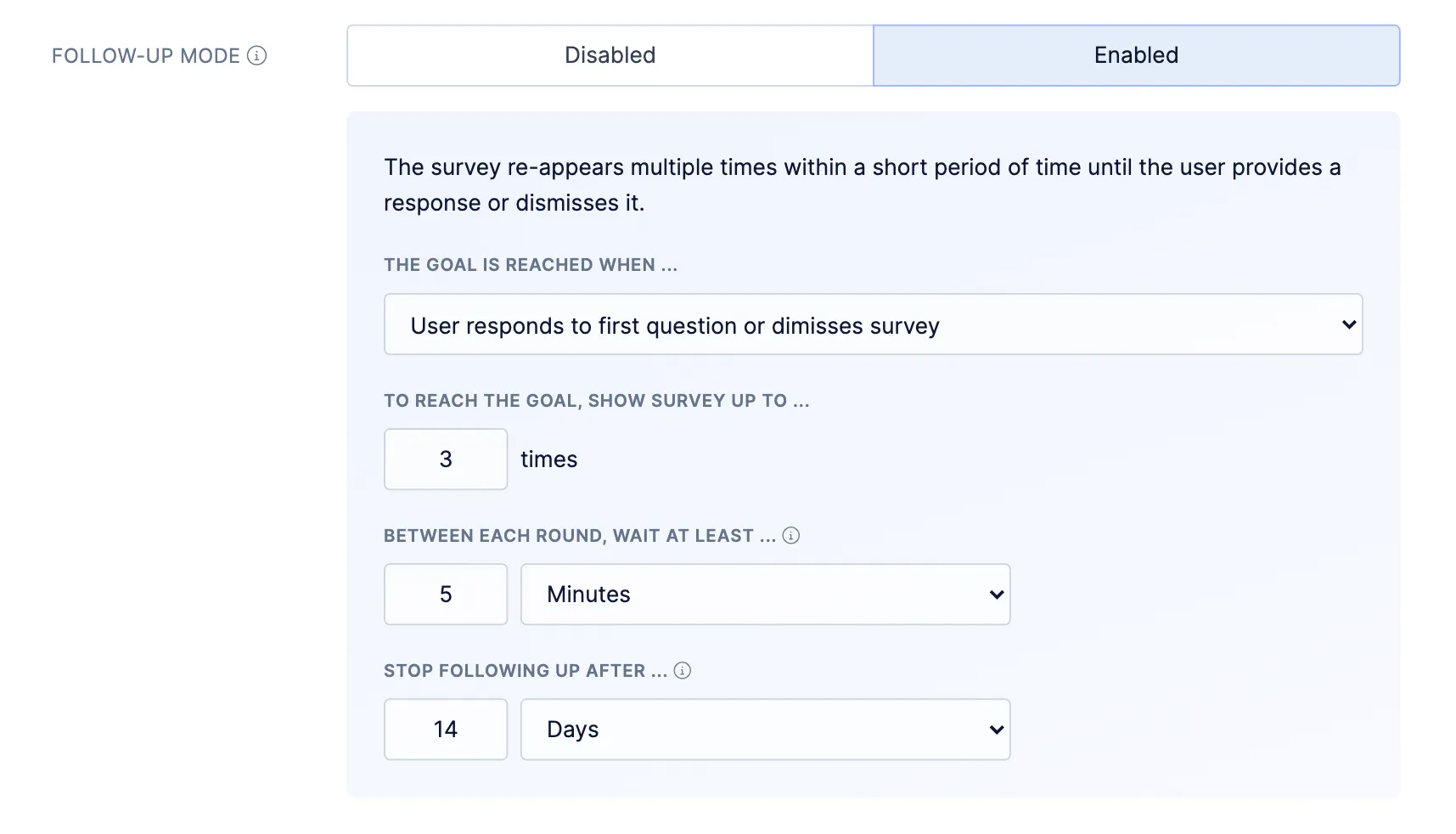
These settings control how often the survey comes back. Wait at least a couple of minutes between views so the survey stays useful without feeling intrusive. The right balance depends on your use case.
The goal is reached when … is the outcome that ends the sequence for that user. You can stop follow-up when:
- The user responds to the first question. A partial response is enough, which helps on surveys with several questions.
- The user completes the entire survey.
- The user responds to the first question or dismisses the survey.
Reaching the goal ends the sequence for that user.
Number of attempts
Section titled “Number of attempts”To reach the goal, show survey up to … is the maximum number of times the survey can appear. The sequence ends once that number of views is reached.
Wait between rounds
Section titled “Wait between rounds”Between each round, wait at least … is the minimum time between two views for the same user. Set a duration such as a number of minutes or hours.
Refiner counts that wait from the last time the user saw the survey. The date the survey was created or published has no effect on when the next view can appear.
Time window
Section titled “Time window”Stop following up after … ends the sequence after a set amount of time has passed.
Use a time window when people do not open your app often. It keeps later views from continuing long after the original trigger.
Where follow-ups appear
Section titled “Where follow-ups appear”A follow-up view can appear on any page or screen in your app. Use Location Constraints when later views should stay in specific places.
Attempts on a response
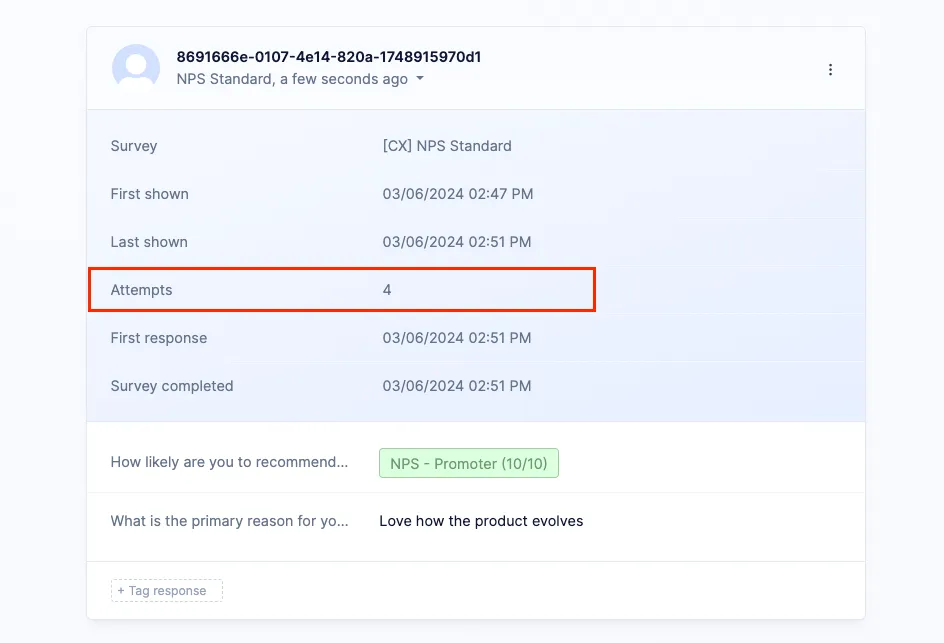
Section titled “Attempts on a response”The survey response records how many times the survey was shown. That count is the Attempts field in the response details.
Interaction with other options
Section titled “Interaction with other options”Throttling
Section titled “Throttling”When throttling is on, every follow-up attempt counts toward the throttling limits.
Recurring surveys
Section titled “Recurring surveys”Used with Recurring Surveys, each recurrence starts a new follow-up sequence. Each recurrence creates its own response, and that response gets its own follow-up attempts until the goal is reached or the sequence ends.
Target audience
Section titled “Target audience”Every view still requires a match with the Target Audience. When a user leaves the audience, later follow-up views stop.