
Batch Integration
Batch is a customer engagement platform for managing campaigns and customer journeys across email, mobile and web push, SMS, and in-app messages.
The Refiner integration lets you send Email Surveys through Batch and sync survey events and response data from Refiner to Batch. You can use these features independently or together.
Popular use cases
Section titled “Popular use cases”- Segment your audience by satisfaction scores, preferences, or needs collected through surveys.
- Follow up with dissatisfied customers or invite happy customers to join an advocacy program.
- Send an NPS or CSAT survey as part of a post-purchase or onboarding journey.
Sync survey data to Batch
Section titled “Sync survey data to Batch”The data integration sends survey interaction events and response data from Refiner to Batch. You can also update Batch profile attributes with survey answers and include contact data in the sync.
Set up the integration
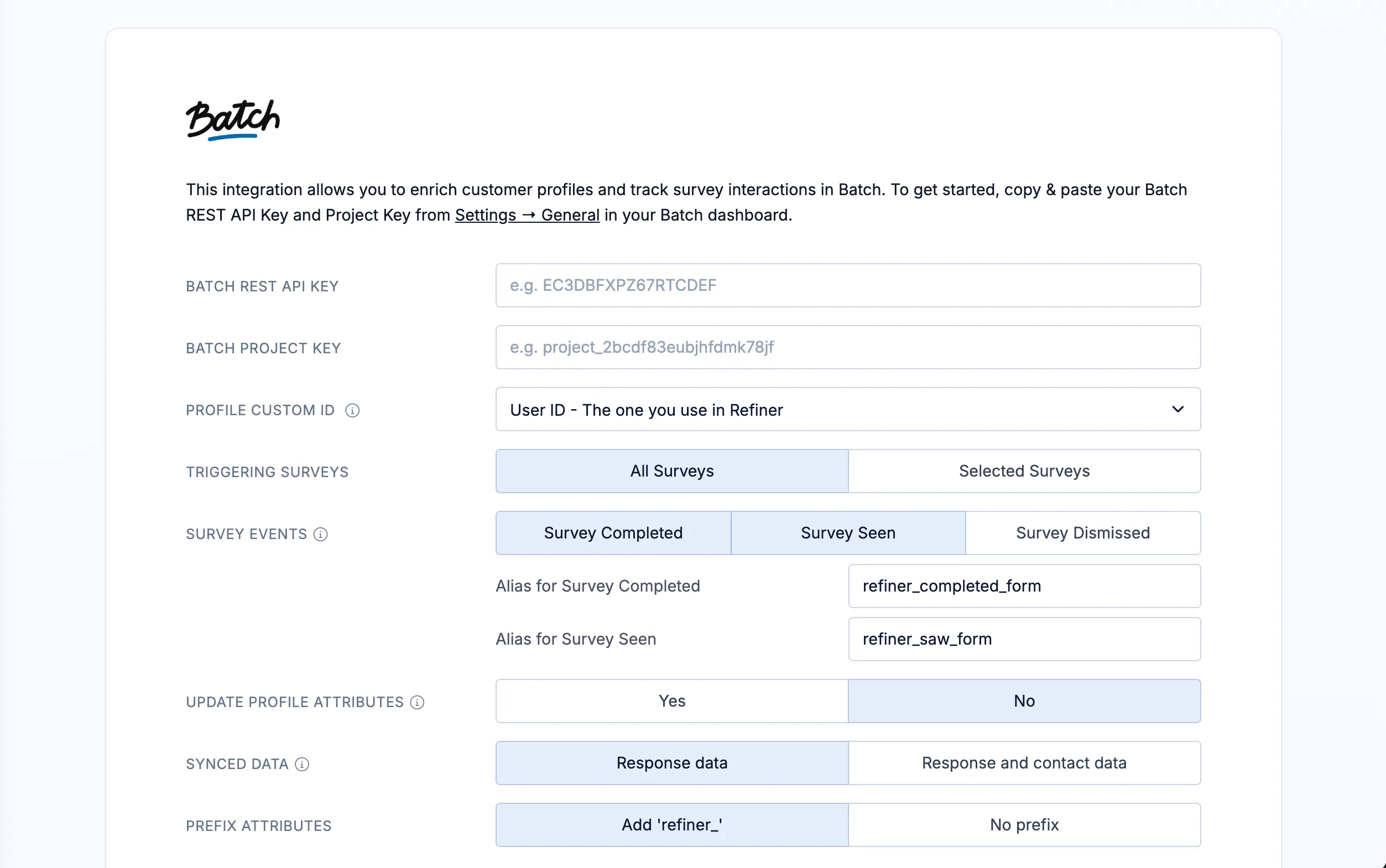
Section titled “Set up the integration”- In your Refiner environment, open Integrations and select Batch.
- Enter your Batch REST API Key and Batch Project Key. You can find both in Settings → General in your Batch dashboard. See Batch’s guide to project settings and API keys. Access to the REST API key requires Administrate rights in Batch.
- Choose the Refiner identifier that matches your Batch Profile Custom ID so that data is associated with the correct customer.
- Select the surveys and events you want to sync, and choose whether to update profile attributes with response data or response and contact data.
- Click Save Settings.
Survey activity is then sent to Batch according to your settings. Complete a survey for a test user and check the matching Batch profile to confirm that the expected events and attributes arrive.
You can use the synced data in Batch to build segments, personalize messages, and trigger follow-up journeys based on survey answers or interactions.
Send Email Surveys with Batch
Section titled “Send Email Surveys with Batch”Batch handles your email audience, scheduling, and delivery. Refiner provides the survey and collects the responses. Recipients interact with the survey prompt in your email and continue on a Refiner-hosted survey page.
To add a survey to a Batch email:
- Create an Email Survey in Refiner and open the Embed Code tab in the Survey Editor.
- Select Batch as your email provider and copy the generated HTML.
- Open your email in Batch and insert the HTML where you want the survey to appear.
- Send a test email to check the survey links and respondent identification before launching your campaign.
The generated embed code includes Batch personalization tags to identify respondents. If you also want to sync their answers back to Batch, use an identifier that matches the Profile Custom ID configured in the data integration.
For more information, see our guide to generating Email Survey embed code and Batch’s email documentation.