Navigation
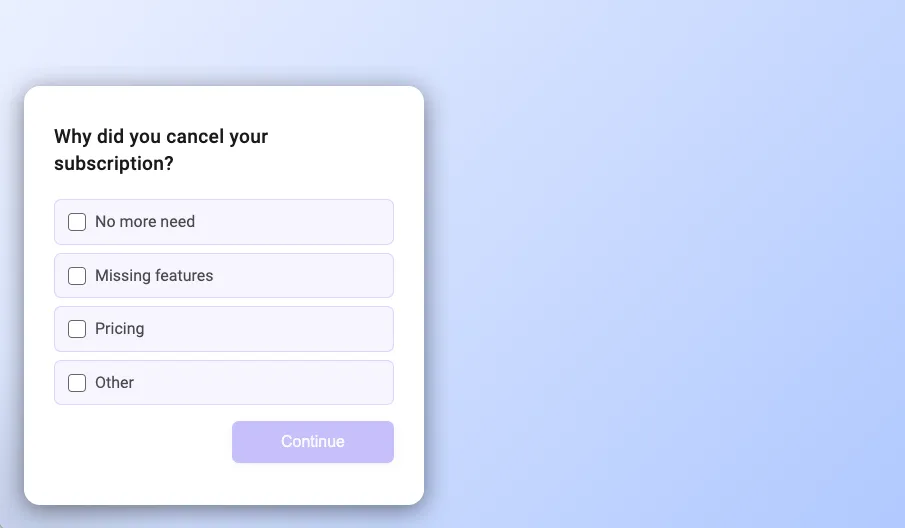
Navigation options control how users move through and exit your survey. You can decide when to show a back button, hide the dismiss button to keep users focused, and display a progress bar to indicate how much of the survey is left. These settings help you fine-tune the survey flow and create an experience that feels clear, intentional, and easy to complete.
All navigation options are part of themes, so you can set them once and reuse them across surveys.
Progress Bar
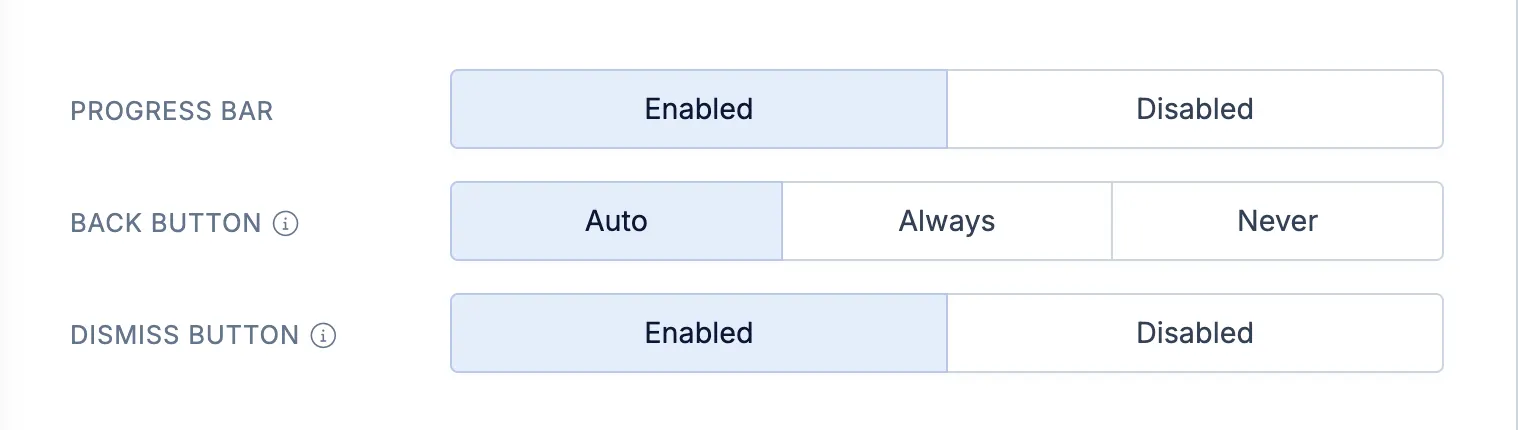
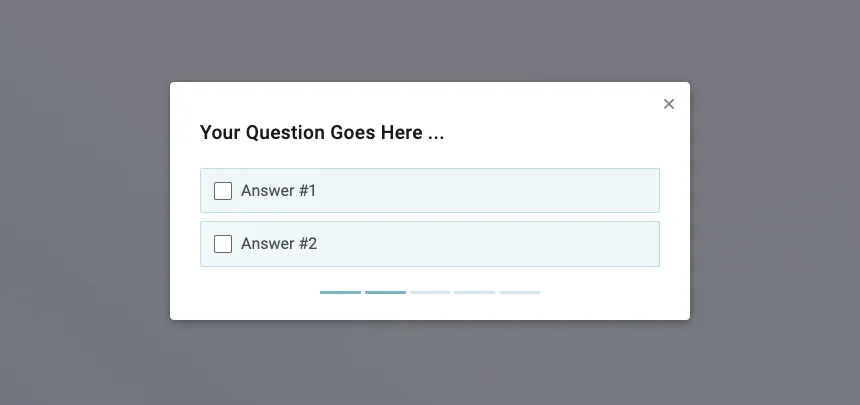
Section titled “Progress Bar”If you surveys contains more than 2-3 questions, it might be helpful to display a progress bar. The progress bar shows users how many questions a survey has in total and how many are left.
Back Button
Section titled “Back Button”Some survey question types will display a “Back” button when they are placed after the first element. As the name suggests, the button allows a user to navigate back to the previous question and modify their response. You can choose to disable back navigation for all questions in your survey. If disabled, users can’t modify a response once given.
Dismiss Button
Section titled “Dismiss Button”You can choose to hide the “x” close button which is otherwise displayed in the top right corner of an in-product survey.
We usually recommend to keep the close button visible to guarantee a good user experience. There are however various situations where hiding the close button makes sense. For example, when you running on onboarding survey with a centered modal layout and completing the survey is mandatory.