
Message Panel
Introduction
Section titled “Introduction”A Message Panel shows a message inside the survey. Use one to introduce the survey, explain the next question, or add context between steps.
Choose another element when you need more than a message:
- Use a Yes / No question when you need a stored
yesorno, including a count of people who decline. - Use a Call to Action when a button should open a link.
- Use a Thank-You Note to confirm that you received the answers.
- Use an Exit Survey element to end a branch with no message.
Write the message
Section titled “Write the message”Set the Headline and the Text under it. The headline can be 255 characters. The text can be 800.
The headline and the text support Liquid Tags, so you can include the respondent’s name. The text also supports Markdown, so you can add a link or emphasize a phrase.
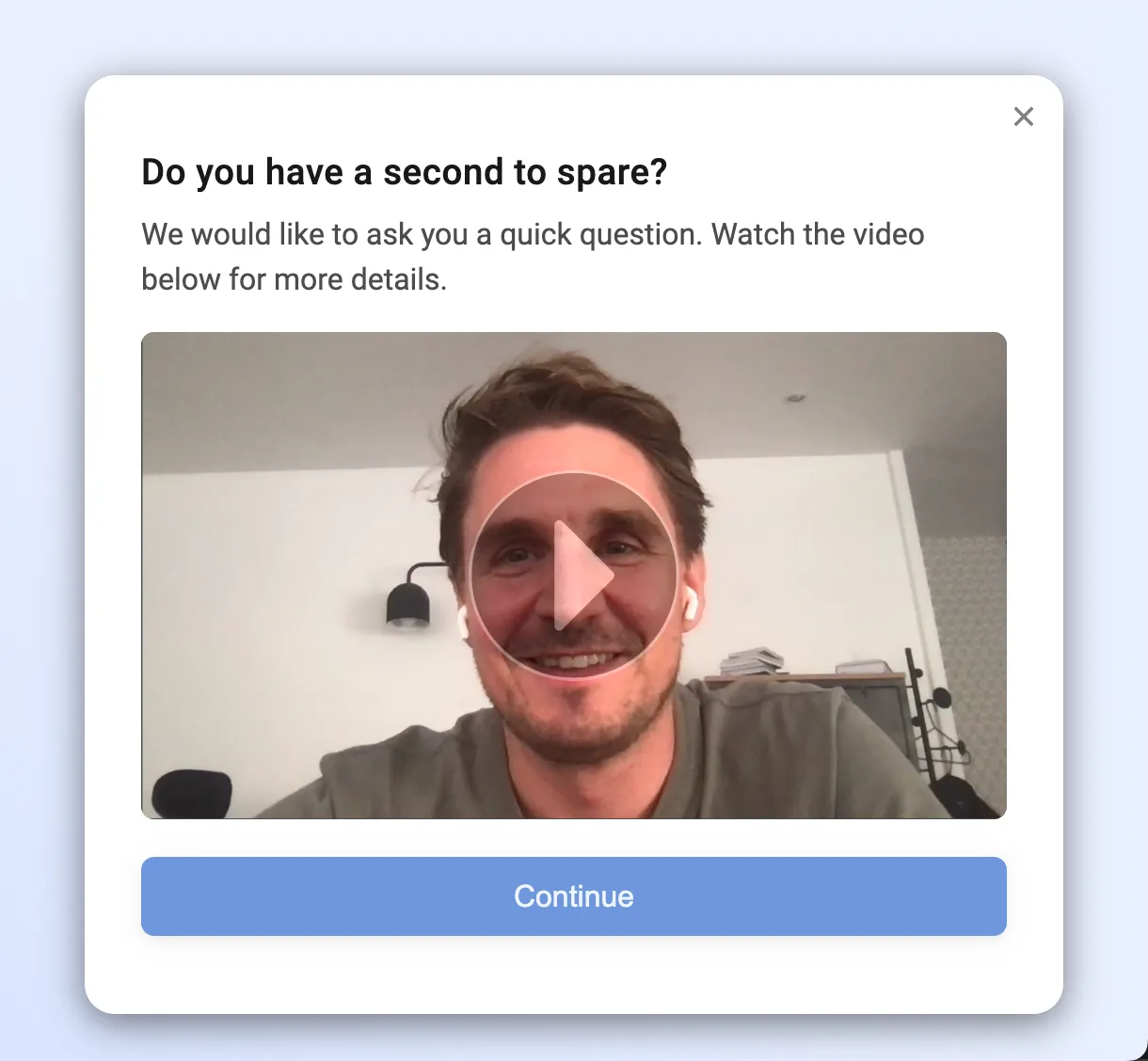
On a web or mobile survey, you can upload a banner image next to the headline and text. JPG, PNG, and animated GIF files work. You can also upload a video that plays in the panel.
Set the buttons
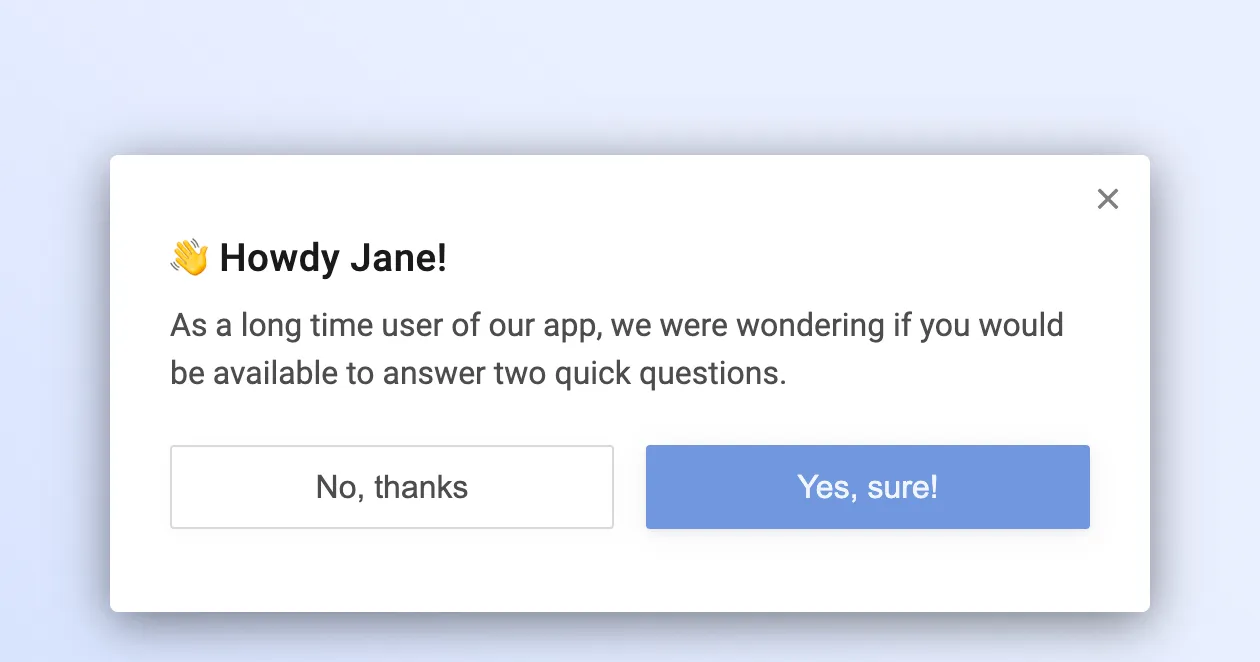
Section titled “Set the buttons”A new panel starts with a dismiss button labeled “Maybe later” and a continue button labeled “Continue”. Change the labels when the panel is an invitation. In the first screenshot, they read “No, thanks” and “Yes, sure!”.
A button is shown only when its label is filled in. Clear a label to hide that button. Each label can be 30 characters.
The dismiss button uses the secondary style and sits on the left. The continue button uses the primary style and sits on the right. With one label filled in, that button spans the width of the panel.
The dismiss button closes the survey and saves no answer. The view stays unfinished, so a Follow-Up Mode sequence that stops when the user dismisses the survey continues after this click.
The corner X is the control that marks the survey as dismissed. Navigation can hide that icon. Keep a button label filled in, or leave the X visible, so the respondent can leave the panel.
The continue button moves to the next element and saves no answer. The next question is shown as usual. A following Thank-You Note is shown. When the next step is an Exit Survey, or when the panel is the last element, the survey closes. Answers already collected on earlier questions are submitted when the survey reaches a Thank-You Note, an Exit Survey, or the end.