
Tags
Tags help you categorize survey responses and turn qualitative feedback into structured data.
You can use Tags for topics such as Feature Request, UX Issue, Pricing, or Positive Feedback. A response can have multiple Tags, allowing you to categorize feedback in whatever way makes sense for your use case.
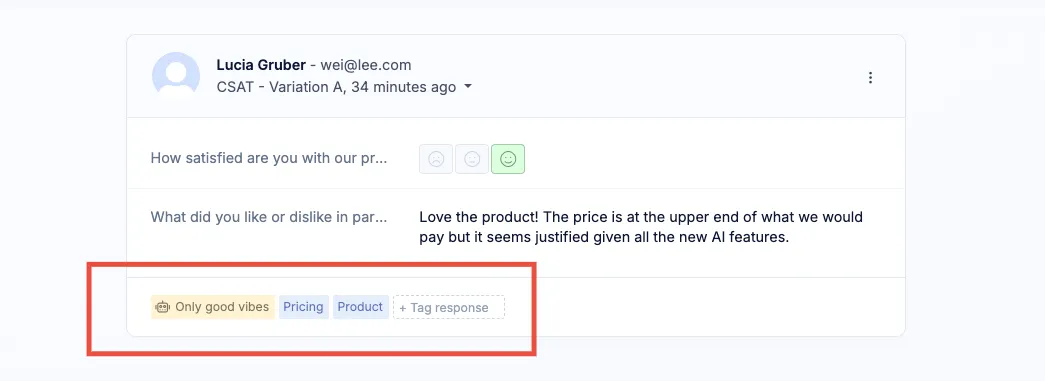
Tags can be added manually, automatically with Refiner AI, or programmatically. Refiner AI can also help you discover new Tags based on the feedback you collect.
Add Tags to responses
Section titled “Add Tags to responses”There are several ways to add Tags to survey responses:
- Manual Tagging – Tag individual survey responses directly in the Refiner dashboard.
- Auto Tagging – Define what a Tag represents and let Refiner AI automatically apply it to matching responses.
- Programmatic Tagging – Add Tags from your application, Email Surveys, or Survey Pages.
See Add Tags for detailed instructions.
Explore your Tags
Section titled “Explore your Tags”The Tags page in the main navigation has three tabs: Active, Suggestions, and Archived.
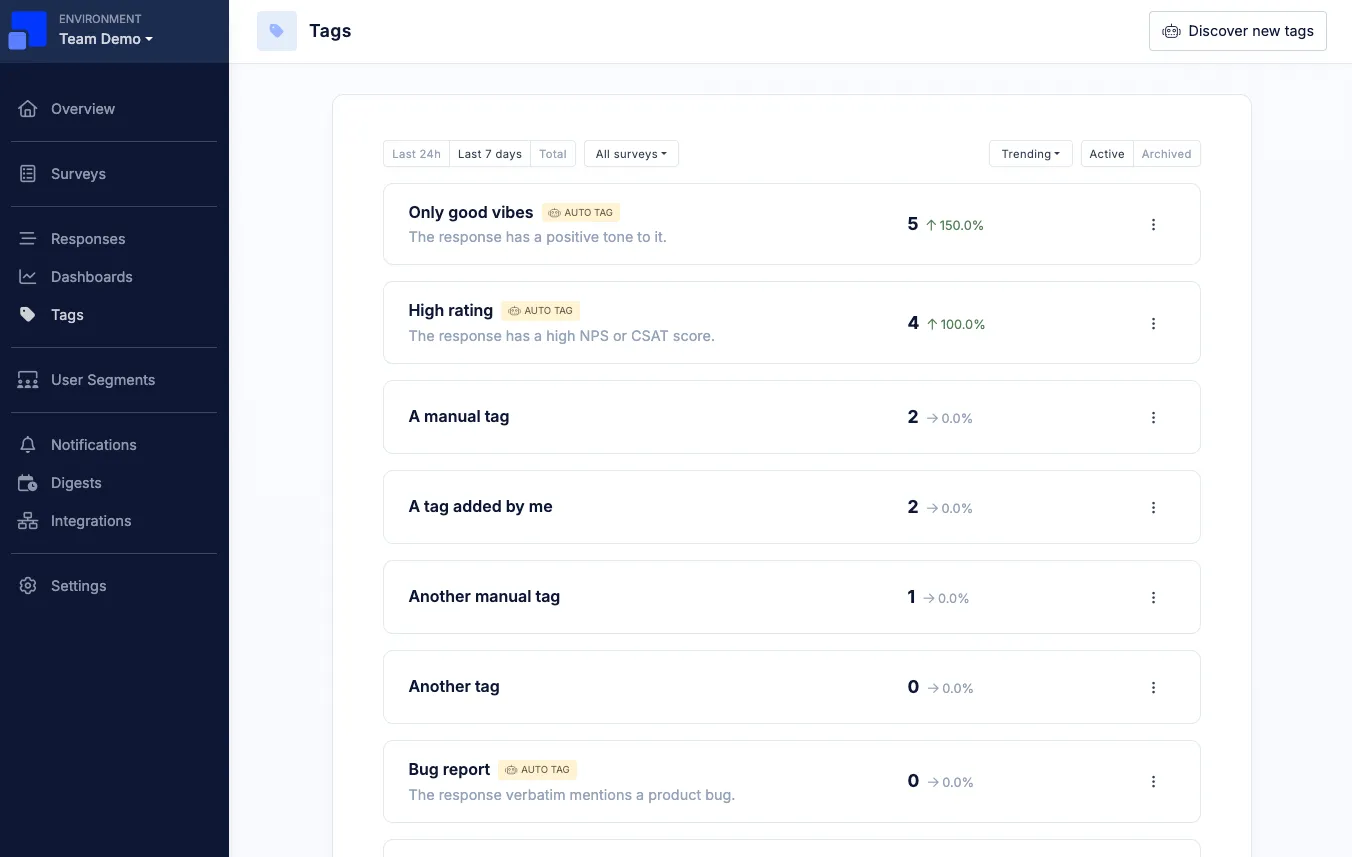
Active lists the tags in use. Each tag shows a count and a share for the period you select: 24h, 7d, 30d, 90d, or total. The list opens on 7d.
The count is the number of responses in that period that carry the tag. The period uses the same response date as your tag charts. The share is that count as a percent of the counts of all active tags in the same period, shown to one decimal. A response with more than one tag is counted once for each tag, so the shares of your active tags add up to 100%.
For 24h, 7d, 30d, and 90d, an arrow next to the share shows whether it rose, stayed flat, or fell compared with the previous period of the same length. Hover the numbers to see Tag Count and Tag Share, and how each one changed. On total, the arrow is hidden and the hover shows the count and the share.
Click a count to open the responses that carry that tag for the period you selected.
By default, tags are ordered by Trending. Trending follows the change in share, so topics that are gaining attention rise to the top. On total, Trending follows the share itself. You can also order tags Alphabetic or by Count.
Use the survey menu to limit the counts to selected surveys. All surveys includes every survey.
From a tag menu on Active, choose Archive. The tag moves to Archived and is hidden from the dashboard, exports, and API responses. On Archived, choose Restore to put it back on Active.
Discover new Tags
Section titled “Discover new Tags”You don’t always need to know in advance which topics you want to track.
Open Suggestions on the Tags page. The tab shows how many suggestions are waiting, for example Suggestions (3).
Tag Discovery uses Refiner AI to analyze your latest survey responses and suggest new Tags based on recurring topics and patterns in your feedback.
You can review these suggestions, accept the ones that are relevant, and dismiss those you don’t need.
See Tag Discovery to learn more.
Analyze and use Tags
Section titled “Analyze and use Tags”Once Tags have been added to your responses, you can use them throughout Refiner.
For example, you can:
- Filter your survey response lists by Tag
- Visualize Tag counts and trends in Dashboards
- Open a Tags report from Active
- Filter Dashboard data by Tag
- Trigger Notifications when specific Tags are added
- Include Tag usage in scheduled Digests
See Tag Analysis to learn how to explore and analyze tagged responses.