Teams Digests
Introduction
Microsoft Teams Digests deliver recurring survey reports directly to a Teams channel, making it easy to share important feedback metrics without requiring team members to log in to Refiner.
Digests can be scheduled daily, weekly, or monthly and configured to include the metrics that matter most to your team, such as survey views and responses, NPS, CSAT, rating averages, and tag counts.
Create a new Teams Digest
To set up a Teams Digest, navigate to Alerts & Digests > Scheduled Digests in your Refiner environment.
Click Create digest, choose Microsoft Teams Message, and click Create digest to continue.
On the setup page, give your digest a clear name, such as “Weekly Feedback Summary” or “Monthly NPS Report”, so you can easily identify its purpose.
Set frequency and timezone
Teams Digests can be sent daily, weekly, or monthly at midnight in your chosen timezone.
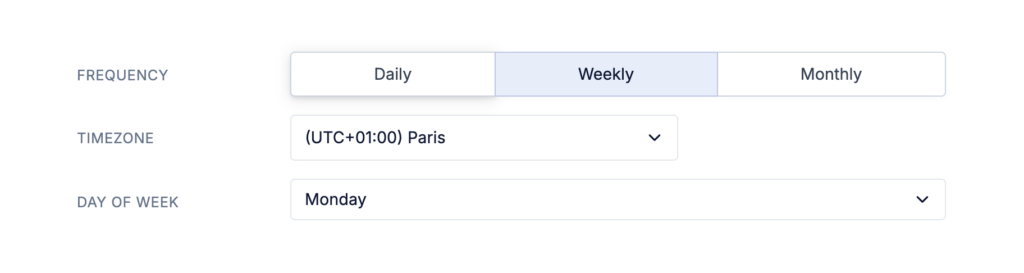
- Daily digests include data from the previous day, spanning midnight to midnight.
- Weekly digests include data from the previous seven days. You can choose which day of the week the digest should be sent.
- Monthly digests are sent on the last day of the month and include data from the entire calendar month.
Choose surveys
Choose which surveys should be included in your digest.
By default, data from all surveys is included. You can also select individual surveys if you want to create a digest focused on a particular product, team, or feedback program.
The surveys you select determine which survey data is used to calculate the metrics in your digest.
Choose metrics
Choose which data you want to include in your digest.
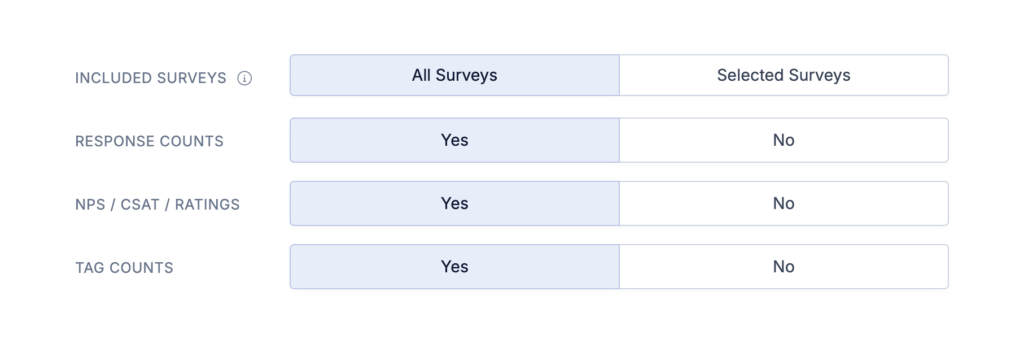
You can include:
- Survey views and responses – See how many times surveys were viewed and how many responses were collected, both in total and per survey.
- NPS, CSAT, and rating averages – Include core survey metrics such as NPS, CSAT, and rating averages, both as overall totals and per survey.
- Tag counts – Include the total number of applied tags and tagged responses, as well as counts for individual tags.
You can include all three data types or only the ones relevant to your digest.
All metrics are calculated for the reporting period and surveys configured for the digest.
Configure the Webhook URL
To receive digests in Microsoft Teams, provide the Webhook URL for the Teams channel where you want the messages to be posted.
Copy the Webhook URL from Microsoft Teams and paste it into the corresponding field in your Refiner Digest configuration. Refiner uses this URL to deliver the scheduled messages to your channel.
Send a test and save
Before saving your digest, click Send test to verify that the message appears correctly in your Teams channel and contains the metrics you expect.
Once confirmed, save your Teams Digest. Refiner will automatically post future digests according to the schedule you configured.