Survey Logic
Survey logic lets you adapt your survey to each user’s answers and profile data. Use it to:
- Ask different follow-up questions based on an NPS or CSAT score.
- Show a review CTA to satisfied users and offer help to dissatisfied users.
- Skip questions when the answer is already available in the user’s profile.
- Show relevant questions based on a user’s role, plan, or other traits.
- Randomly show different messages or CTAs to test alternatives.
Add logic to an element
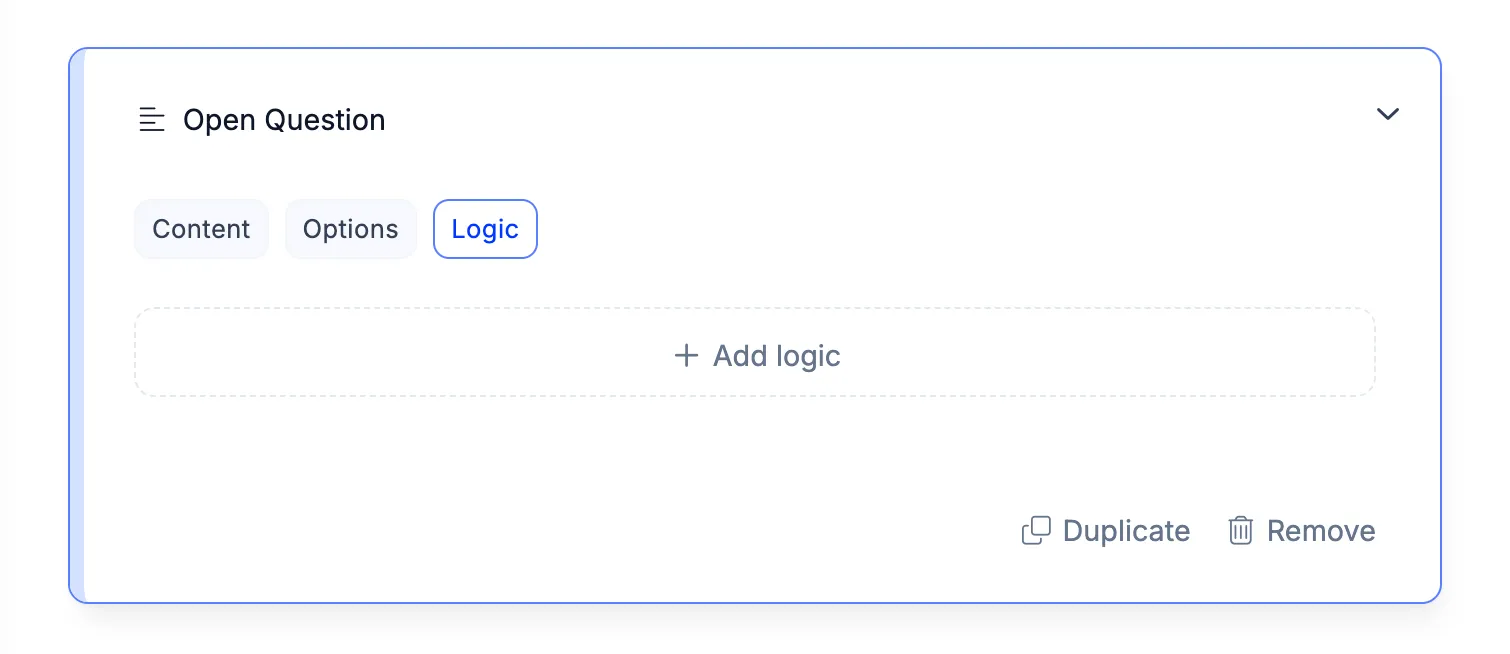
Section titled “Add logic to an element”Open an element in the Survey Editor and select the Logic tab.
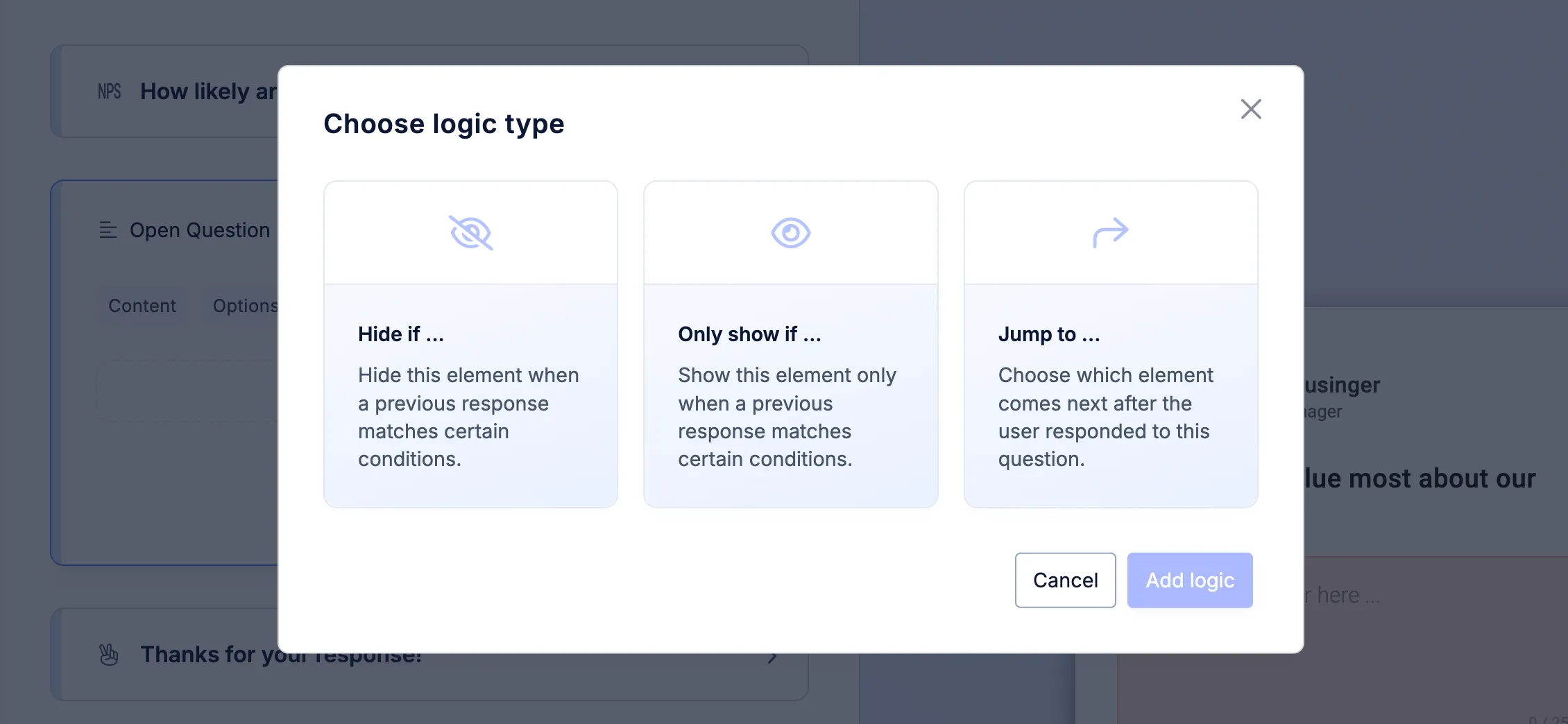
You can add three types of logic blocks:
- Hide if … — Skip the element when a condition matches.
- Only show if … — Show the element only when a condition matches.
- Jump to … — Choose which element comes next.
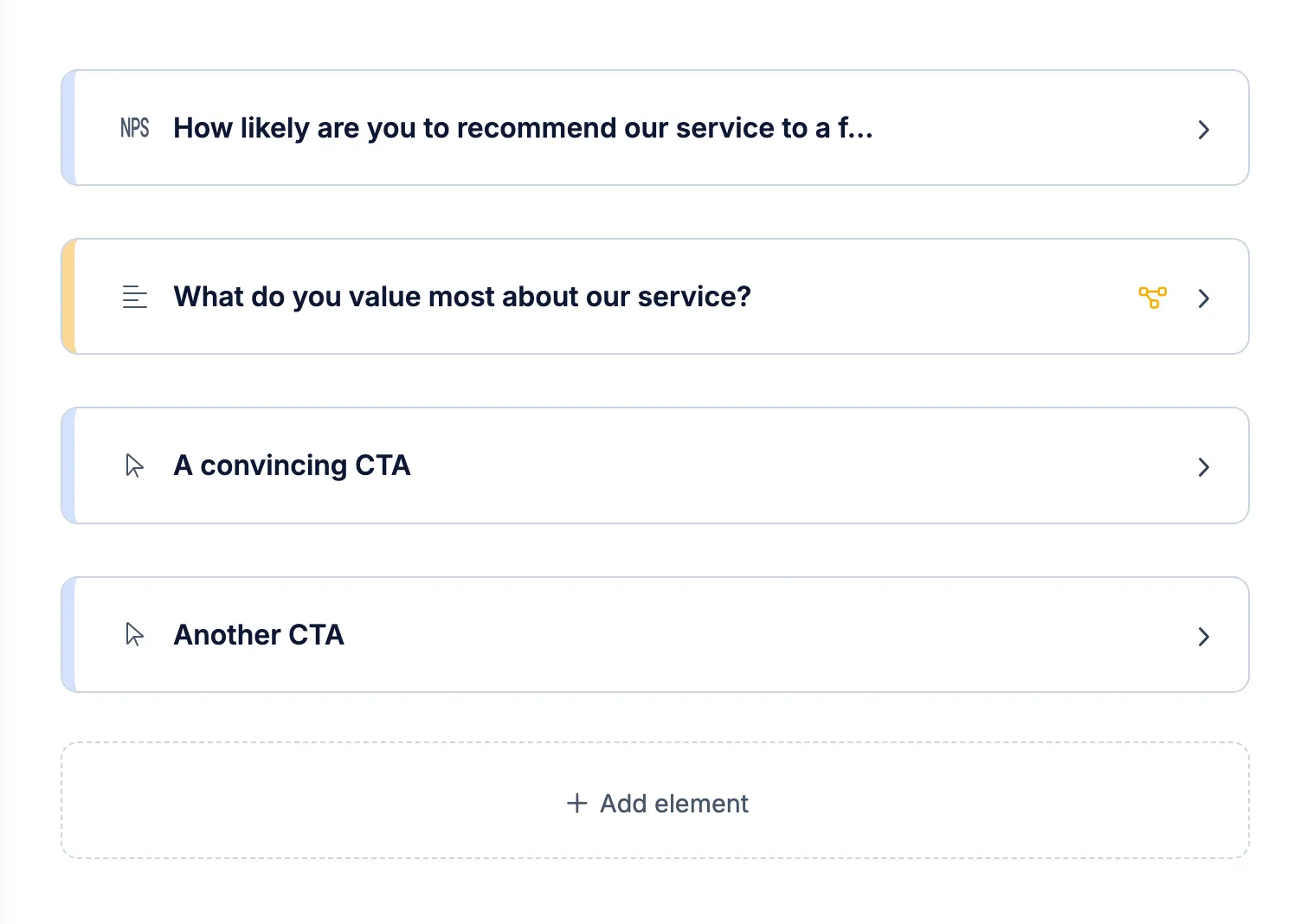
You can combine all three blocks on the same element. Elements with logic are highlighted in yellow and marked with a logic icon in the survey question list.
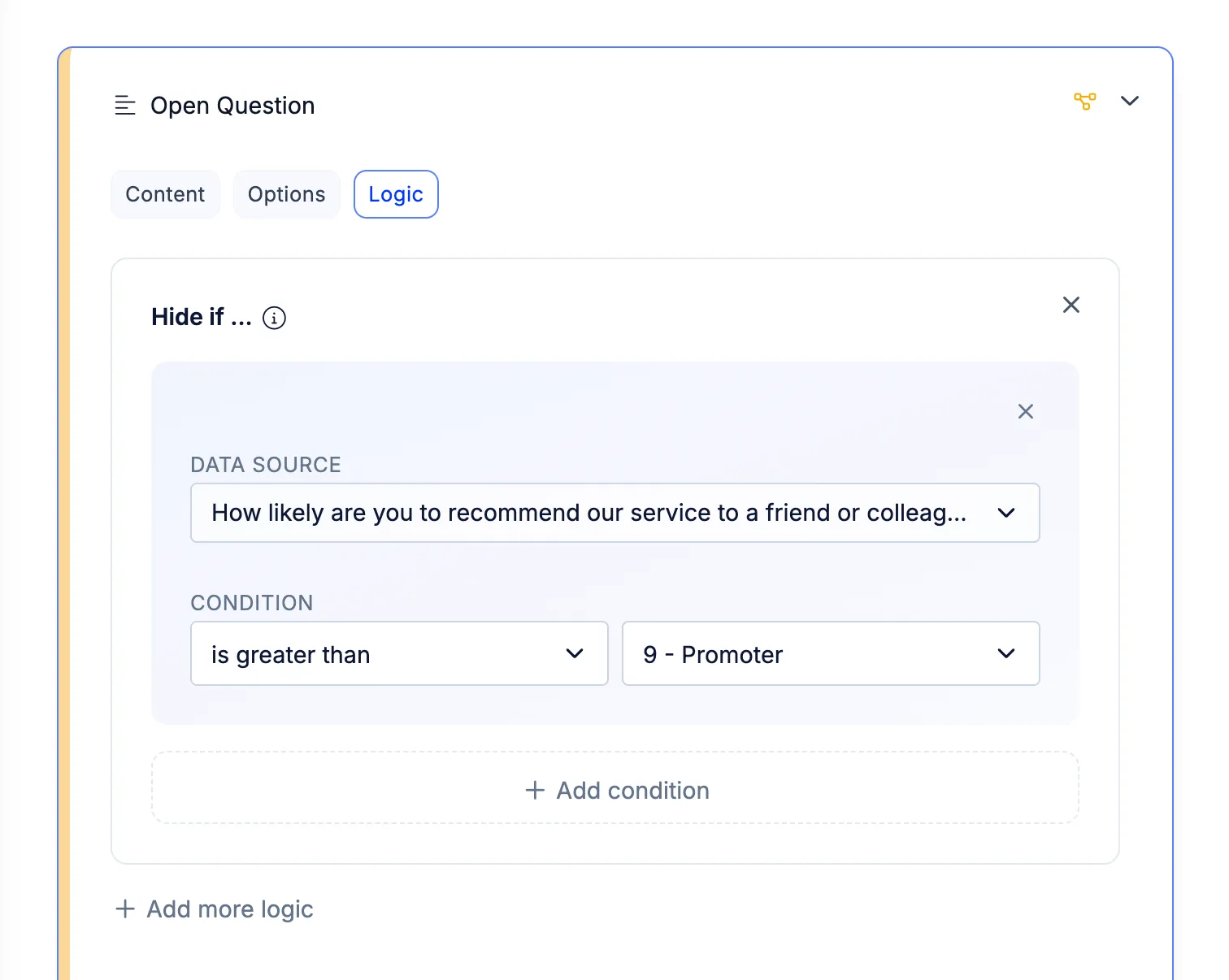
Hide if …
Section titled “Hide if …”Use Hide if … to skip an element when it is not relevant to the user.
Add one or more rules. Each rule contains a Data source and a Condition that defines what to check. When a condition matches, Refiner skips the element without showing it.
For example, hide a question about a feature if the user previously answered that they have never used it.
Only show if …
Section titled “Only show if …”Use Only show if … to display an element only when a condition matches. Otherwise, Refiner skips it.
As with Hide if …, you can add one or more rules, each with a Data source and a Condition.
For example, show “What could we improve?” only to users who gave a low satisfaction rating.
Jump to …
Section titled “Jump to …”Use Jump to … to choose which element comes next after the user answers a question. You can choose from three jump modes.
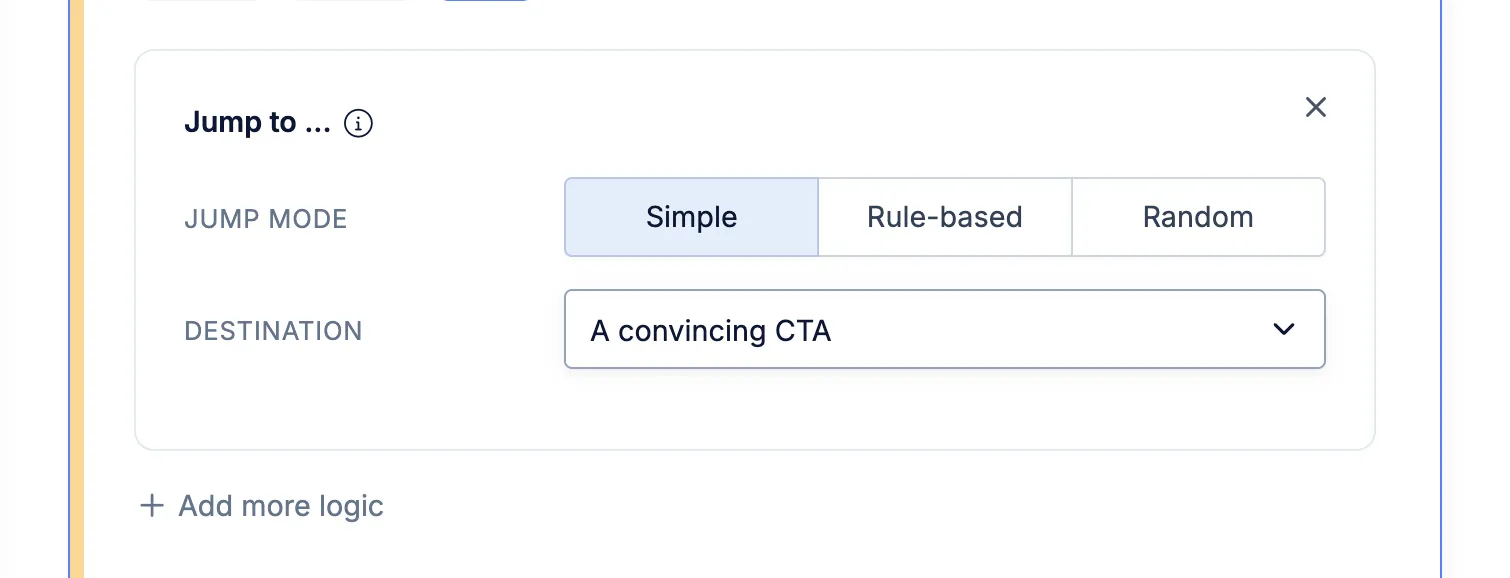
Simple
Section titled “Simple”Choose a destination element. The user continues directly to that element, skipping any elements in between.
For example, after the last question in one survey branch, jump to a shared Thank-You Note.
Rule-based
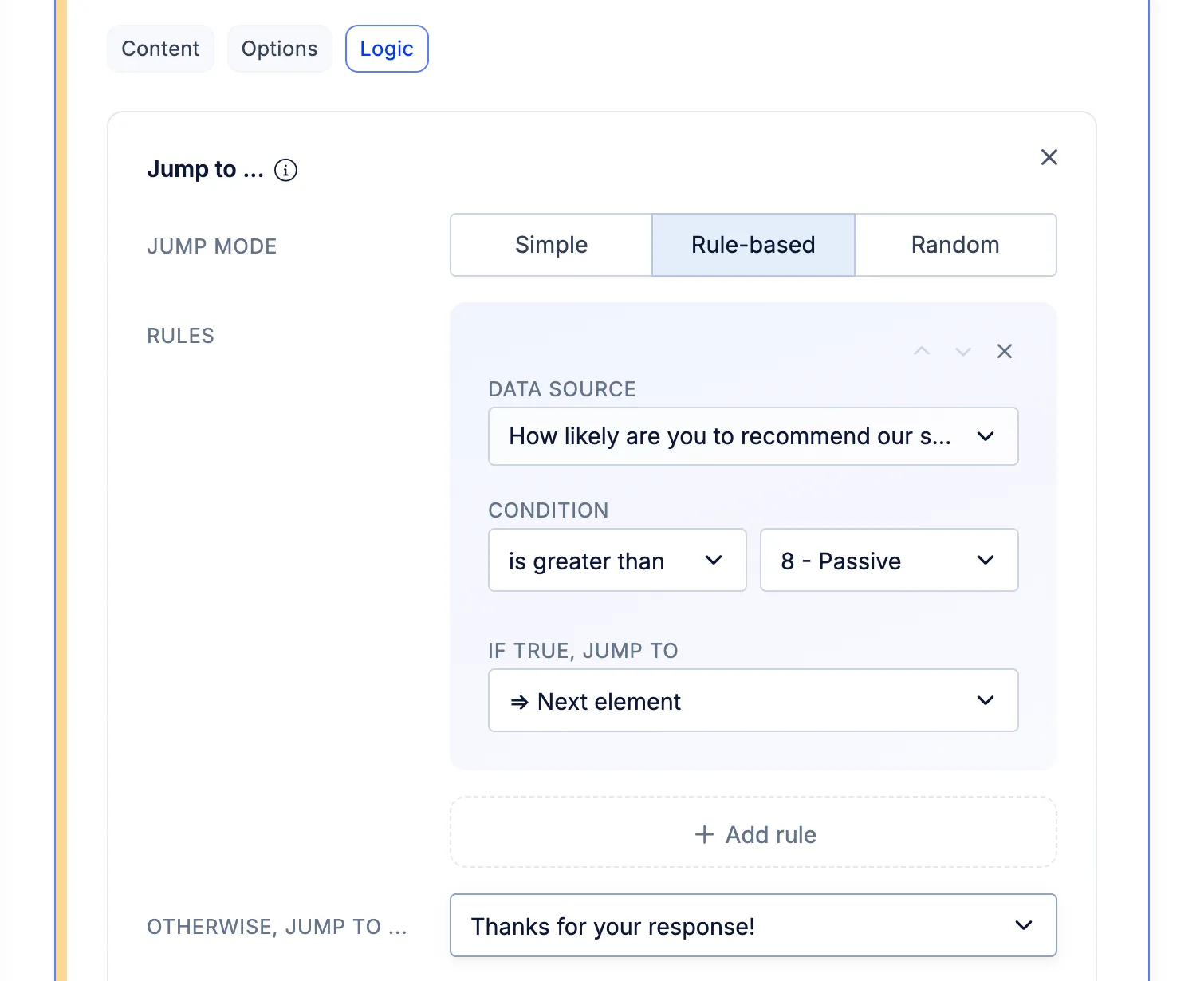
Section titled “Rule-based”Send users to different elements based on their answers or other available data.
Each rule contains:
- Data source — The answer or data field to check.
- Condition — The comparison that determines whether the rule matches.
- If true, jump to — The destination element to show when the condition matches.
Add multiple rules to create different paths. Use Otherwise, jump to … to choose a fallback destination when none of the rules match.
For example, send users with a low satisfaction rating to a question about what went wrong, and everyone else to a question about what they liked.
Random
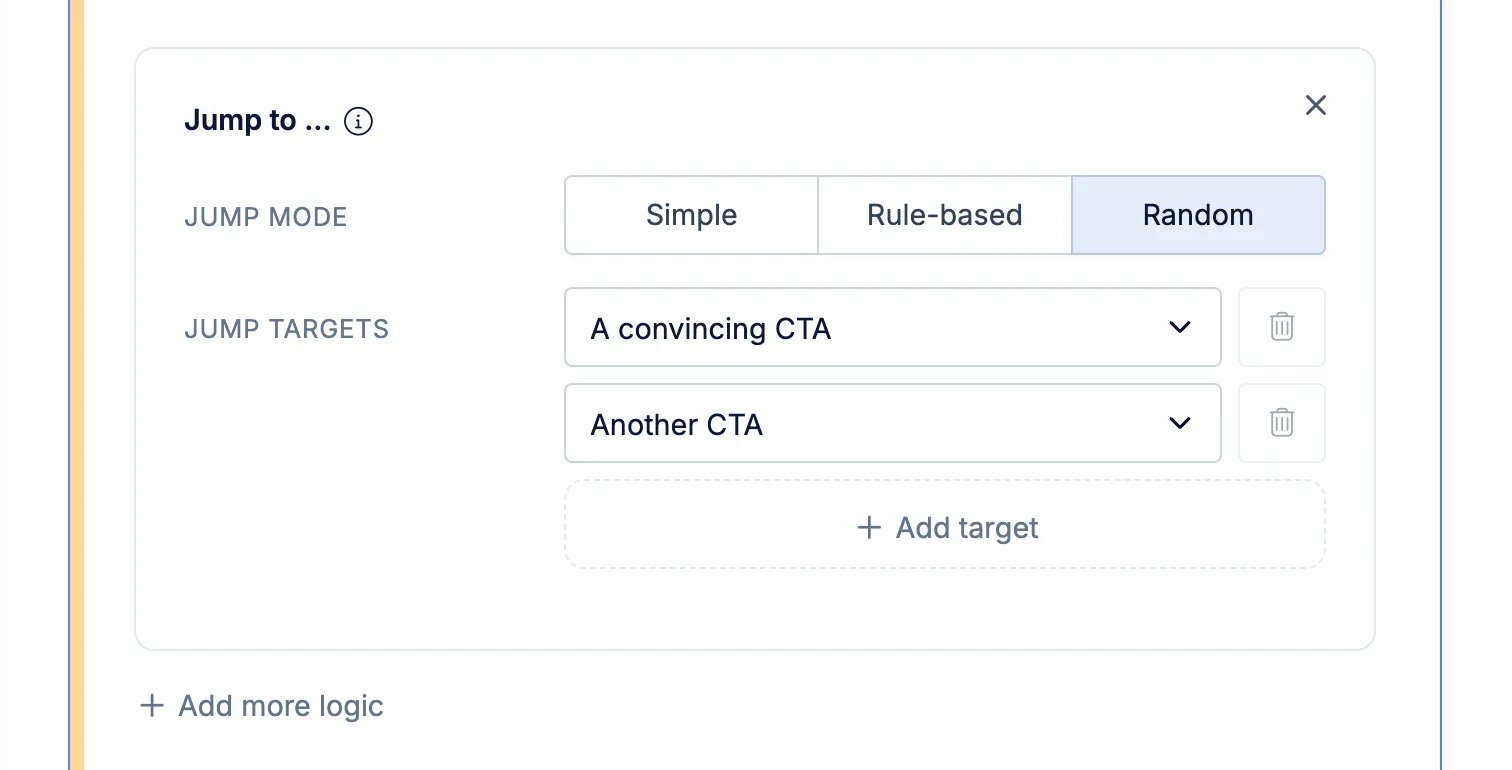
Section titled “Random”Add two or more destination elements. Refiner randomly sends each respondent to one of them.
Use this to test alternative messages or calls-to-action, or to show different sets of follow-up questions.
Standalone Logic Jump element
Section titled “Standalone Logic Jump element”Jump to … is also available as a standalone survey element that you can add directly to your survey flow, as you would when adding a question. This is a legacy option. We recommend configuring logic in each element’s Logic tab to keep your survey flow easier to manage.
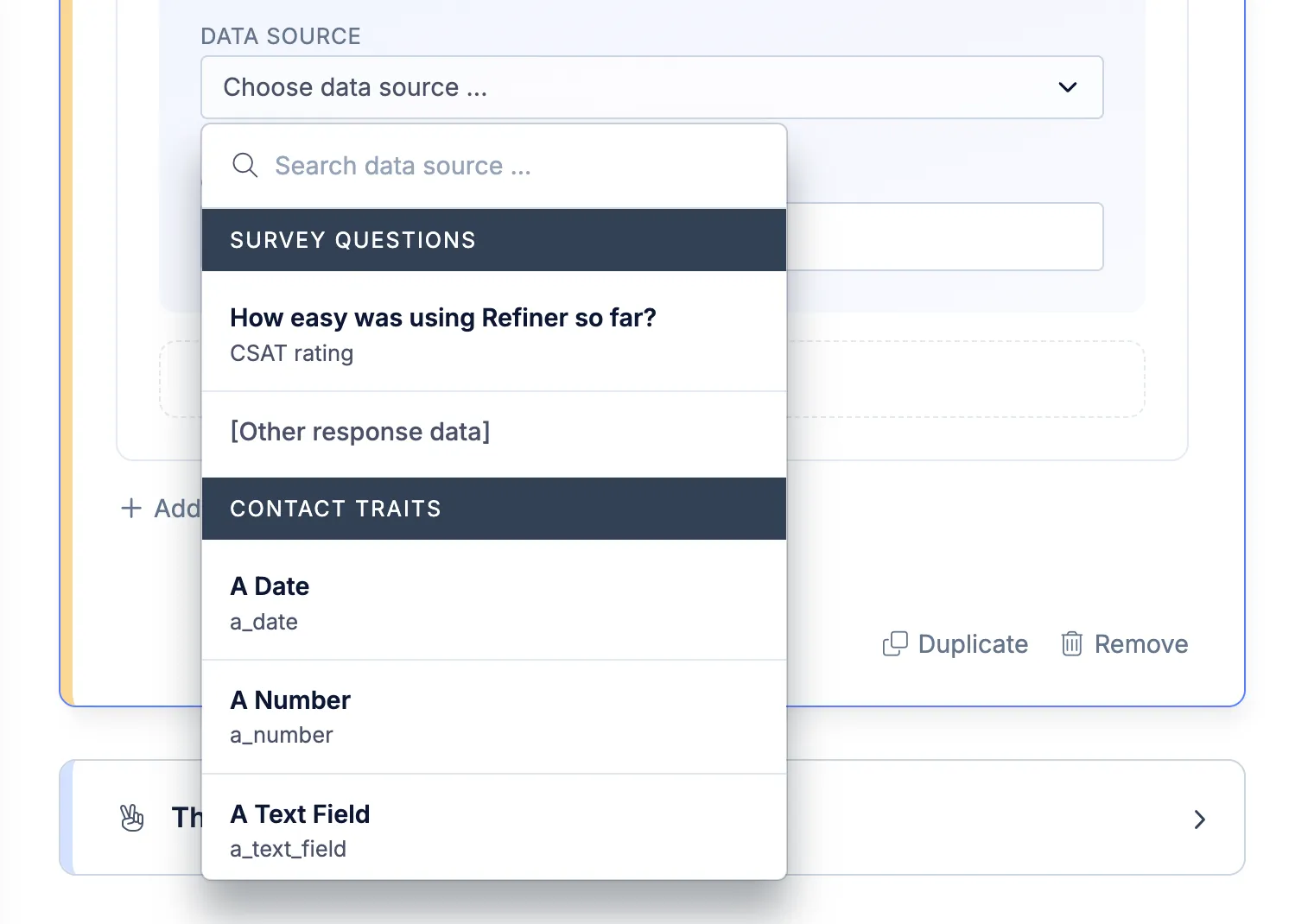
Data for conditions
Section titled “Data for conditions”Logic rules can use answers collected during the survey as well as data provided beforehand.
| Data source | What it contains |
|---|---|
| Survey Response Data | Answers the user provides while filling out the survey. |
| [Other response data] | Additional response data provided through the SDK or URL parameters. |
| Contact Data | User traits provided when identifying the user. |
| [Other Contact Data] | Additional contact data provided through the SDK or URL parameters. |
For example, use a satisfaction score to choose a follow-up question, a user’s role to show relevant questions, or contextual response data to adapt a survey to a specific workflow.