
Response Data Filters
Introduction
Section titled “Introduction”The filter sidebar on the Survey Responses page helps you find the responses you are interested in. Click Filter responses in the top navigation to open it. The list updates as soon as you change a filter, and the filter icon is highlighted while filters are active.
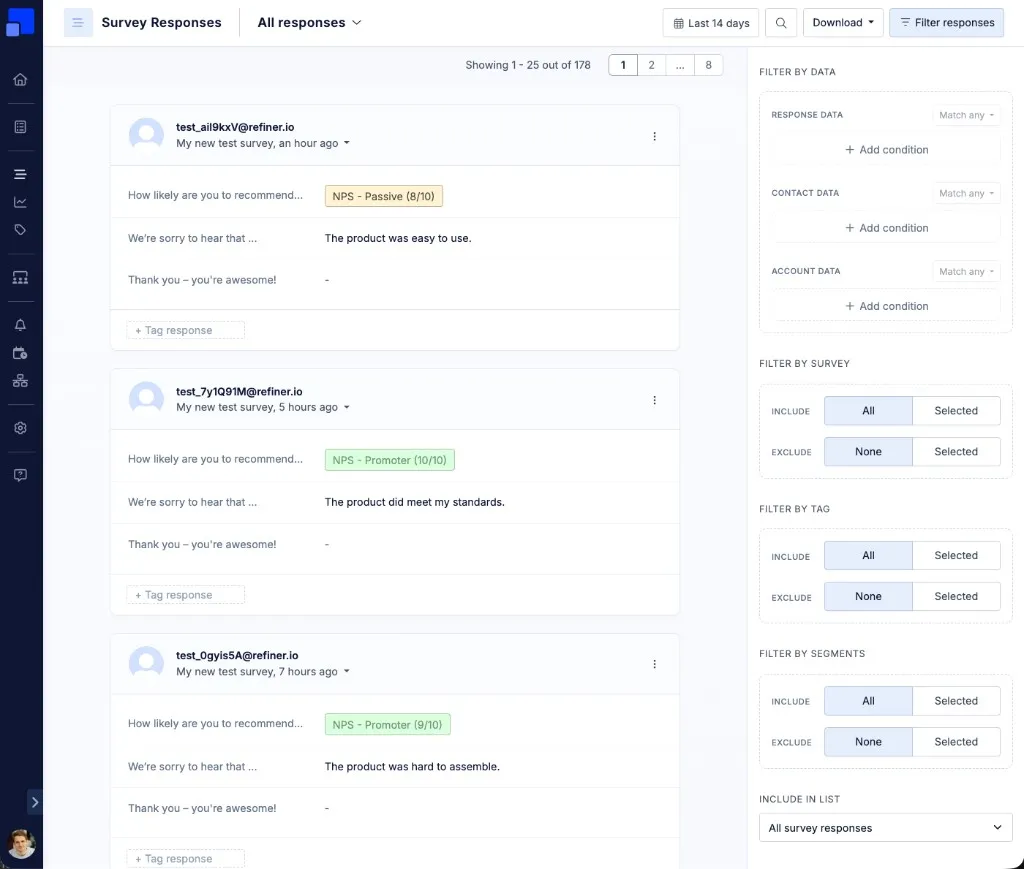
The sidebar groups filters into the following sections:
- Filter by data: Response data, Contact data and Account data
- Filter by survey: Include or exclude surveys
- Filter by tag: Include or exclude tags
- Filter by segment: Include or exclude user segments
- Include in list: Choose which types of responses are listed
You can save your filters as a response list, and downloads always include only the responses that match your filters. The same filters are also available in the filter sidebar of reporting dashboards and in chart-level filters.
Filter by data
Section titled “Filter by data”Data filters let you narrow down responses based on the data stored with them. There are three groups:
- Response data: Answers given to survey questions, identified by their question identifier.
- Contact data: Traits stored on the user profile, such as plan, role or signup date.
- Account data: Traits stored on the account a user belongs to. This group only appears if you send account data to Refiner.
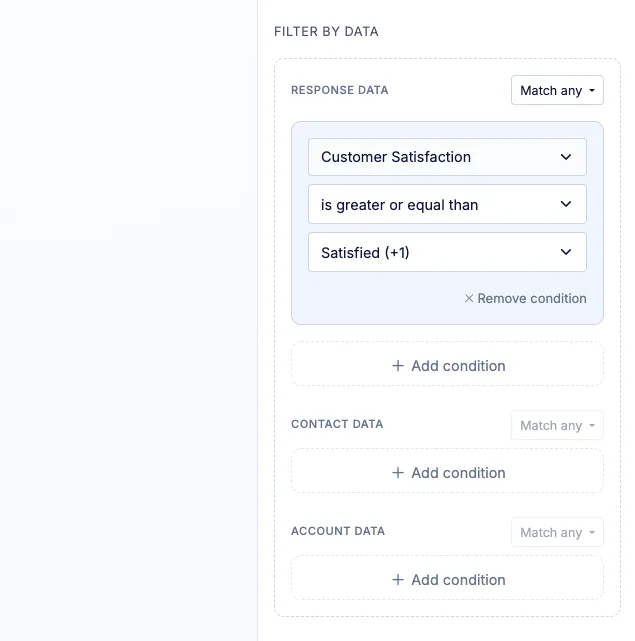
Click Add condition to add a filter, then choose a data identifier, an operator and the value to compare against. The following operators are available:
- is equal to, is not equal to
- is lower than, is less or equal than, is greater than, is greater or equal than
- value exists, value does not exist
For NPS, CSAT, Yes/No and Call-to-Action questions, you pick the value from a dropdown instead of typing it. For example, the condition “Customer Satisfaction is greater or equal than Satisfied (+1)” shows all satisfied and very satisfied customers. Yes/No and Call-to-Action questions only support the “equal”, “not equal” and “exists” operators.
You can add up to five conditions per group. The Match any or Match all setting of each group decides whether a response needs to match at least one or all of its conditions. Click Remove condition to delete a condition.
Filter by survey, tag and segment
Section titled “Filter by survey, tag and segment”The survey, tag and segment filters each have an Include and an Exclude option.
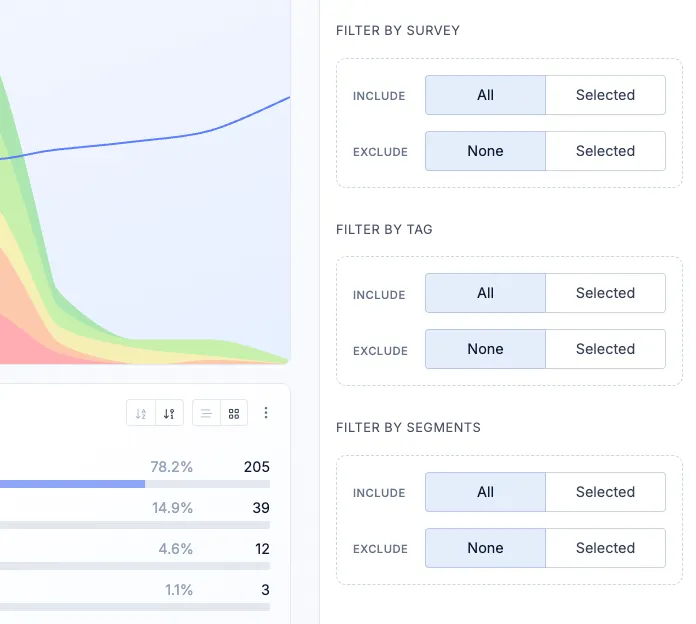
- Include: Choose Selected and pick one or more items to only show responses that match at least one of them. All turns the filter off.
- Exclude: Choose Selected and pick one or more items to hide responses that match any of them. None turns the filter off.
Here is what each filter matches:
- Survey: The survey a response was given to.
- Tag: The tags added to a response.
- Segment: The user segments the respondent currently belongs to.
You can use Include and Exclude together. For example, include the tag “Feature request” and exclude the tag “Resolved” to see all open feature requests.
Include in list
Section titled “Include in list”At the bottom of the sidebar, you can choose which types of responses appear in the list:
- All survey responses: Completed and partial responses. This option is available if Partial Responses are enabled.
- Only completed responses: Responses where the respondent submitted the survey.
- Survey responses & views: All responses, plus surveys that were shown to users who didn’t answer.
How filters are combined
Section titled “How filters are combined”All filter sections are combined, so a response needs to match every active filter to appear in the list. For example, if you include the survey “Onboarding NPS”, exclude the segment “Internal users” and add a Response data condition “NPS score is lower than 7”, you only see detractor responses to that survey from external users.
The date range and the search in the top navigation apply on top of your filters.