
Yes / No Question
Introduction
Section titled “Introduction”A Yes / No question asks for one of two answers and stores yes or no. Use it when you need that count, including the people who decline.
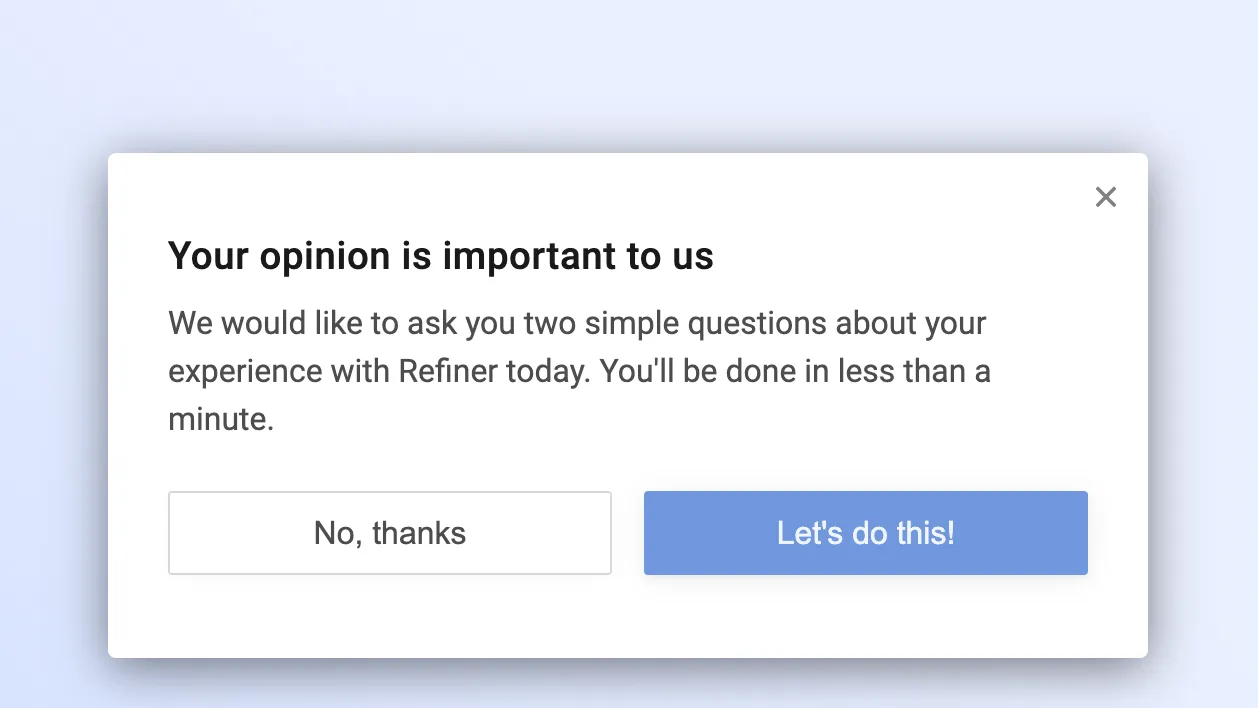
Pick a different element when you do not need a stored yes or no:
- Use a Message Panel for a welcome screen. The dismiss button closes the survey, and the continue button moves on. Neither click is saved as an answer.
- Use a Multiple Choice question when the labels should be the stored answers, when someone can skip the question, or when this is the first question in an email embed. That embed renders NPS, CSAT, Ratings, and Multiple Choice. Any other first question, including Yes / No, is a Take Survey button.
Add a Yes / No question
Section titled “Add a Yes / No question”In the Survey Editor, add a Yes / No question. Write the Question headline. Add Explanation text when the headline needs a sentence of context. Explanation text can include Markdown.
Data identifier is the name used when the answer is stored. Refiner creates one from the headline and locks it after you save the survey. Read Data Identifiers before you change it.
Set the buttons
Section titled “Set the buttons”The buttons start as Yes and No. Change the labels when the question is an invitation. In the screenshot above, they read “No, thanks” and “Let’s do this!”. People see those labels. Refiner stores yes for the Yes button and no for the No button.
No is on the left and Yes is on the right. Swap them when you want Yes on the left.
Yes is the primary button. Turn that highlight off when both answers should use the secondary button style.
Clicking either button saves the answer and moves to the next element. Dismissing the survey does not record yes or no.
End the survey on No
Section titled “End the survey on No”Both answers continue the survey until you add logic. To stop after a decline, open the Logic tab, add Jump to …, and choose Rule-based.
Add one rule:
- Data source: this question
- Condition: is equal to
no - If true, jump to an Exit Survey element
Set Otherwise, jump to … to the next question, so yes continues the survey. Jump to a Thank-You Note instead of Exit Survey when people who decline should still see a closing message.
The same yes and no values work in Only show if … and Hide if …. Survey Logic explains each block.
Read the answers
Section titled “Read the answers”Open the answer on the Response Lists page. It is stored under this question’s data identifier. Filter the list where the value is equal to yes or no.
A download includes the same value when you include Response Data.
A Bar Chart or Pie Chart shows how many people chose each value. An ad-hoc dashboard adds a chart for each question in the survey. You can also add either chart to a custom dashboard.