Edit Questions
Introduction
While our survey templates will get you started with just a few clicks, the real power of Refiner lies in its ability to customize surveys to your needs.
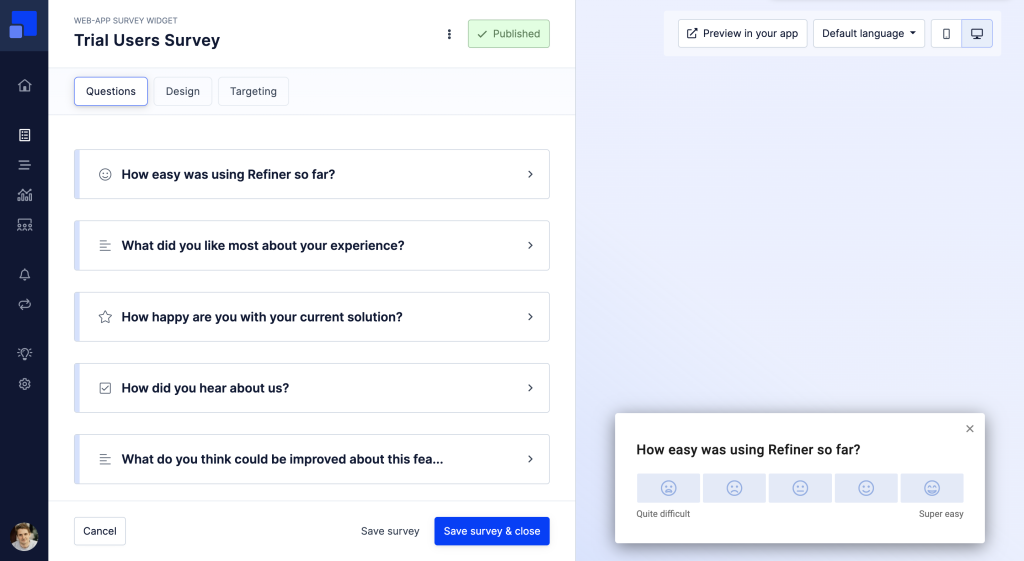
On this page we explain how you can add additional questions, arrange them in any order, and customize them.
Add elements to a survey
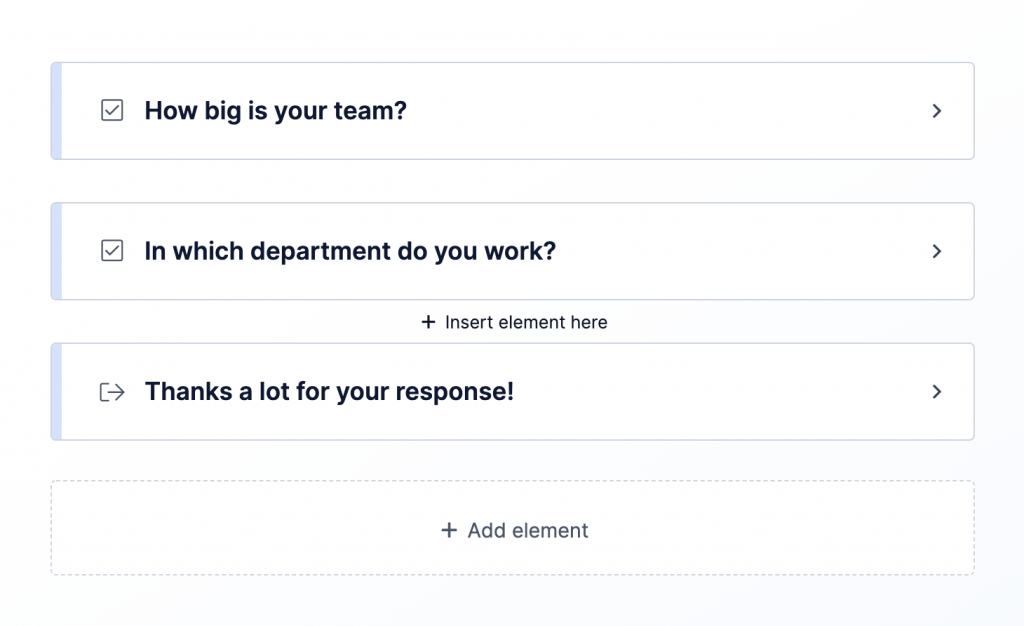
To add a new question, hover your mouse between two questions or click on “Add element” at the end of the survey question list.
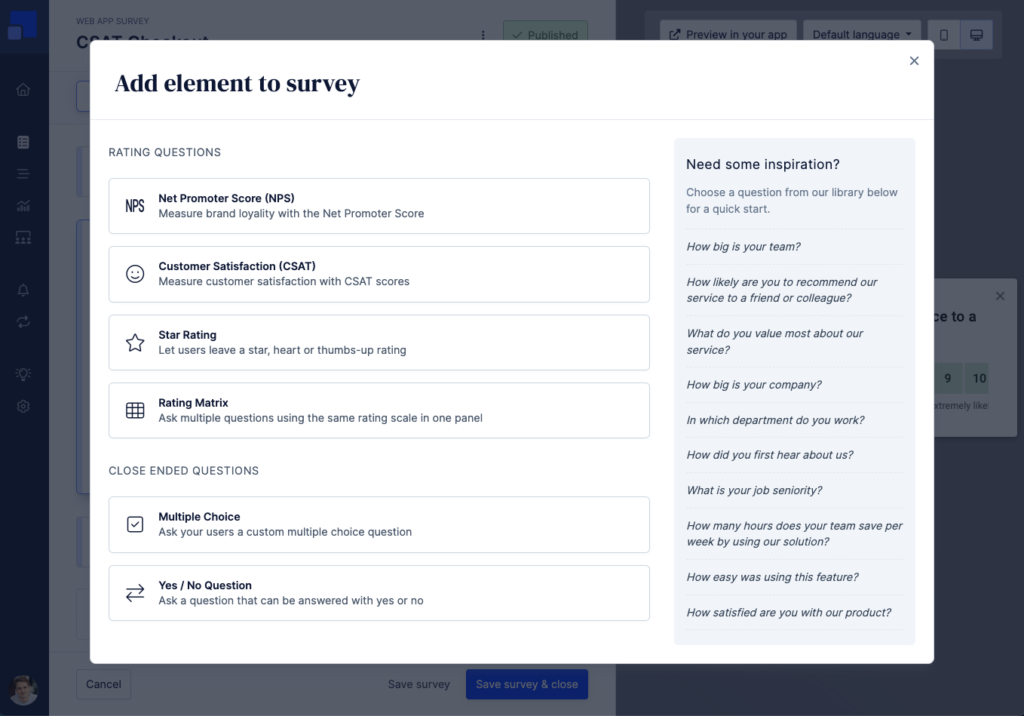
Refiner covers all major survey question types, ranging from simple rating questions, to form panels and logic elements. You can find the full list of supported question types here.
You can add any combination of questions to your survey, allowing you to build custom survey flows tailored to your needs.
Edit question content
One of the strengths of Refiner is the ability to fully customize survey questions.
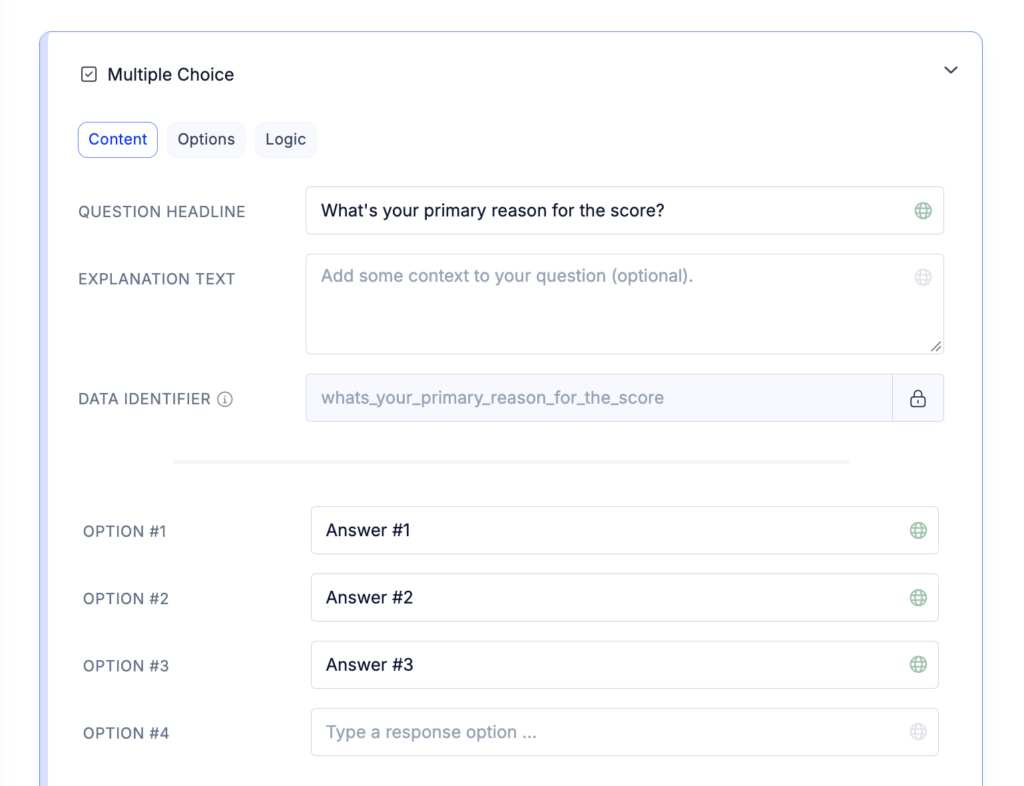
Clicking on any question reveals all important options, such as the question title, description, response options, etc.
Question options
Most questions in Refiner offer Options. You can reveal them by clicking on the Options tab.
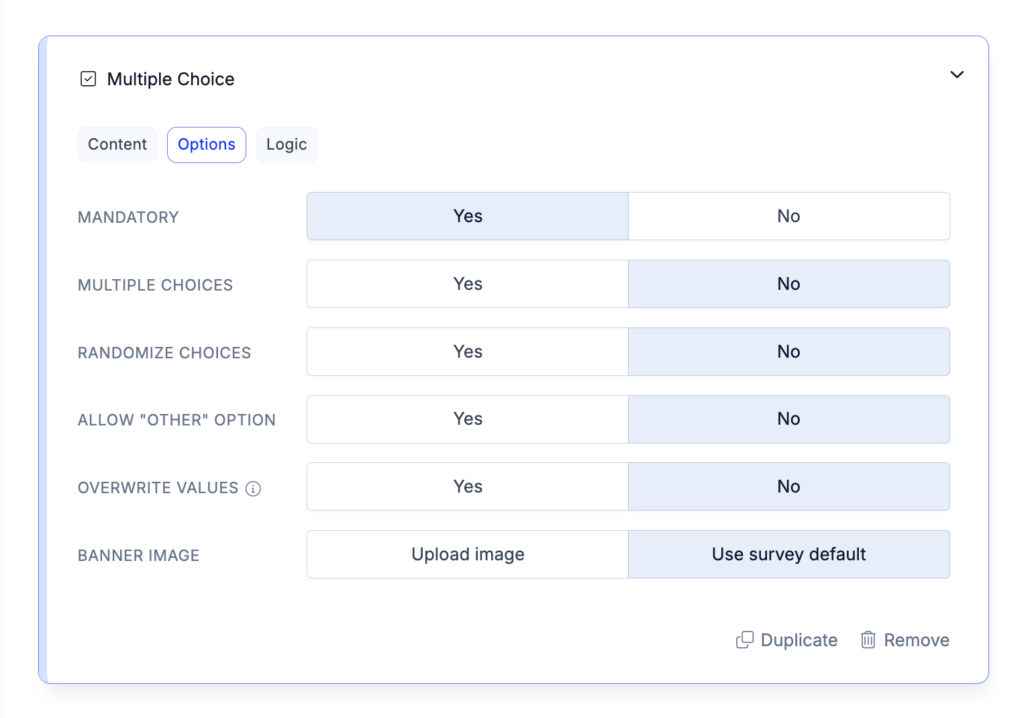
Next to the Options you’ll only see a Logic tab. Click here for a detailed article on Survey Logic.
Rearrange questions
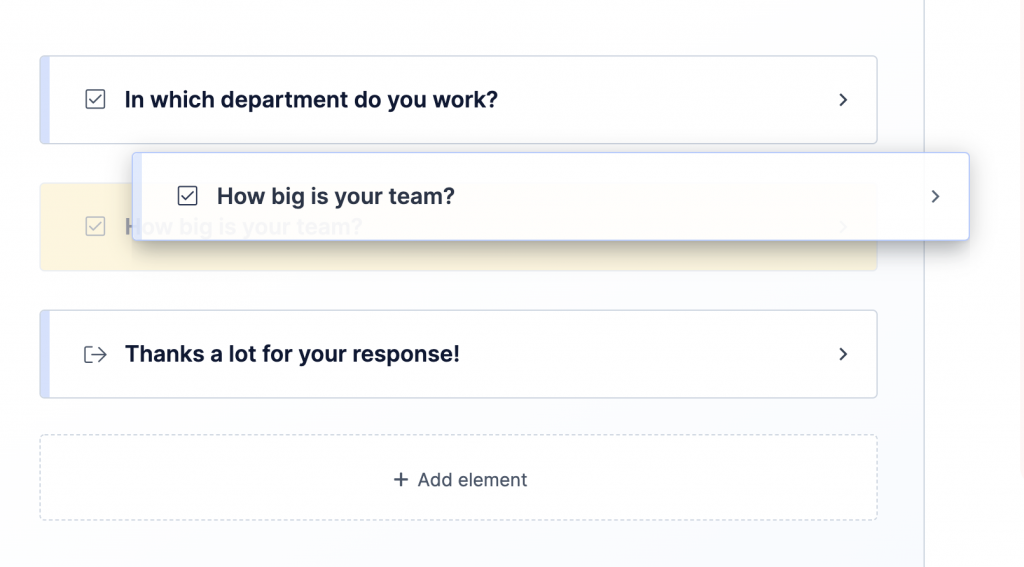
You can freely rearrange the question flow with our drag & drop feature. Place your mouse on the left edge of a question, click and hold, then move the question to its new position.
Delete a question
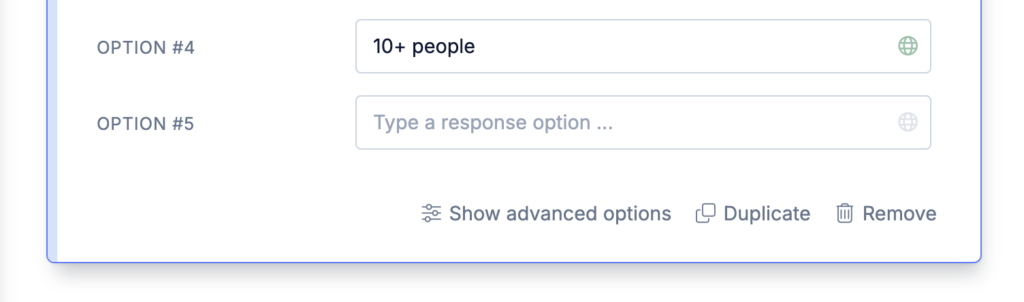
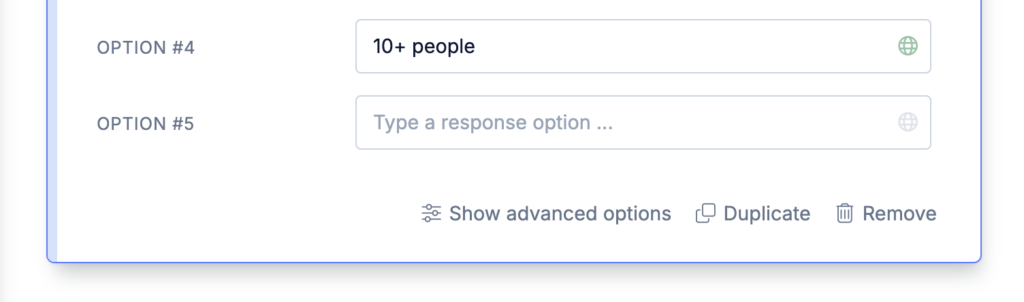
To delete a question, click on the question header to reveal all question options. You’ll see a “Remove element” link at the bottom right corner of your question.
Duplicate a question
To duplicate a question, click on the question header to reveal all question options. You’ll see a “Duplicate” link in the bottom right corner of your question.