Location Constraints
Introduction
A simple yet effective method to fine tune the survey experience of your users is to make sure that in-app surveys are only shown on specific areas or your application.
Restricting the location of a survey is especially useful when you are using our Follow-Up Mode or Recurring Surveys. In both cases, subsequent survey views might occur on pages that are not in the scope of the original survey trigger.
Please note: Restricting the location of a survey works independently from our Page Visit and Screen Visit launch trigger. You can think about the location restriction option as a final check before the survey gets shown to the user. No matter what event triggered the survey.
Allow & exclude web pages
You can either define a set of “Allowed Pages”, or a set of “Excluded Pages”. You can also combine the two options to make the targeting even more precise.
For Mobile SDK surveys, we refer to “Screens” instead of “Pages”. All other things stay the same though.
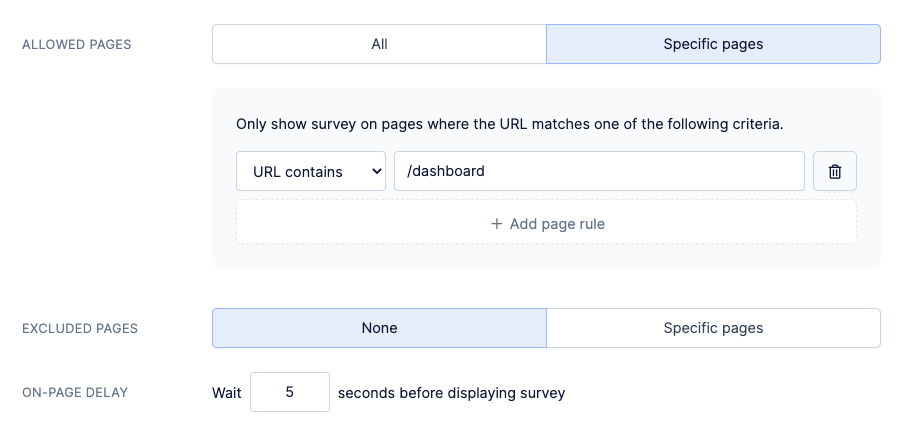
Each rule has a comparison method followed by a comparison value. The supported comparison methods are:
| Method | Description | Example Value |
| Equals | Triggers on pages where the full URL equals exactly the provided value. | https://app.domain.com/account/billing |
| Starts with | Triggers on all URLs that start with the provided value. | https://app.domain.com/account |
| Contains | Triggers when the provided value is located somewhere in the page URL. | /account/ |
| Matches Pattern | Triggers on URLs that match a provided wildcard pattern. You can use * to indicate that variable parts of a URL. | https://app.domain.com/*/something/* |
When you add multiple rules, a match occurs when at least one rule returns a positive result.
Allow & exclude app screens
To show surveys on in certain areas of your mobile app, you’ll need to transmit the current screen name to Refiner using the “trackScreen” method of our SDKs.
You can either define a set of “Allowed Screens”, or a set of “Excluded Screens”. You can also combine the two options to make the targeting even more precise.
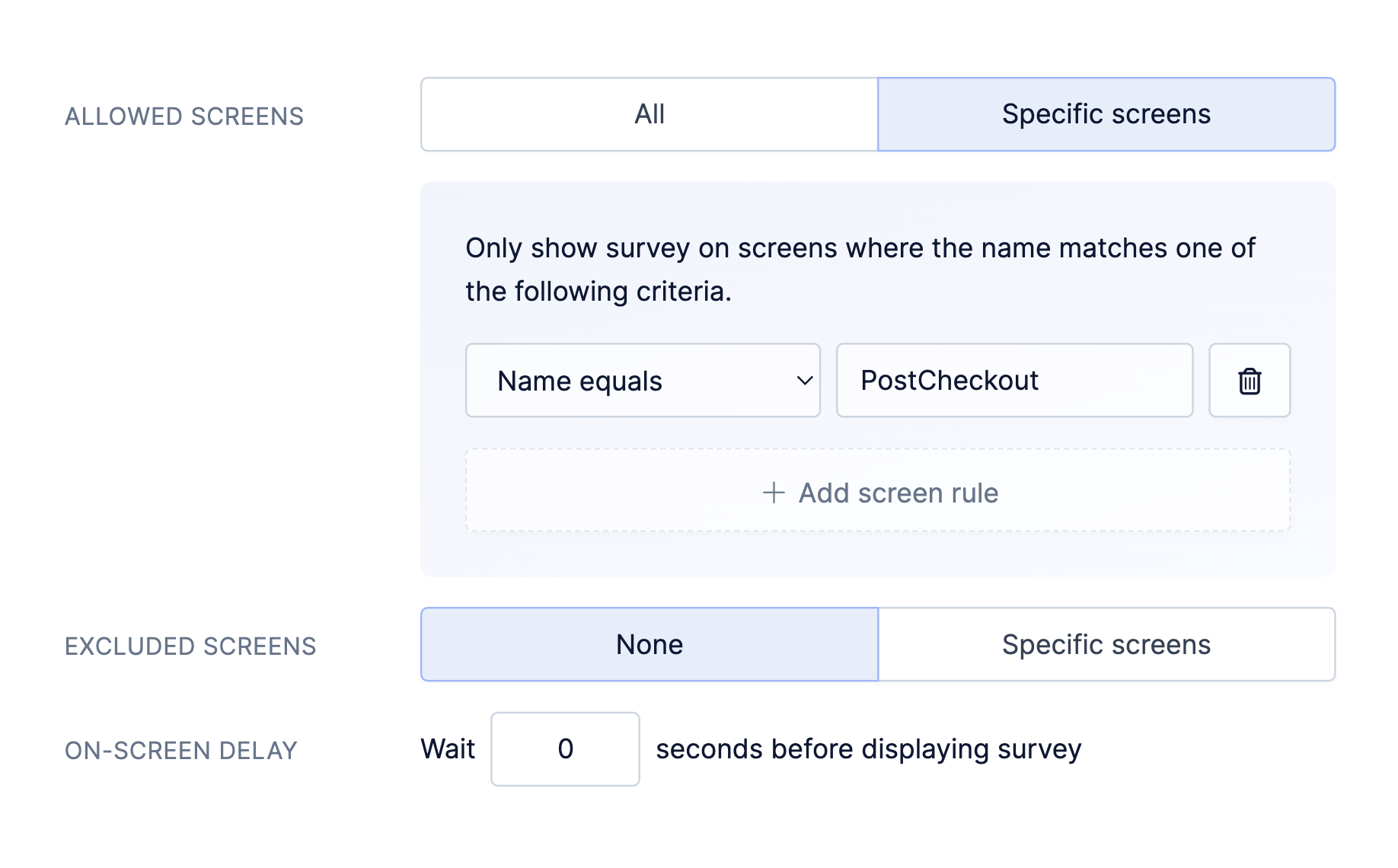
Each rule has a comparison method followed by a comparison value. The supported comparison methods are:
| Method | Description | Example Value |
| Equals | Triggers when the screen name equals exactly the provided value. | CheckoutSuccessScreen |
| Starts with | Triggers on all screens that start with the provided value. | Checkout |
| Contains | Triggers when the provided value is located somewhere in the screen name. | Success |
| Matches Pattern | Triggers on screens that match a provided wildcard pattern. You can use * to indicate that variable parts of a screen name. | Checkout*Screen |
When you add multiple rules, a match occurs when at least one rule returns a positive result.