Multilingual Surveys
Introduction
Refiner comes equipped with a powerful dictionary based translation system.
You can create a dictionary for every language for which you would like to provide translations. In case of a missing translation, the survey will be shown in its original language as a fallback.
On this page we’ll describe how to create dictionaries, translate your surveys and how to set the user language client side.
Please note: The multi-language translation system described on this page is only accessible for customers on a Growth or Enterprise plan at the moment. Please contact us if you want to use it on a different subscription plan. As an alternative, you can also simply duplicate a survey for each language and translate all text items.
Getting started
As a first step you’ll create a dictionary for each language that you want to use in your survey campaigns. You can create a dictionaries in the global settings of your environment under SETTINGS > TRANSLATIONS.
A dictionary consists of a name, a unique identifier, the text reading direction (LTR / RTL), and the actual text translations.
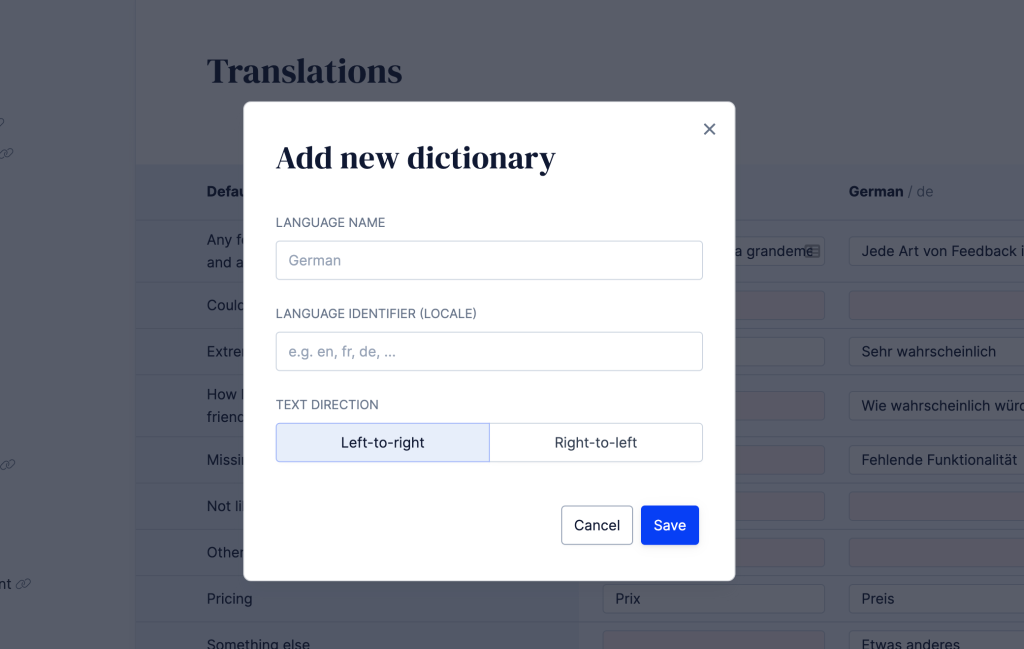
We recommend to use two letter ISO 639-1 language codes (e.g. en, fr, de, …) as the language identifiers of your dictionaries.
If you use the standardized two letter format, the translation of surveys will work seamlessly without the need to change any code.
You can also use custom language codes, for example if your app stores languages codes in a different format. In this case, you’ll need to set the language identifiers for each user as described further below.
Once you created a couple of dictionaries, you are ready to start translating your surveys.
Translate survey
Refiner allows you to quickly create, adjust and verify translations while you are are creating a survey.
If your user profile has the necessary rights and if at least one dictionary was created, you’ll see an earth symbol next to all form inputs with translatable text. The symbol appears in green if translations for all languages are available and in red when translations are missing.
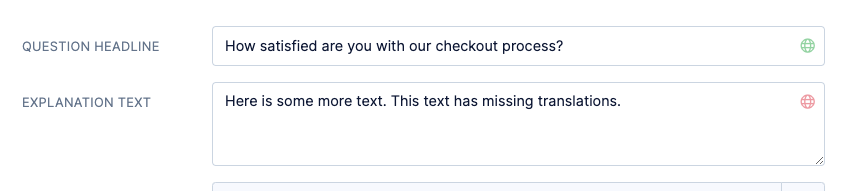
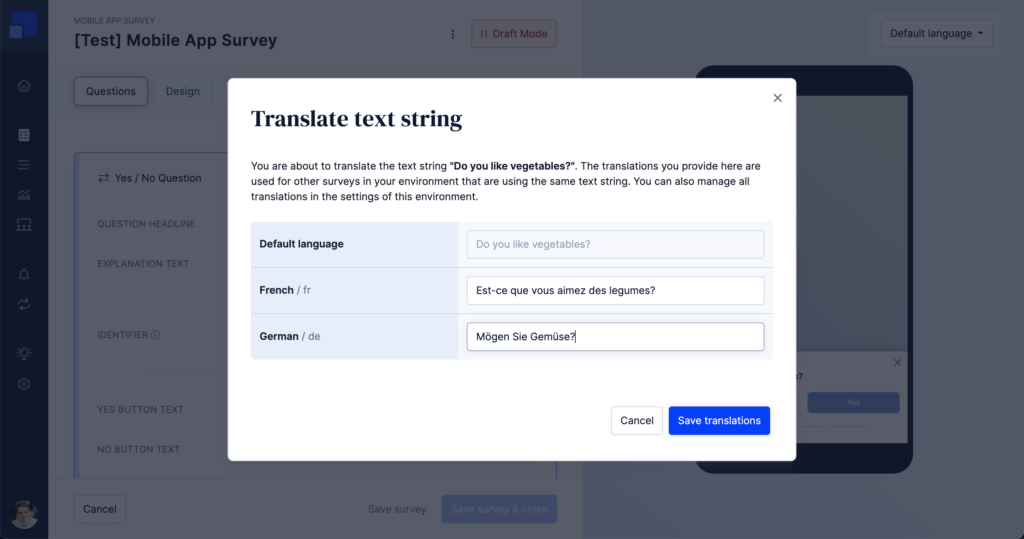
When you click on the earth symbol, you’ll access a modal to translate this particular text item. The translation you provide in the modal will be used for all surveys in your environment that are using the exact same text.
Translation Hub
Next to translating surveys as you create them, you can also use the Translation Hub to manage all dictionaries and translations in one central place. You can find the Translation Hub in the settings of your Refiner environment.
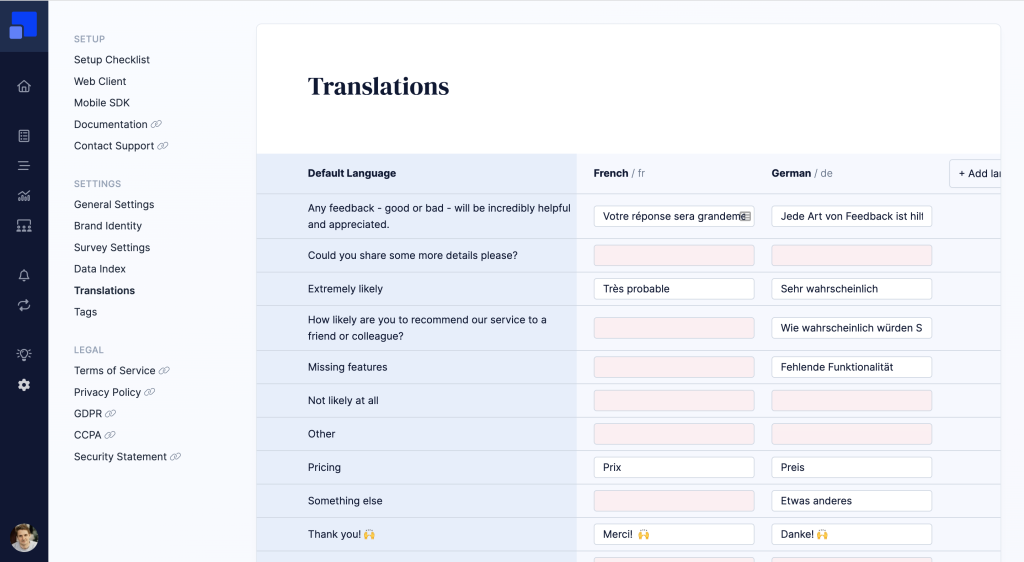
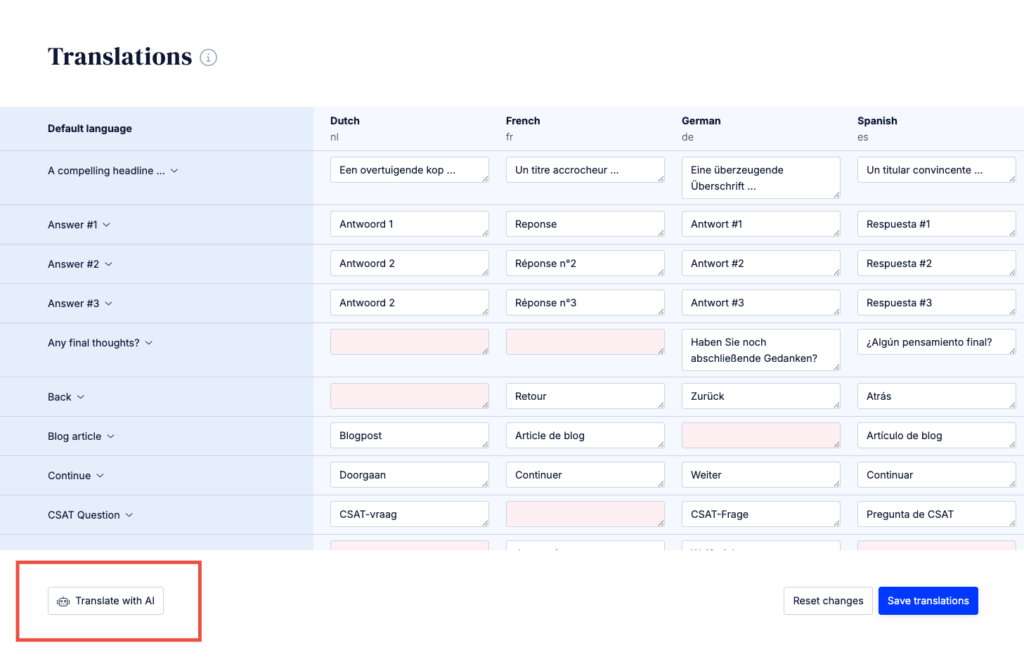
Each text token used in your surveys is represented as a table row, with the original text in the first column. This list is generated automatically and includes all text tokens that are currently used in your surveys. You can think of this list as your default language.
Translating a text token will provide a translation for all surveys using this specific text.
You can either translate text fragments row by row, or work your way through the matrix column by column.
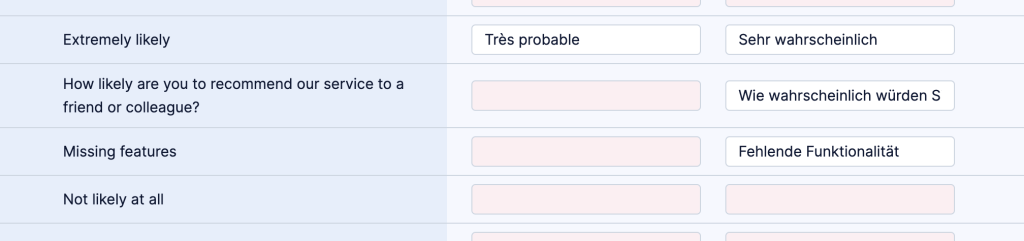
Missing translations are marked with a red background. If a translation for a text fragment is not available, the default language of the survey is used as fallback
Translate with AI
Next to translating text tokens manually you can choose to let AI do the heavy lifting. With a simple click of a button, Refiner AI translates all missing text tokens for you.
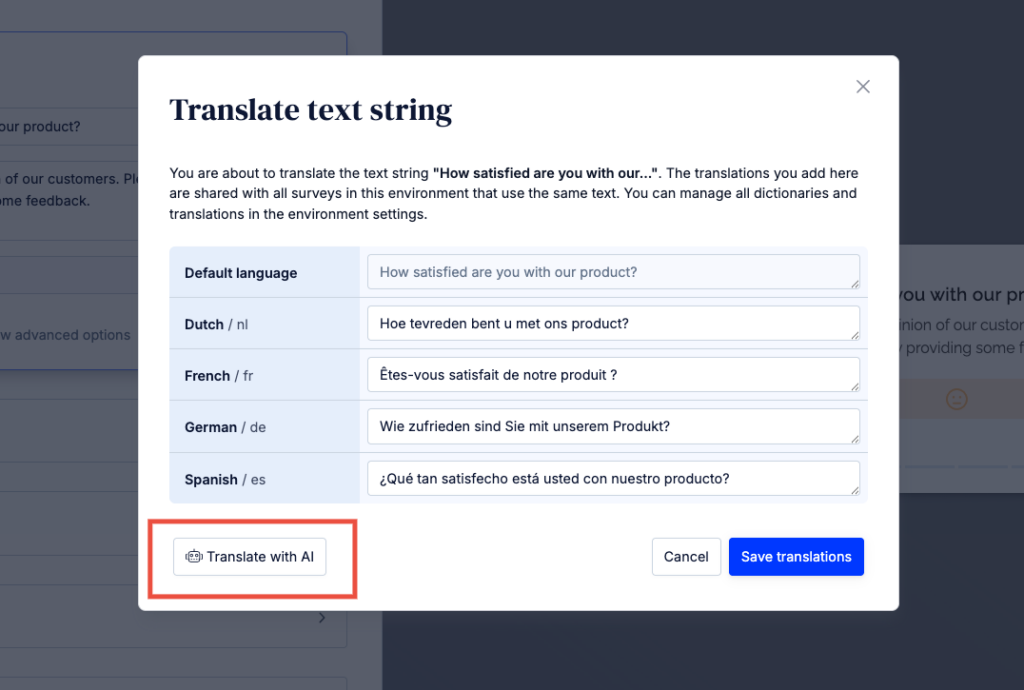
The AI translation feature is available both in the Translation Hub and directly within the survey editor while creating or editing a survey.
To make AI Translations work reliable, please use common english language names (e.g. German, French, Italian, …) for your dictionaries
Preview translated surveys
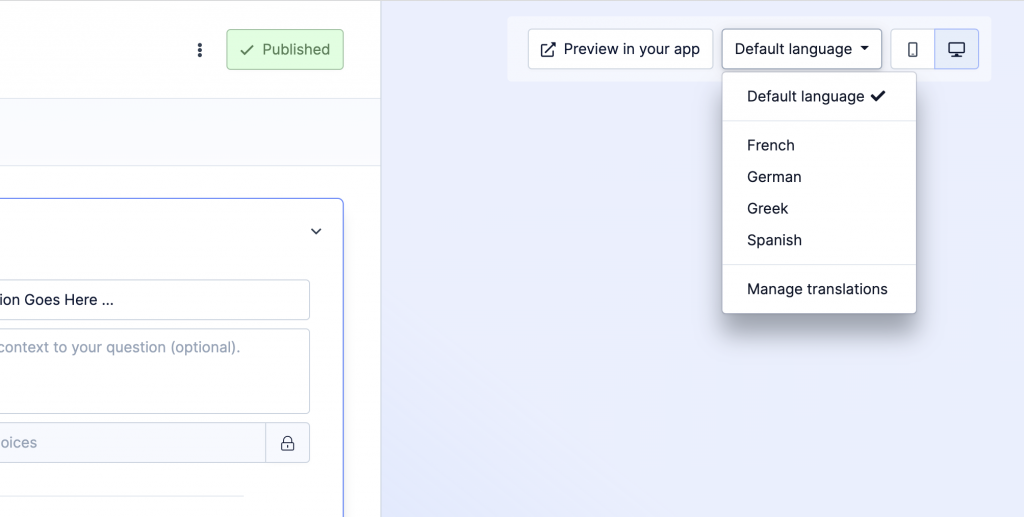
When the translation feature is enabled for your account, you’ll see a language switcher in the top right section of the survey editor. Changing the language here will automatically translate the survey preview.
Import & export dictionaries
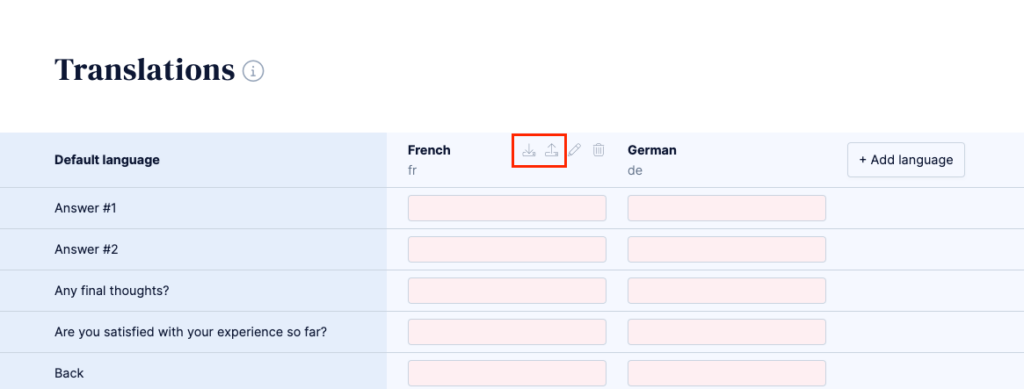
Customer using a third party service for translations can export and import dictionaries in JSON format.
The JSON file allows customer to use dedicated translation tools, or outsource the translation process to third parties without giving them access to your Refiner account.
Set user language
JavaScript SDK
If you stick to the ISO 639-1 norm for your dictionary slugs (e.g. fr for French, de for German, …), translations are provided seamlessly by detecting the preferred web browser language of your user.
If you are using custom language codes, or if you simply want to explicitly set the user language, please use the setLocale method as described here.
Mobile SDK
Whenever you identify a mobile app users with the “identifyUser” method, you’ll also provide a locale value as described here.
Survey Pages
If you stick to the ISO 639-1 norm for your dictionary slugs (e.g. fr for French, de for German, …), translations are provided seamlessly by detecting the preferred web browser language of your user.
You can explicitly set the language of a Survey Page by providing a “locale” URL parameter as described here.
Email Surveys
If you stick to the ISO 639-1 norm for your dictionary slugs (e.g. fr for French, de for German, …), translations are provided seamlessly by detecting the preferred web browser language of your user.
You can choose to explicitly set the language of a Email Survey Page when generating the HTML embed code as described here.