List Segments
What are List Segments?
List Segments let you freely group people in your Refiner environment. You’ll add and remove users manually – either by selecting them one by one of your existing segments, or by copy & pasting a list of users from other tools.
When to use List Segments
List Segments are a great fit when you want to manage a survey’s Target Audience manually.
For example, you can import a list of users exported from a third-party tool such as your CRM, product analytics platform, or BI tool, and use that list to define who should see a survey.
Another common use case is testing. You can create a List Segment containing your own user ID and the IDs of your colleagues – for example, a “Staff Members” segment – and use it as the Target Audience while testing a new survey setup. This ensures that only your team can see the survey before you make it available to a broader audience.
Create a List Segment
To create a new List Segment click on “Create segment” in the left side bar where you see all your segments. Then enter the name of your new segment and choose “List Segment”.
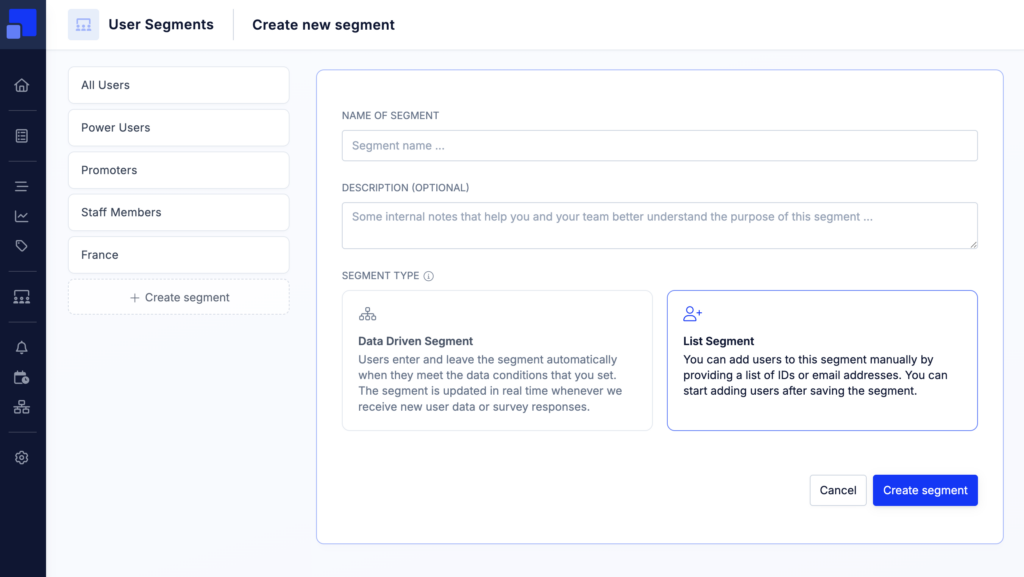
Once confirmed, you’ll find the segment in the left sidebar next to all other segment. List Segments are labelled as such next to their page title.
Add users to a List Segment
On the User Segments list, select as many users as you like. Then, click on “Action > Add to segment”.
You can find users by navigating through the list, or search for specific users using the search. The search finds users by their ID, their email address and their name.
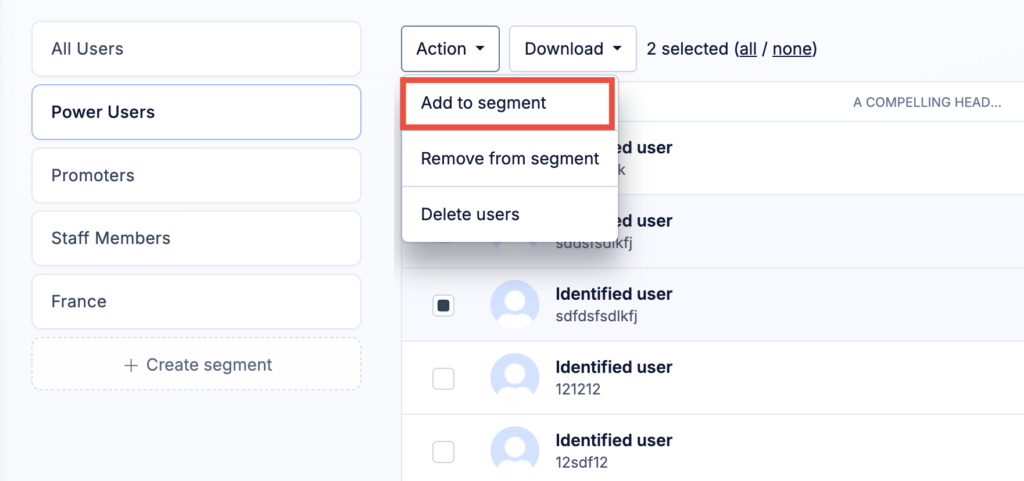
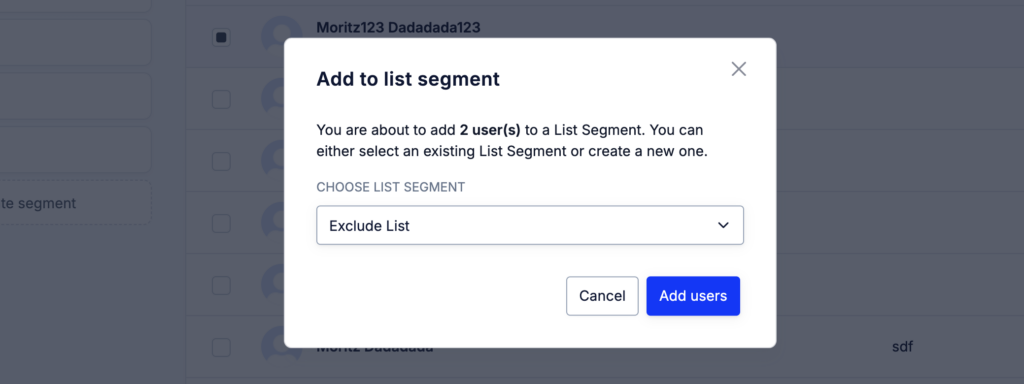
You’ll then be prompted to choose and existing List Segment or create a new one.
Import users by Id or Email
List Segments also allow you to import users from a third party source. For example a spreadsheet or an export from another tool you are using.
Click on “Add Users” in the top right corner of the segment page.
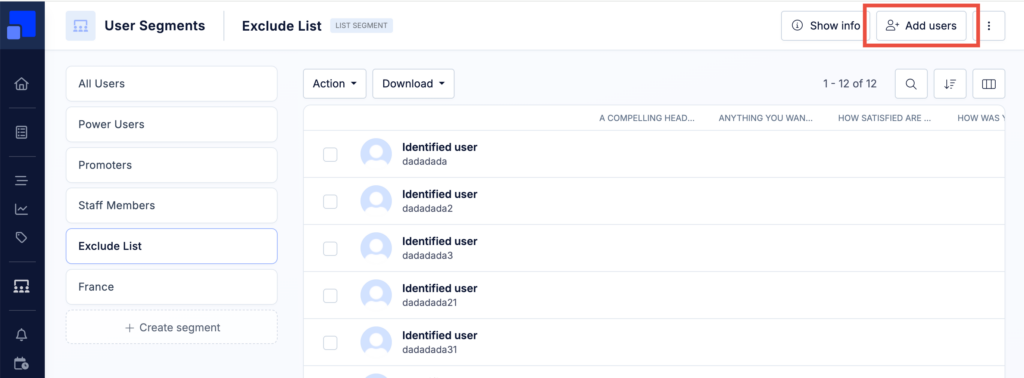
You have two options for importing user groups from a third party source. You can either provide a list of User IDs, or a list of email addresses.
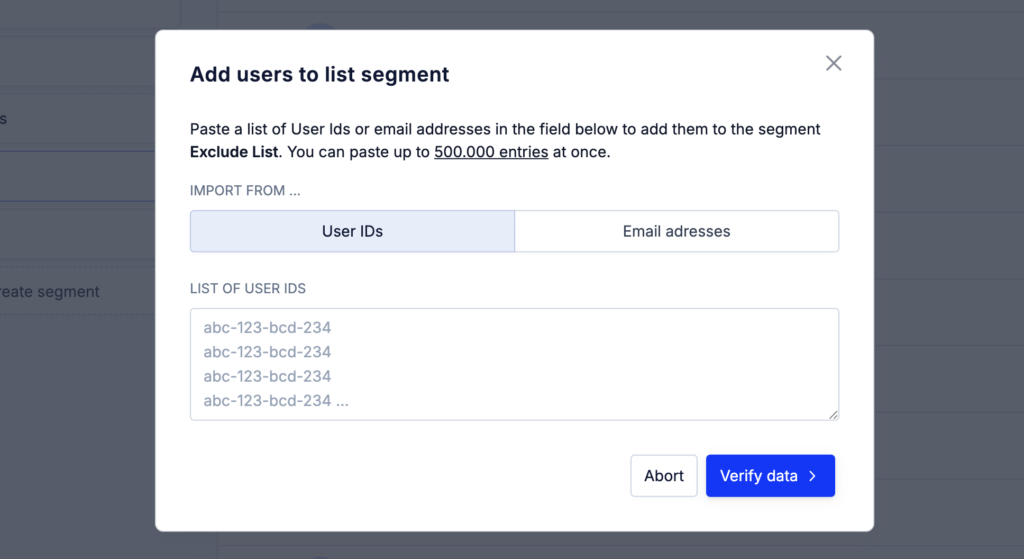
Which option you’ll choose depends on what data you have at hand. Both options will trigger the same behaviour, which is:
- For each provided value, Refiner will try to identify an existing user in your user list
- If no user can be found, Refiner will create a new user using the provided user id or email address
- The identified or newly created user will be linked to your List Segment