ChatGPT Integration
Introduction
This guide explains how to connect Refiner to ChatGPT so you can analyze survey response data directly within your conversations. Once connected, you can leverage ChatGPT’s natural language capabilities to summarize open-ended responses, detect trends, extract themes, and generate actionable insights from your survey data.
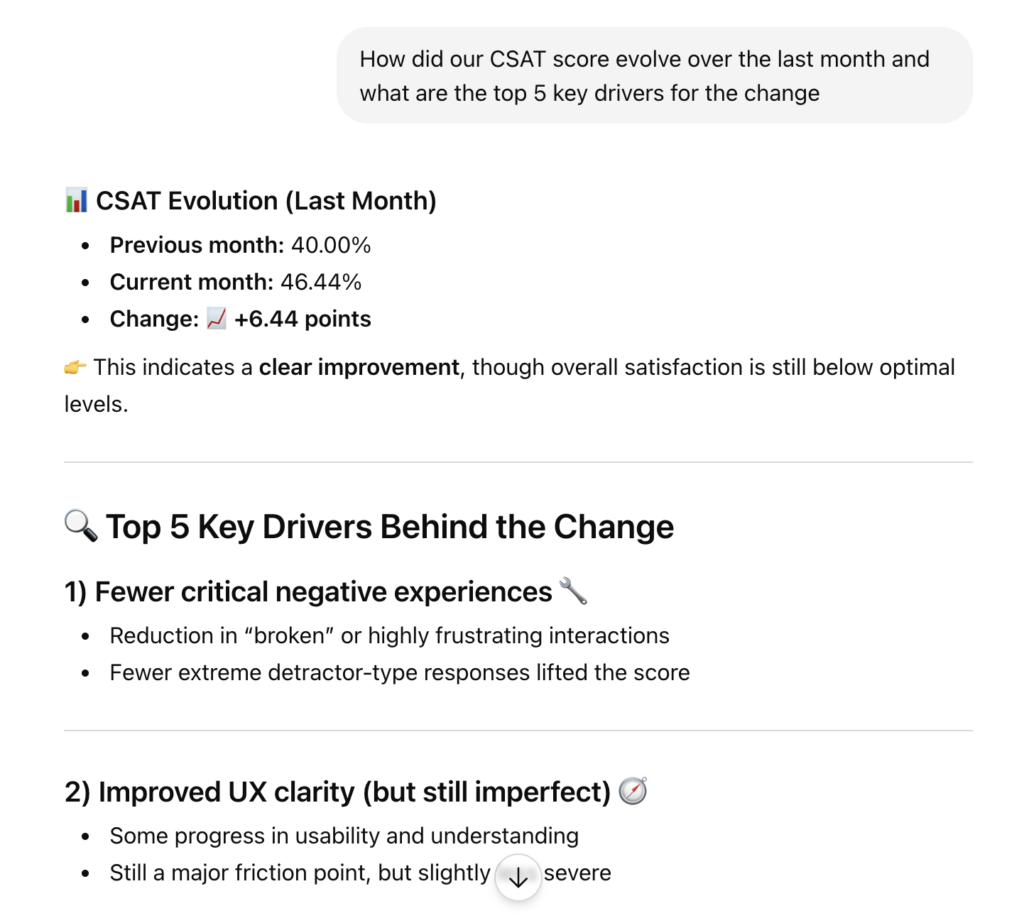
By integrating Refiner via its MCP (Model Context Protocol) server, you enable ChatGPT to securely access and process your survey data. This allows you to:
- Summarize qualitative (open-text) responses
- Identify recurring themes and sentiment
- Segment feedback by user attributes
- Detect trends across time or cohorts
- Generate insight reports instantly
After connecting Refiner to your ChatGPT account, ChatGPT can access both individual survey responses and aggregated survey data (such as NPS and CSAT scores, as well as response distributions).
To protect user privacy, no contact information (user IDs, names, email addresses, etc.) is shared with ChatGPT.
An exception applies if you explicitly collect personally identifiable information (PII) within your surveys (for example, email addresses). In that case, this data is treated as part of the survey responses and will be shared with ChatGPT.
Connect Refiner to ChatGPT
Connecting your Refiner account to ChatGPT is straightforward. Visit the ChatGPT apps catalog and search for “Refiner” to find the official connector, or access our app listing directly here.
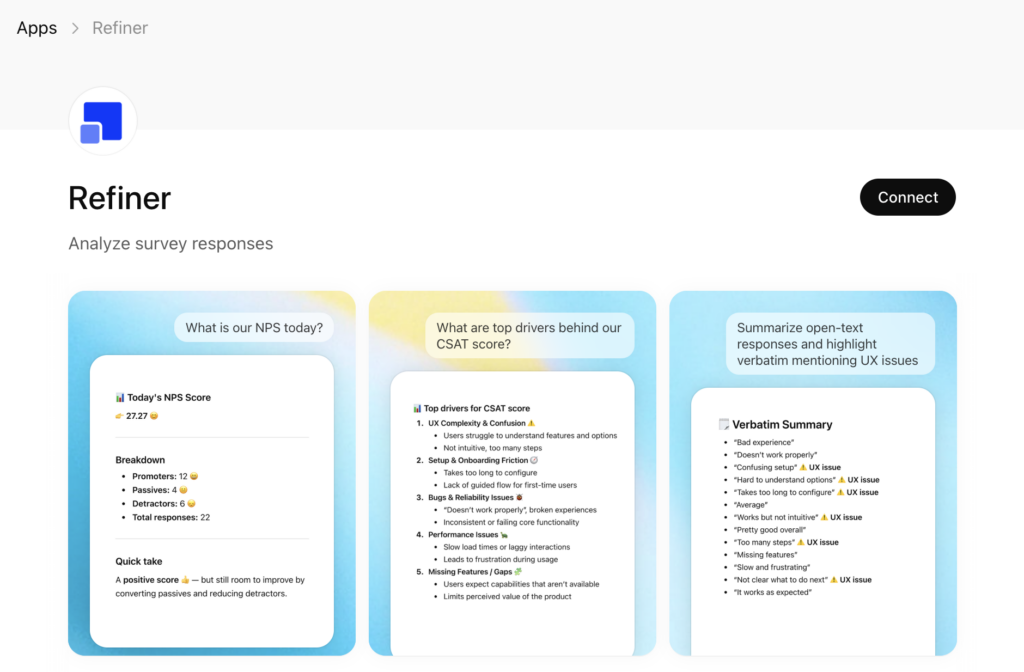
On the Refiner app page, click “Connect” in the top-right corner, then select “Connect Refiner” to grant ChatGPT access to your account.
You’ll be redirected to your Refiner account to review and authorize access to your data.
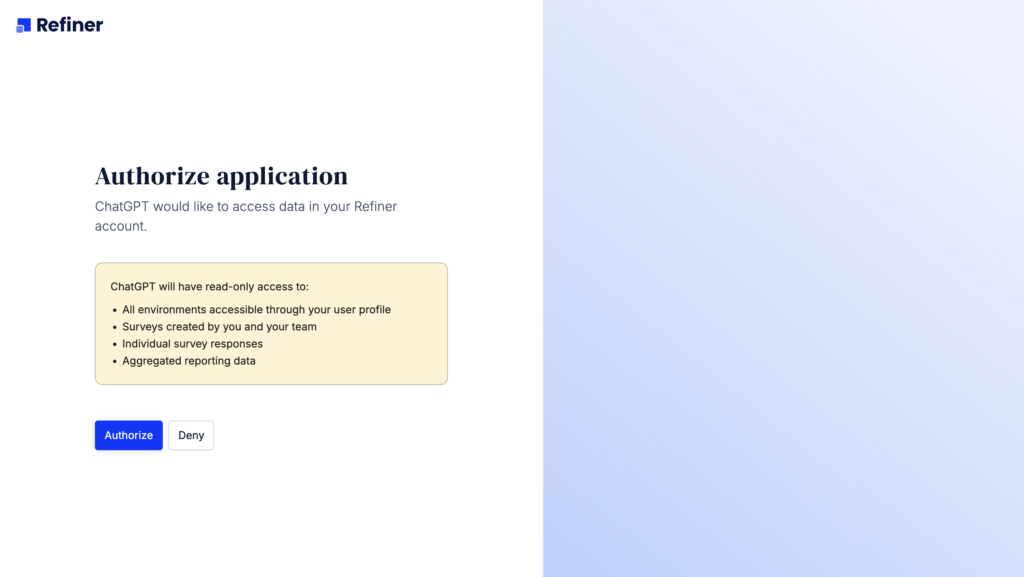
Once authorization is complete, you’ll be redirected back to ChatGPT. Your Refiner account is now connected, and you can start analyzing your survey data.
Start analyzing survey data
After connecting, you can immediately begin querying your survey data using natural language prompts. Simply ask questions as you would to an analyst – for example, request a summary of recent NPS responses, identify common themes in open-ended feedback, or compare CSAT scores over time.
You can refine your queries by specifying segments, date ranges, or particular surveys to get more precise insights.
Below you’ll find a list of sample prompts that you can use to get started.
Example use cases
Summarize open-text responses
- “Summarize the key feedback from my latest NPS survey”
- “What are the main complaints mentioned in responses?”
Identify trends & themes
- “What themes appear most frequently in customer feedback?”
- “What are the top reasons users gave for low satisfaction scores?”
Segment analysis
- “Compare feedback between promoters and detractors”
- “What do users from France mention most often?”
Sentiment & insights
- “Analyze sentiment across all responses”
- “What actionable insights can I derive from recent feedback?”
Sample prompts
NPS feedback analysis
- “What is our current NPS score?”
- “What are the key drivers behind the score according to provided open-text verbatim?”
- “How did our NPS score evolve in the last month?”
- “What are the top five things we can do to improve our NPS score?”
CSAT feedback analysis
- “What is our current CSAT score?”
- “What are the key drivers behind the score according to provided open-text verbatim?”
- “How did our CSAT score evolve in the last month?”
- “What are the top five things we can do to improve our CSAT score?”
Trend detection
- “How has user sentiment changed over the past 3 months?”
- “Are there emerging issues in recent responses compared to older ones?”
- How did our CSAT score evolve in the last month and what were the drivers for the change?”
Product insights
- “What are the top 5 recurring pain points mentioned by users?”
- “What features do users request most frequently?”
- “Based on the feedback, what should we prioritize improving?”
- “What frustrations do users mention about <something>?”
- “Get the latest survey responses and turn the list of product recommendations”
Best practices
- Be specific: Narrow queries produce more actionable insights
- Iterate: Refine prompts to dig deeper into patterns
- Segment data: Analyze subsets (e.g., by score, date, user segment)
- Combine queries: Ask follow-ups to expand on initial findings
Troubleshooting
Connector not working?
- Verify the MCP URL is correct
- Ensure your ChatGPT plan supports custom connectors
- Re-authenticate your Refiner account
No data returned?
- Confirm your Refiner account has survey responses
- Check permissions granted during setup
Summary
Connecting Refiner to ChatGPT unlocks a powerful workflow for survey analysis:
- No manual exports
- No complex dashboards
- Just natural language insights, instantly
Once set up, ChatGPT effectively becomes your AI research assistant, helping you turn raw survey data into clear, actionable decisions.