
Getting Started with Refiner
Refiner is a customer feedback platform built for web and mobile applications. It helps you collect contextual feedback from your users, analyze what they tell you, and turn those insights into action.
Refiner specializes in In-App Surveys, but you can also collect feedback through hosted Survey Pages, Email Surveys, and surveys embedded directly into your website or application.
This page gives you a quick overview of how Refiner works and where to start.
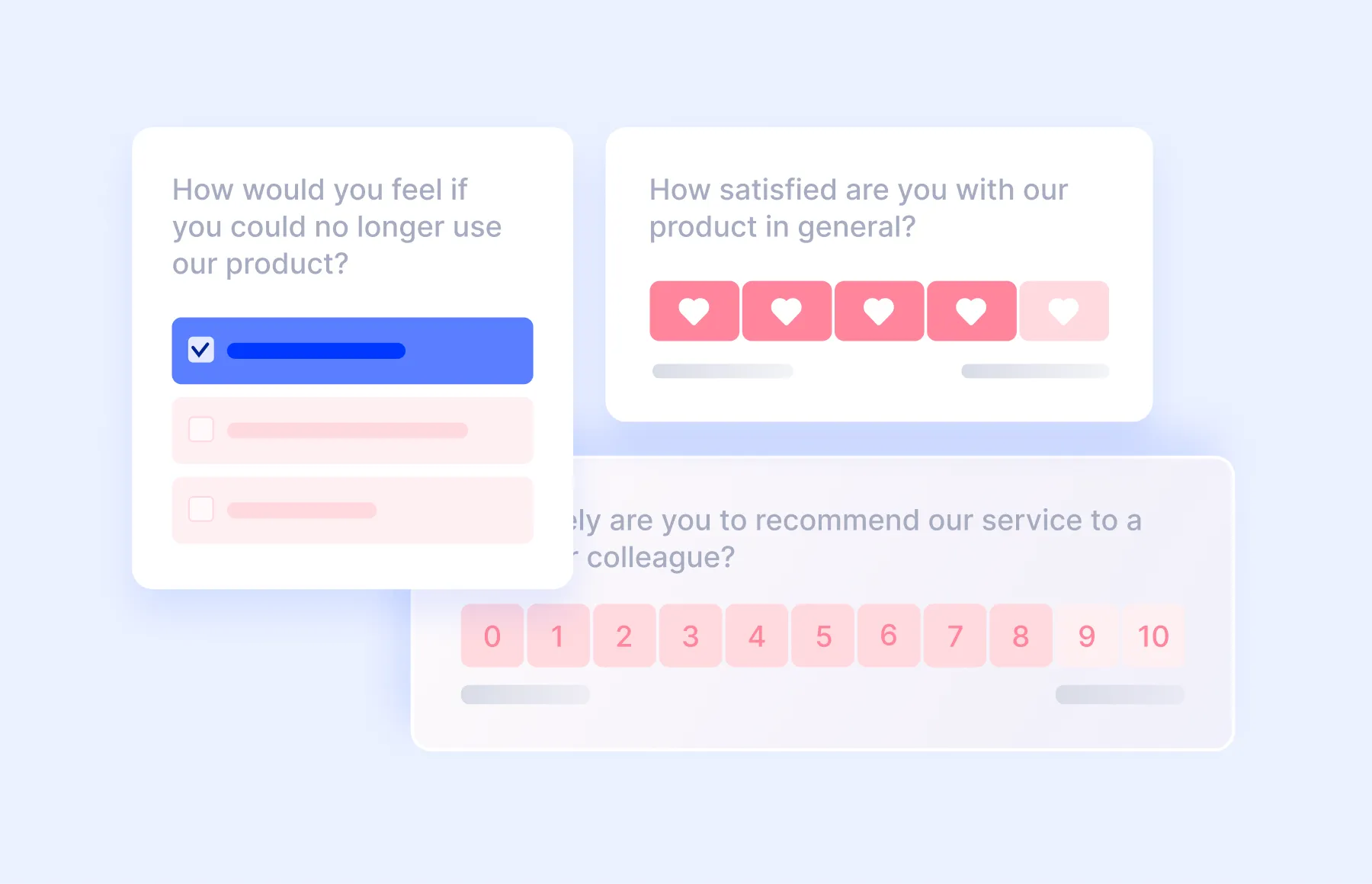
What you can do with Refiner
Section titled “What you can do with Refiner”Refiner can be used throughout the customer journey to collect both quantitative and qualitative feedback.
Common use cases include:
- Measure customer satisfaction with NPS, CSAT, or CES
- Collect product and feature feedback
- Research user needs and preferences
- Understand onboarding experiences
- Identify churn reasons
- Profile and segment users
- Measure marketing attribution
- Recruit users for interviews
- Announce new features or events
- Display contextual calls-to-action
You can start with one of our ready-to-use Survey Templates or build your own survey from scratch.
Choose how to survey your users
Section titled “Choose how to survey your users”Every survey in Refiner uses a Delivery Method that determines where and how users encounter it.
Refiner supports Web App Surveys, Mobile App Surveys, Survey Pages, Email Surveys, and Embed Surveys.
In-App Surveys (Web & Mobile) are our primary use case and let you collect contextual feedback directly inside your web or mobile application. Other Delivery Methods let you share hosted survey links, collect feedback through email, or embed surveys directly into a page.
Learn more about the available options in Survey Delivery Methods.
How Refiner works
Section titled “How Refiner works”A typical workflow in Refiner looks like this:
- Create a survey – Choose a Delivery Method and start from a template or from scratch.
- Customize it – Add questions, change the wording, and adapt the design.
- Configure delivery – Define how the survey should reach your users.
- Collect responses – Responses appear in Refiner as soon as users start interacting with the survey.
- Analyze feedback – Review responses, apply Tags, and build Dashboards.
- Take action – Notify your team, send Digests, or sync feedback with other tools through Integrations.
You don’t need to configure everything at once. The easiest way to learn Refiner is to launch a simple survey first and expand your setup as you become familiar with the platform.
Start with the Quickstart
Section titled “Start with the Quickstart”If you are setting up Refiner for the first time, continue with our Quickstart.
The guide focuses on In-App Surveys and takes you through the complete setup—from installing Refiner and identifying users to creating, publishing, and testing your first survey.
If you want to use a Survey Page or Email Survey instead, you can skip the SDK setup and continue with the dedicated documentation for that Delivery Method.
Need help getting started?
Section titled “Need help getting started?”Our team is available to help you with your setup.
If you have questions about SDK installation, survey configuration, targeting, integrations, or anything else related to your Refiner setup, visit Contact Support.
You can also review Legal & Compliance if you need information about security, privacy, data processing, or compliance during your evaluation or onboarding.