Multiple Choice Question
Introduction
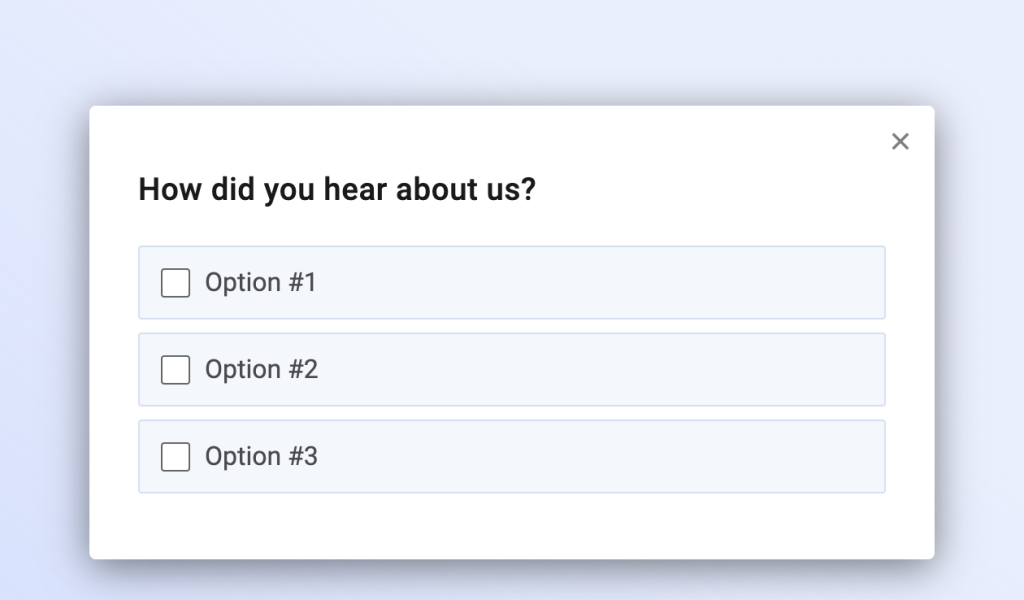
Multiple choice questions let users select from predefined answers. Use them to ask about preferences, team size, or how users discovered your product.
You can allow a single answer or multiple selections.
Add a Multiple Choice Question
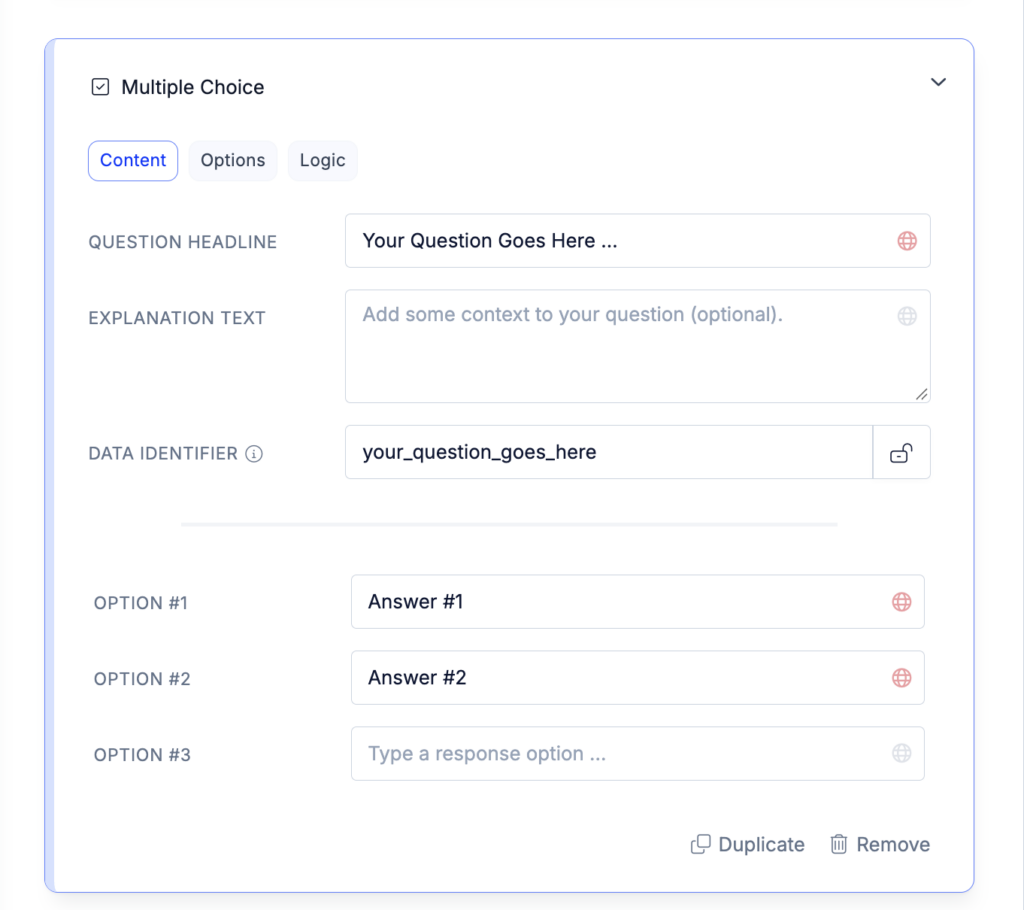
Add a Multiple Choice question in the Survey Editor, enter your question, and define the answer options. Enable Multiple Choices if users should be able to select more than one answer.
Customization options
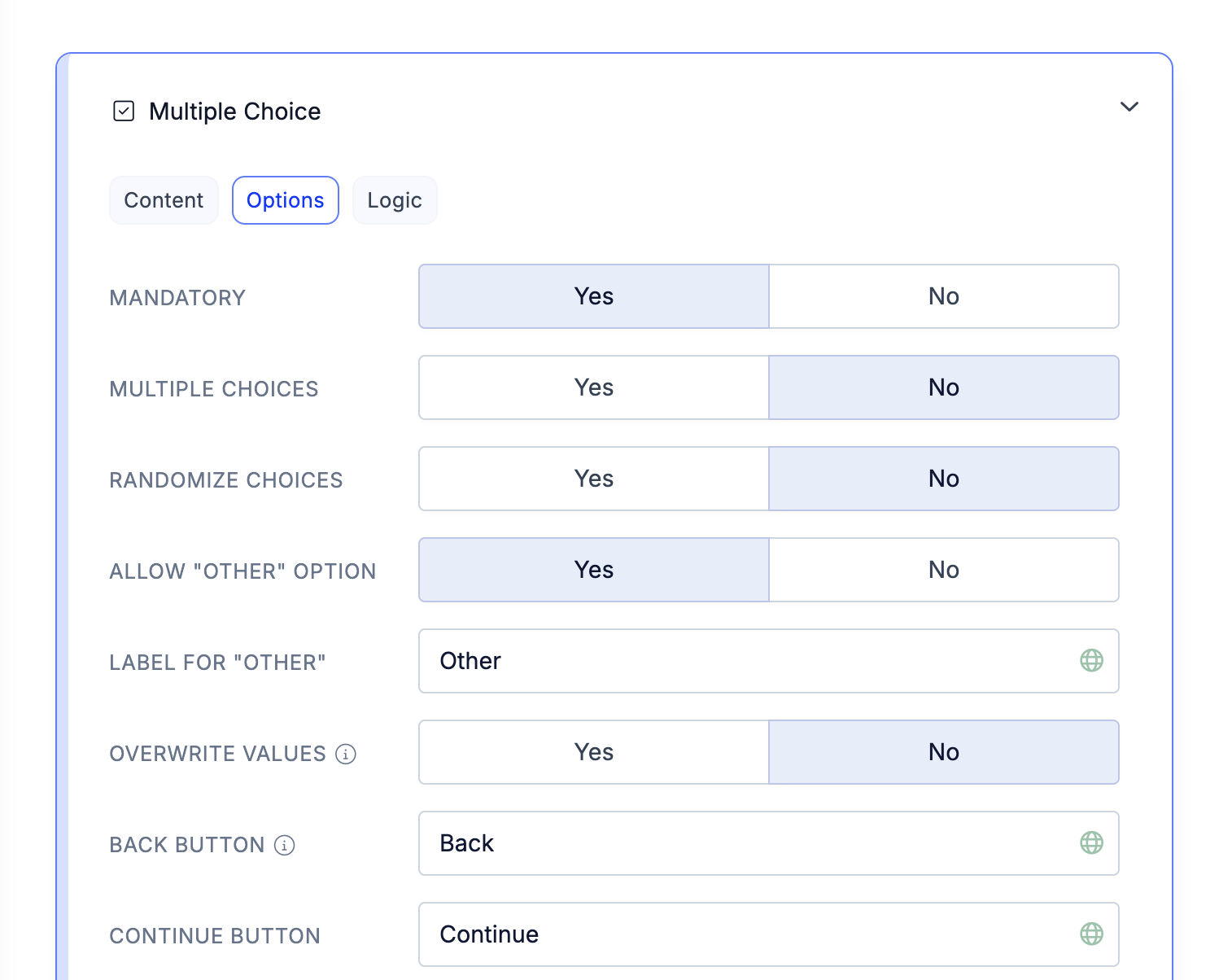
- Mandatory: Require users to select at least one answer.
- Multiple Choices: Allow multiple selections instead of a single answer.
- Randomize Choices: Display answers in random order to reduce order bias.
- Allow “Other” Option: Let users enter their own answer.
- Overwrite Values: Store an internal value for each answer while displaying a different label to users.
- Banner Image: Add an image to the question.
Visualize responses
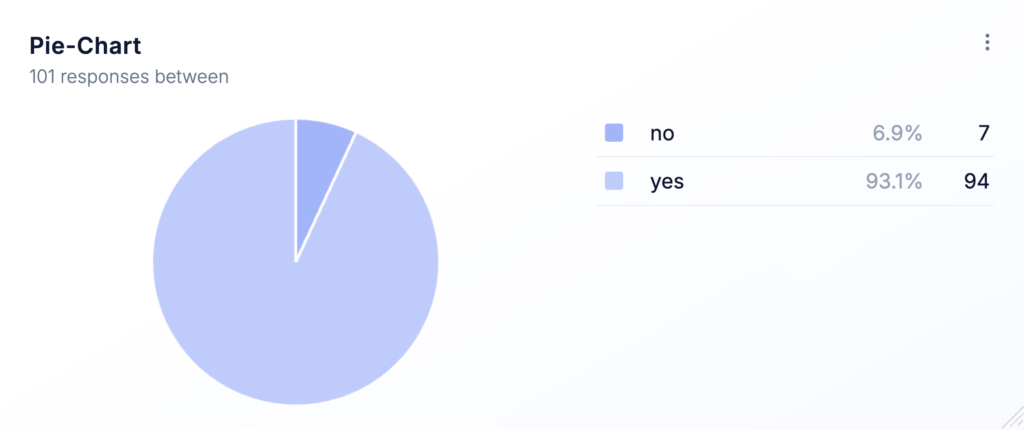
Analyze answers using Bar Charts or Pie Charts.
A Bar Chart is included when you generate an ad-hoc dashboard. You can also add either chart type to custom dashboards and filter by user segment, survey, or tags.
For questions allowing multiple selections, choose whether chart percentages are based on responses or selected answers. Percentages based on responses can total more than 100%.