Branding
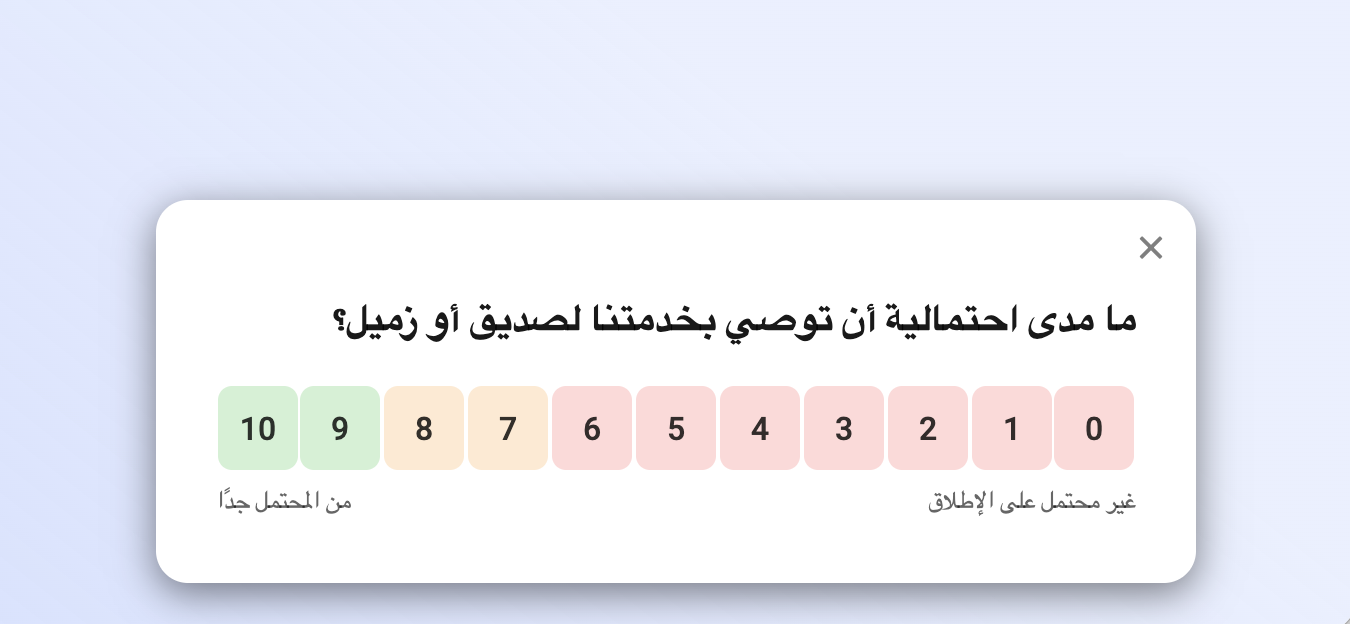
Branding options let you adapt the look and feel of your survey to match your product and brand. You can customize colors, add a banner image or avatar, and choose a font style that fits your user experience. This is especially important for in-app surveys, where a consistent design helps the survey feel like a natural part of your product instead of a disconnected third-party widget.
Color scheme
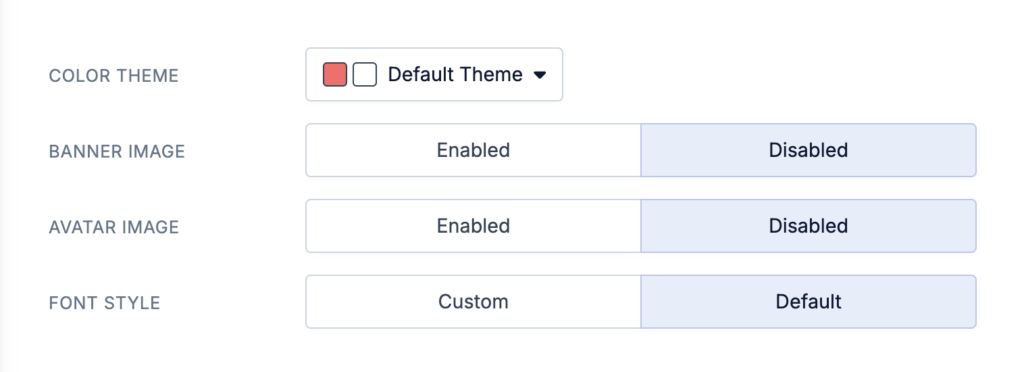
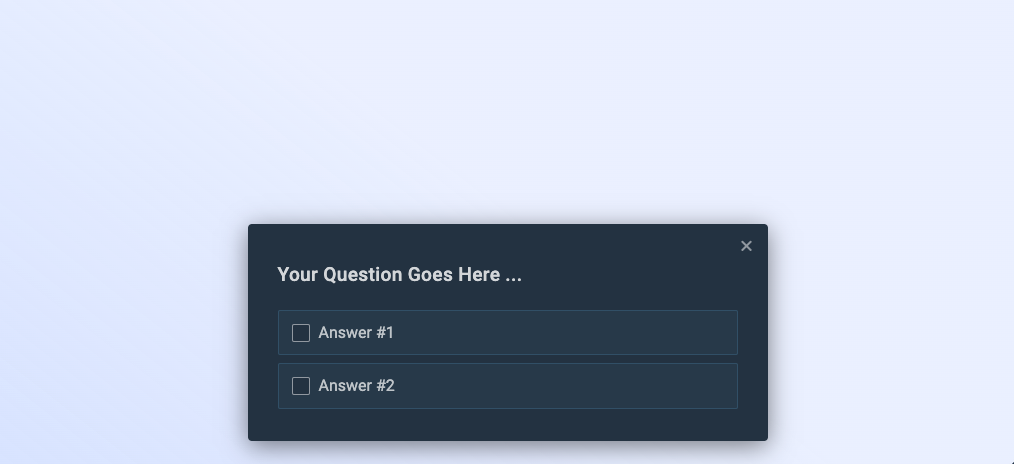
Refiner allows you to choose an Accent Color and Background Color for your surveys.
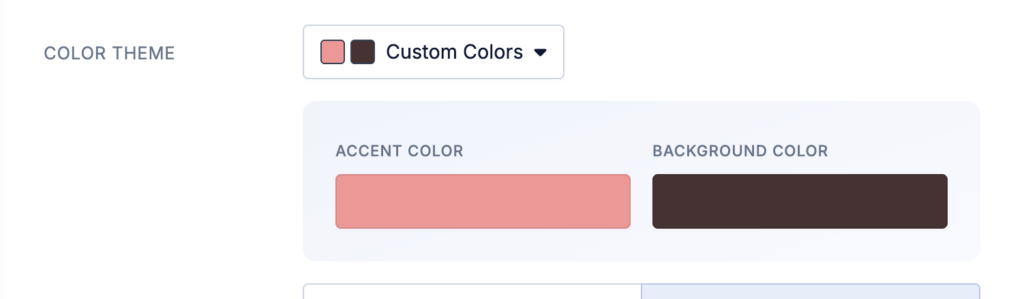
Both the Accent and Background Colors are used in different shades in your surveys for input fields and buttons.
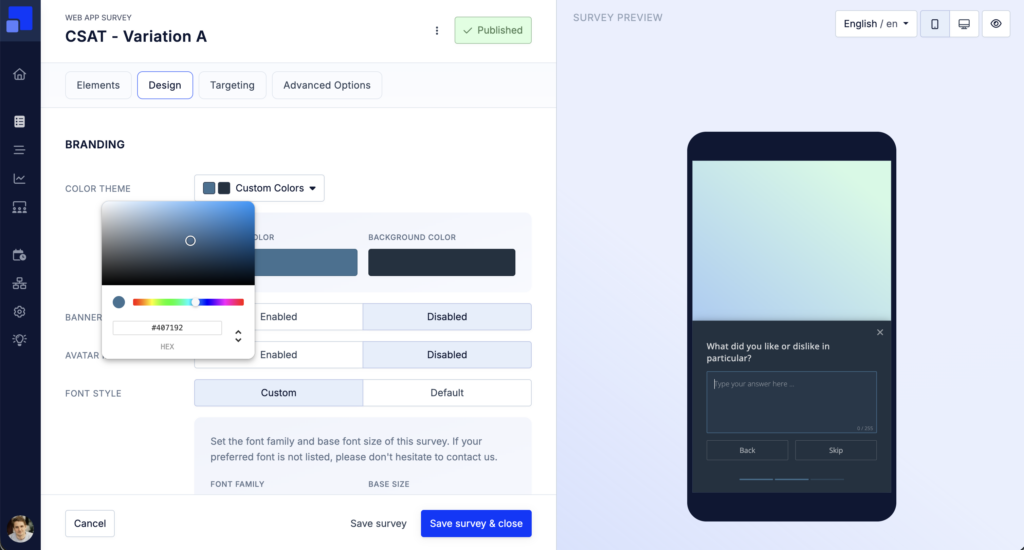
Depending on the brightness of background colors, Refiner will automatically set the text color either to Black or White. This mechanism ensures that your survey widget has enough contrast between text and background elements and that your survey is easy to read.
Banner images
Banner images are a great way to mirror your brand inside a Refiner survey. The option to upload custom banner images is available for In-product surveys on web and mobile.
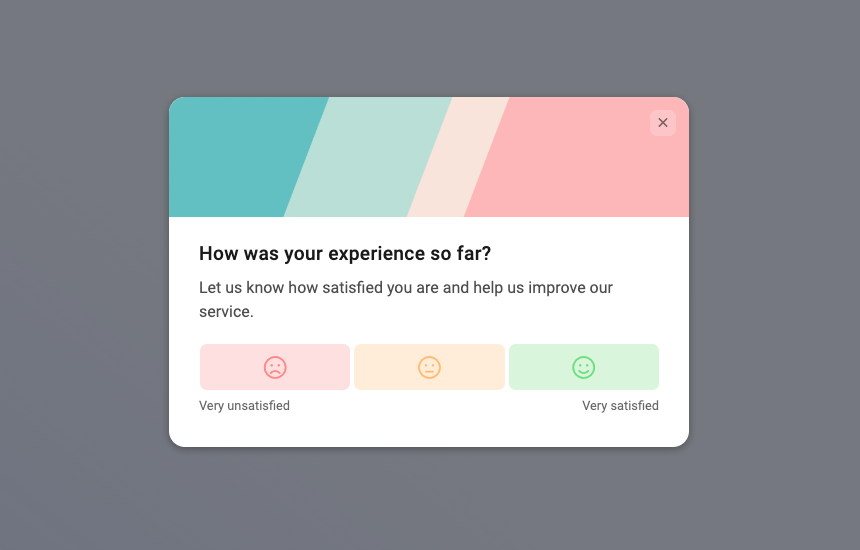
You can upload one banner image per survey in the Design tab. You can also choose to upload specific banner images for each question individually.
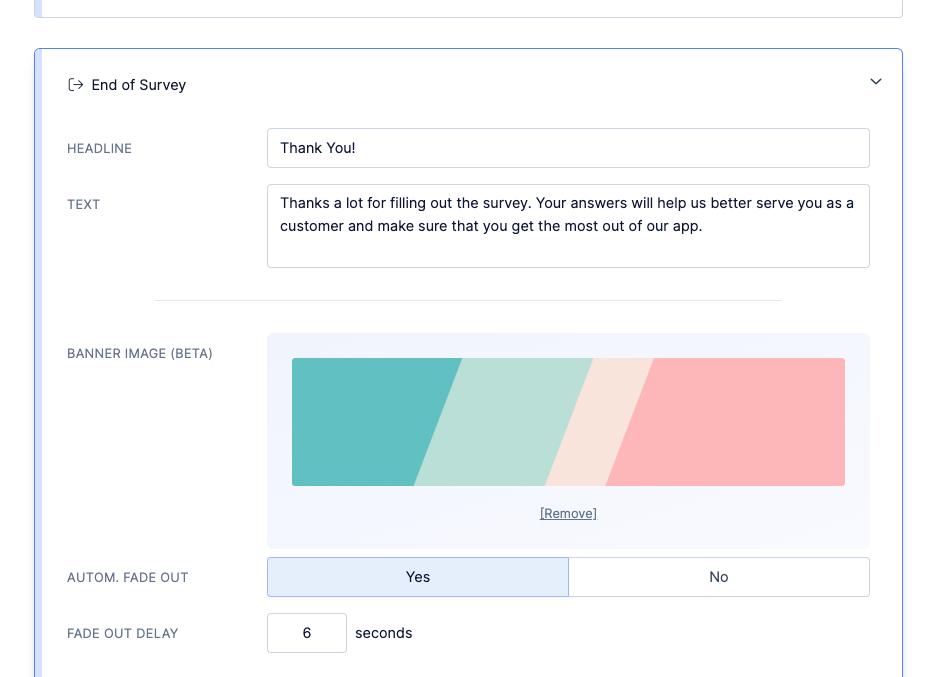
As an alternative to banner images you can also include images in the body text of your survey using Markdown syntax.
Avatar image
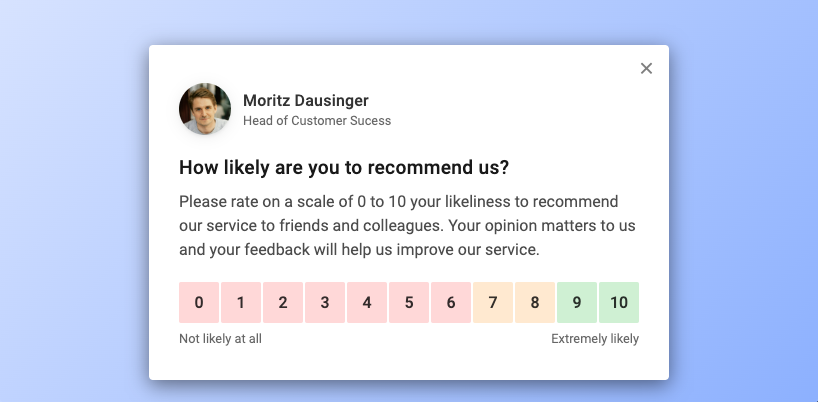
Adding an avatar, name and job-title to the top section of your survey widget will instantly give it a personal touch and make it more relatable. This usually results in higher response rates and overall better response data quality.
Upload logo
Survey Pages and Email Surveys let you upload a logo that is displayed in the top section of the survey page. You can also upload a page icon which is used by web browsers.
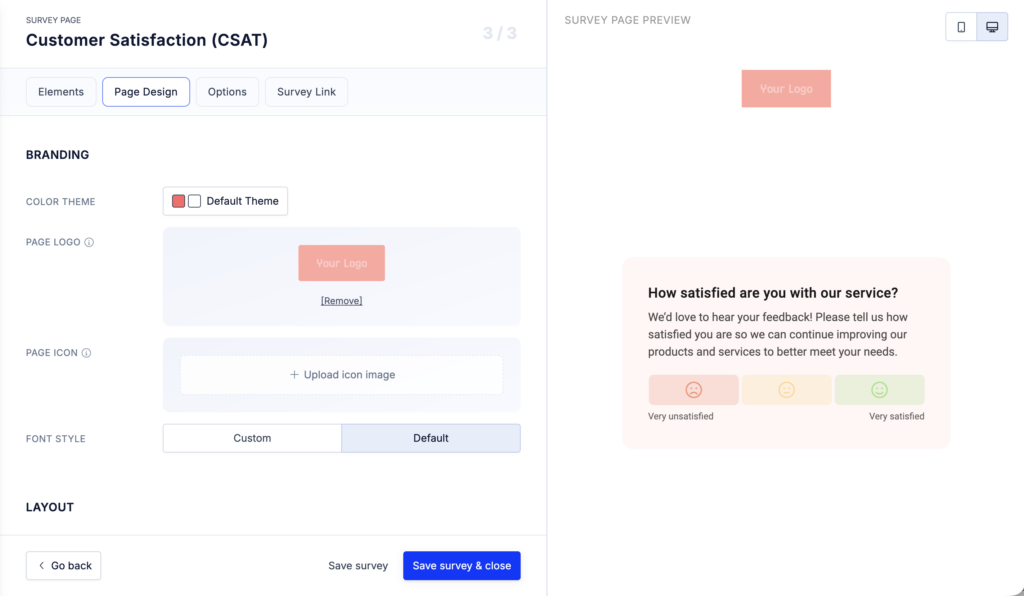
Font style
The default font of our surveys blends in nicely with most user interfaces and is optimized for high readability. By default, we are using the Roboto with a base font size of 16px.
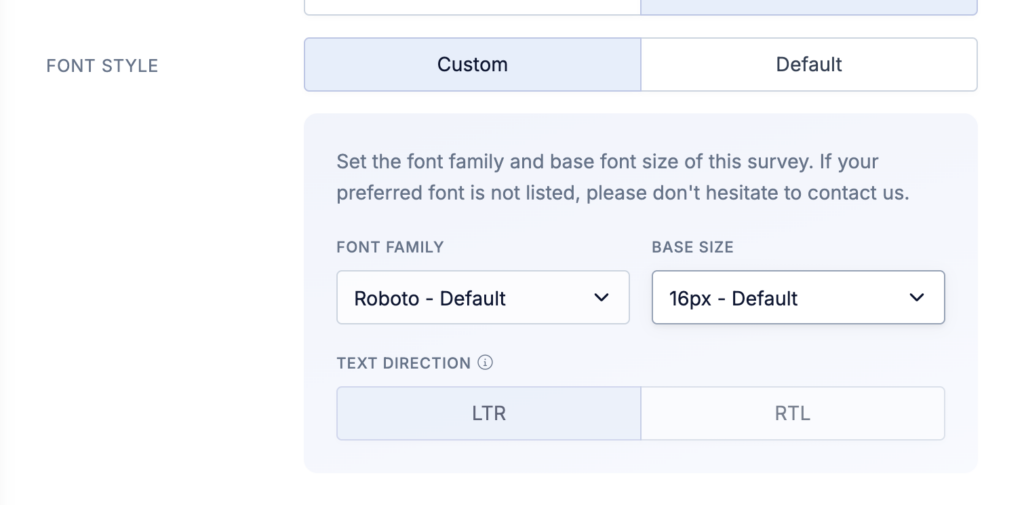
You can choose to use other popular fonts provided by Google Fonts, such as Inter, Poppins, Montserrat etc. You can also choose a smaller or bigger base font size. If you can’t find your preferred font in our list, please don’t hesitate to reach out to us.
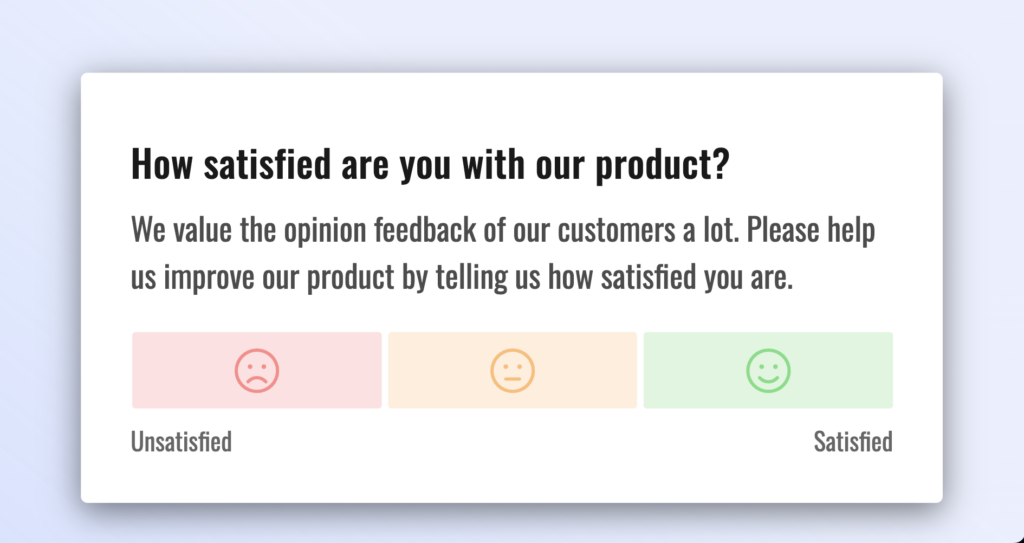
You can also switch the text direction from Left-to-Right (LTR) to Right-to-left (RTL). This setting might get overwritten for specific languages when using our Translations feature.